
When your iPhone reports that storage is full, do not delete apps at random. Open Settings, check which apps use the most space and decide whether to offload the app, remove its downloaded files or delete it completely. These actions have different effects. Offloading removes the installed app but keeps its documents and data. Deleting an app removes the app and its local data from the device.
Check what is using your iPhone storage
- Open Settings on your iPhone.
- Tap General, then iPhone Storage.
- Wait for the storage chart and app list to finish loading.
- Review the apps that use the most space.
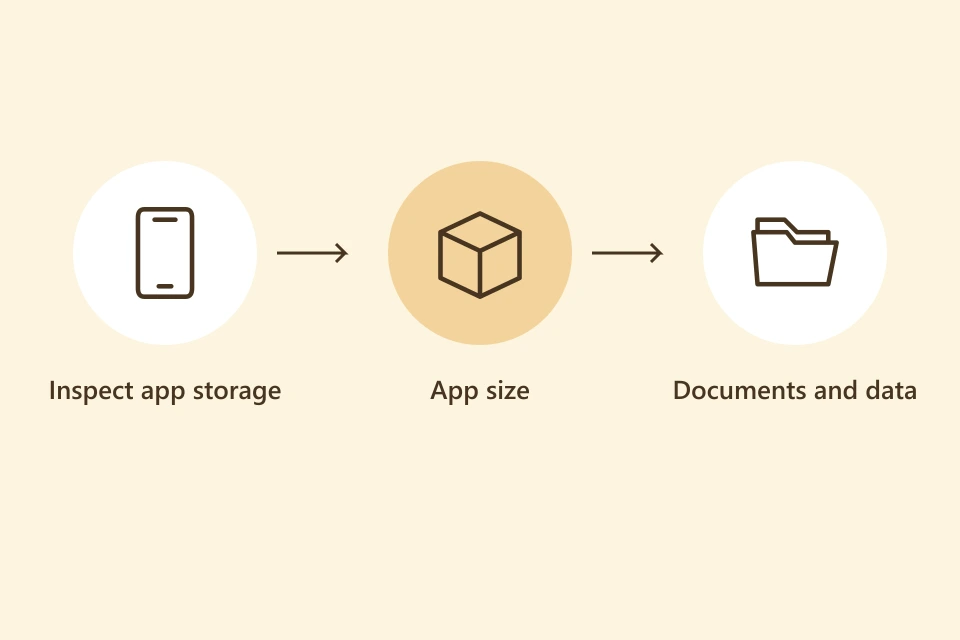
- Tap an app to compare its App Size with Documents & Data.
App Size describes the installed application. Documents & Data includes content associated with the app, such as downloaded videos, offline maps, messages, cached files or project data. The exact categories depend on the app. This comparison helps you decide which cleanup method will recover the most space.
What Offload App does
Offload App removes the installed application while keeping its documents and data on the iPhone. The app icon may remain on the Home Screen with a download symbol. If the app remains available in the App Store and your device supports it, you can reinstall it and use the retained data.
Offloading is useful when the application itself takes up a lot of space but its stored documents are small. For example, if an app uses 900 MB and its documents use 40 MB, offloading may recover most of the installed app size. Check that you can download the app again before offloading an older or discontinued app.
When to use Delete App
Delete App removes the application and its local data. This is a stronger cleanup option when you no longer need the app or when its local data is the main source of storage use. Before deleting, check whether the app stores information only on the phone or syncs it to an online account.
Some apps keep data in a cloud account. Others store recordings, downloads or project files locally. Deleting the app may remove local-only content. Open the app and review its backup, export or sync settings before you remove it. If the data matters, create and verify a backup first.
Choose between offloading and deleting
- Offload: Use it when you want to remove the installed app but keep its documents and data for later.
- Delete: Use it when you no longer need the app and have checked whether its local data is safe to remove.
- In-app cleanup: Use it when downloaded media or cached files occupy more space than the app itself.
Do not choose based only on the app’s total storage number. If an app is 150 MB but stores 4 GB of downloaded videos, offloading the app will not recover most of the space. Open the app and remove content you can download again or no longer need.
Remove large downloads inside apps
Streaming, navigation and social apps often store content for offline use. Look for sections such as Downloads, Offline content, Storage or Manage files inside the app. Remove old films, podcasts, maps or other downloads after confirming that you no longer need them offline.
For navigation, keep maps for places you will visit without reliable internet access. For travel, download tickets and essential documents before you leave. Open them once in offline mode to confirm that the files are available. Do not remove an offline map or ticket just to recover space if you still need it during the trip.
Review photos, videos and messages
Photos and videos often use more storage than individual apps. Review large videos and duplicate files before deleting them. If you use iCloud Photos, check that synchronization has completed and understand how deletion affects your other devices. A photo deleted from a synced library may disappear from the other devices connected to that account too.
Messages may contain large video attachments. Review the storage recommendations in iPhone Storage and remove only attachments you no longer need. Save important files to an approved location before deleting them. Check Recently Deleted where applicable because removed photos and videos may remain there for a period before permanent deletion.
Use automatic recommendations carefully
iPhone Storage may show recommendations such as offloading unused apps or reviewing large attachments. Read each recommendation before applying it. Automatic Offload Unused Apps can help when you regularly run low on space, but check whether you still need access to an app while offline or during travel.
Keep enough free space for system updates, camera use and app downloads. A phone with almost no free space may struggle to install an update or save a new video. After cleanup, return to Settings, General and iPhone Storage to confirm that the available space has increased.
What if storage does not increase?
Wait for iOS to recalculate the storage chart. Check whether the deleted content remains in Recently Deleted or an app’s own trash folder. If you removed synced content, confirm the sync status and check the cloud service’s storage behavior. Restarting the phone may help refresh the displayed storage information, but it will not restore files you deleted.
If System Data appears unusually large, avoid deleting unknown system folders or using untrusted cleaning apps. Restart the device, install supported iOS updates when appropriate and review Apple’s guidance. Contact Apple Support if storage remains abnormal after normal cleanup.
Common questions
Does offloading delete my app data?
Offloading keeps the app’s documents and data on the device while removing the installed app. Check the app’s own backup behavior before relying on that data as your only copy.
Does deleting an app cancel its subscription?
Deleting an app does not necessarily cancel a subscription billed through Apple or another provider. Review your subscriptions separately and cancel through the correct account if you no longer want the service.
Why does an app still use space after I offload it?
Offloading keeps documents and data. If that content uses most of the storage, open the app’s storage controls or review whether the data is safe to remove.
Can I reinstall an offloaded app?
You may reinstall it if it remains available and is compatible with your device. Check availability before offloading an app that is no longer listed.
Will deleting photos from my iPhone delete them from iCloud?
If iCloud Photos syncs the library, deleting a photo may remove it from other devices using the same library. Check sync settings and backup status before deleting important images.
Final storage checklist
- Review Settings, General and iPhone Storage.
- Compare App Size with Documents & Data.
- Offload apps you may need again and want to retain their data.
- Delete apps only after checking local data and backups.
- Remove offline downloads inside the apps that store them.
- Review large photos, videos and message attachments.
- Check the available space again after cleanup.
The same careful approach helps on a Windows computer. Read our guide to freeing up Windows storage without losing your Downloads. If you need to transfer a file between nearby phones, see how to send a file with Quick Share on Android.
Reference: Apple Support: Manage storage on iPhone.



