
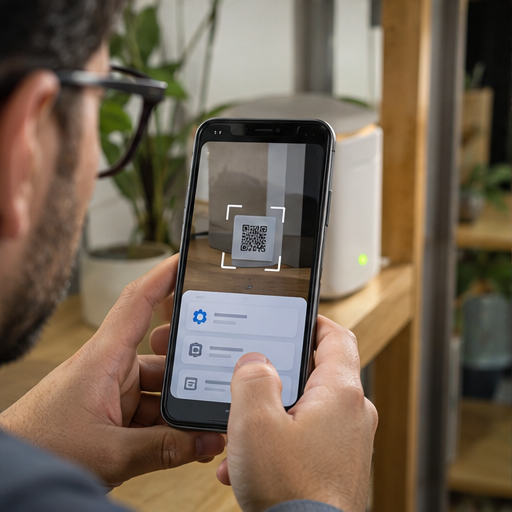
Quick Share lets you send photos, videos, documents and other files to a nearby compatible device without first uploading them to a shared folder. It is useful when two people are in the same room and need to exchange a file quickly. Before sending a work document or private photo, confirm the receiving device name and make sure the person accepts the correct transfer.
What Quick Share needs
Quick Share is available on supported Android devices and compatible computers. The exact settings depend on the device model, Android version and Google services installed. Nearby devices generally need wireless connectivity such as Bluetooth and Wi-Fi enabled. Keep the devices close together during discovery and transfer.
Quick Share may offer visibility choices such as Your devices, Contacts or Everyone for a limited time. The labels can vary by version. Choose the narrowest visibility option that works for the transfer. If you use a temporary public visibility setting, turn it off or return to your normal setting when the transfer finishes.
Prepare the receiving Android phone
- Unlock the receiving phone.
- Open Quick Settings and make sure Bluetooth and Wi-Fi are enabled.
- Open Quick Share from Settings or Quick Settings.
- Choose the appropriate receiving or visibility option for the session.
- Keep the phone awake and close to the sending device.
The receiver may need to approve the incoming transfer. Ask the recipient to check the sender’s device name before accepting. Do not accept unexpected files from an unknown device, especially in a public place.
Send a file from Android
- Open Files, Gallery or the app that contains the item.
- Select the photo, video or document you want to send.
- Tap Share and choose Quick Share from the sharing options.
- Wait for nearby compatible devices to appear.
- Check the device name with the recipient before selecting it.
- Ask the recipient to accept the transfer on their phone.
- Wait for the completion message before closing the sharing screen.
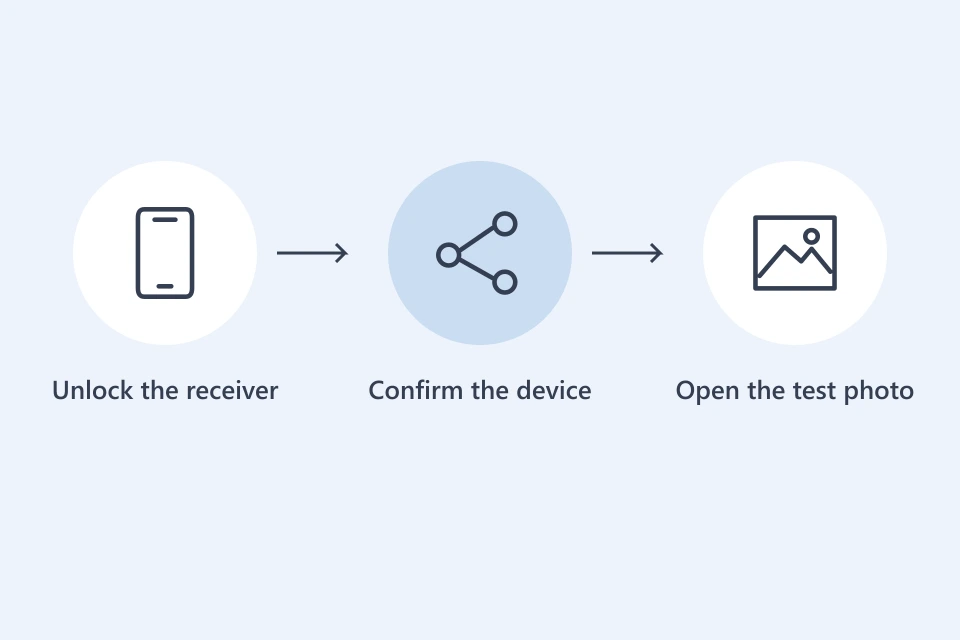
Start with a small photo when you have not used Quick Share with that device before. This confirms that you selected the correct recipient and that both devices can complete a transfer. Send the larger video or document after the test succeeds.
Find the received file
After the transfer completes, the receiver may open the file from the notification. If the notification disappears, check the Downloads folder or the relevant app’s received files area. Photos and videos may appear in Gallery or Photos, while documents may appear in the Files app. The exact destination can vary by device and file type.
Open the received file to confirm that it is complete and usable. For a business document, check the filename and file size. For a video, play a few seconds near the beginning and end. Do not delete the original until the recipient confirms that the correct copy arrived.
Why a nearby device does not appear
- Screen is locked: Unlock the receiving phone and keep it awake while devices discover each other.
- Wireless settings are off: Enable Bluetooth and Wi-Fi on both devices.
- Devices are too far apart: Move them closer and remove obstacles where practical.
- Visibility is restricted: Check the receiver’s Quick Share visibility setting and confirm that the sender meets its requirements.
- Device software is outdated: Check for system and Google Play services updates supported by the device.
- Temporary discovery issue: Close Quick Share, toggle Bluetooth off and on, then try again.
Why the transfer starts but does not finish
Check available storage on the receiving phone. A device with very little free space may fail to save a large video or folder. Try sending a small photo first. If the small file works but the large one fails, check the file size and receiver storage before changing other settings.
Keep both devices unlocked and close together during the transfer. Avoid switching off wireless connections or leaving the receiving screen while the transfer runs. If the transfer repeatedly stops, restart both devices and test again. Check whether the device software supports the file type and Quick Share workflow you are using.
Protect your files during a transfer
Quick Share is a nearby transfer tool, not a substitute for deciding whether a person should receive a file. Check the recipient’s name and the file before tapping Send. Do not accept an unexpected transfer from an unknown person. For confidential business information, follow your organization’s approved sharing method and data handling rules.
After the transfer, restore your usual visibility setting. In a busy office, school or public location, leaving a phone discoverable to everyone for longer than necessary may lead to unwanted transfer requests. Keep your device locked when you are not using it.
Send from an Android phone to a computer
Quick Share also supports compatible Windows computers through Google’s supported app. Install the official version for your device and follow its setup instructions. Sign in or configure visibility as required by the current release. Keep the computer awake and Bluetooth enabled. The receiving computer should appear in the phone’s Quick Share list when it is discoverable and compatible.
For a work computer, check your organization’s policy before installing software or transferring company data. Some managed computers restrict Bluetooth or nearby sharing. Ask IT if the option is blocked. Do not bypass device management controls.
Common questions
Does Quick Share use mobile data?
Quick Share is designed for nearby device transfers and uses local wireless connections. Device behavior and setup can vary, so check the official Android guidance for your phone.
Can I send a folder instead of one file?
Some file managers let you select multiple files or folders before sharing. If your device does not offer the folder option, select the required files or use an approved archive workflow.
Why does my contact not appear?
Check visibility, account and contact settings on both devices. For a one-time exchange, use a temporary visibility option supported by the device and restore your normal setting afterward.
Where are received files saved?
Check the notification, Downloads folder, Files app or Gallery. The destination depends on the file type and device software.
Is Quick Share safe in a public place?
Use a restricted visibility setting where possible. Confirm the sender or receiver before accepting a transfer and do not accept unexpected files.
Final checklist
- Unlock both devices and enable Bluetooth and Wi-Fi.
- Choose an appropriate visibility setting.
- Send a small test file first.
- Confirm the receiver’s device name before sending.
- Open the received file and verify it.
- Check storage if a large transfer fails.
- Restore normal visibility after the transfer.
If your Android device has trouble connecting to a network, read our guide to troubleshooting Wi-Fi connection problems. For help managing files on a computer, see how to free up Windows storage without losing your Downloads.
Reference: Google Android Help: Use Quick Share.



