
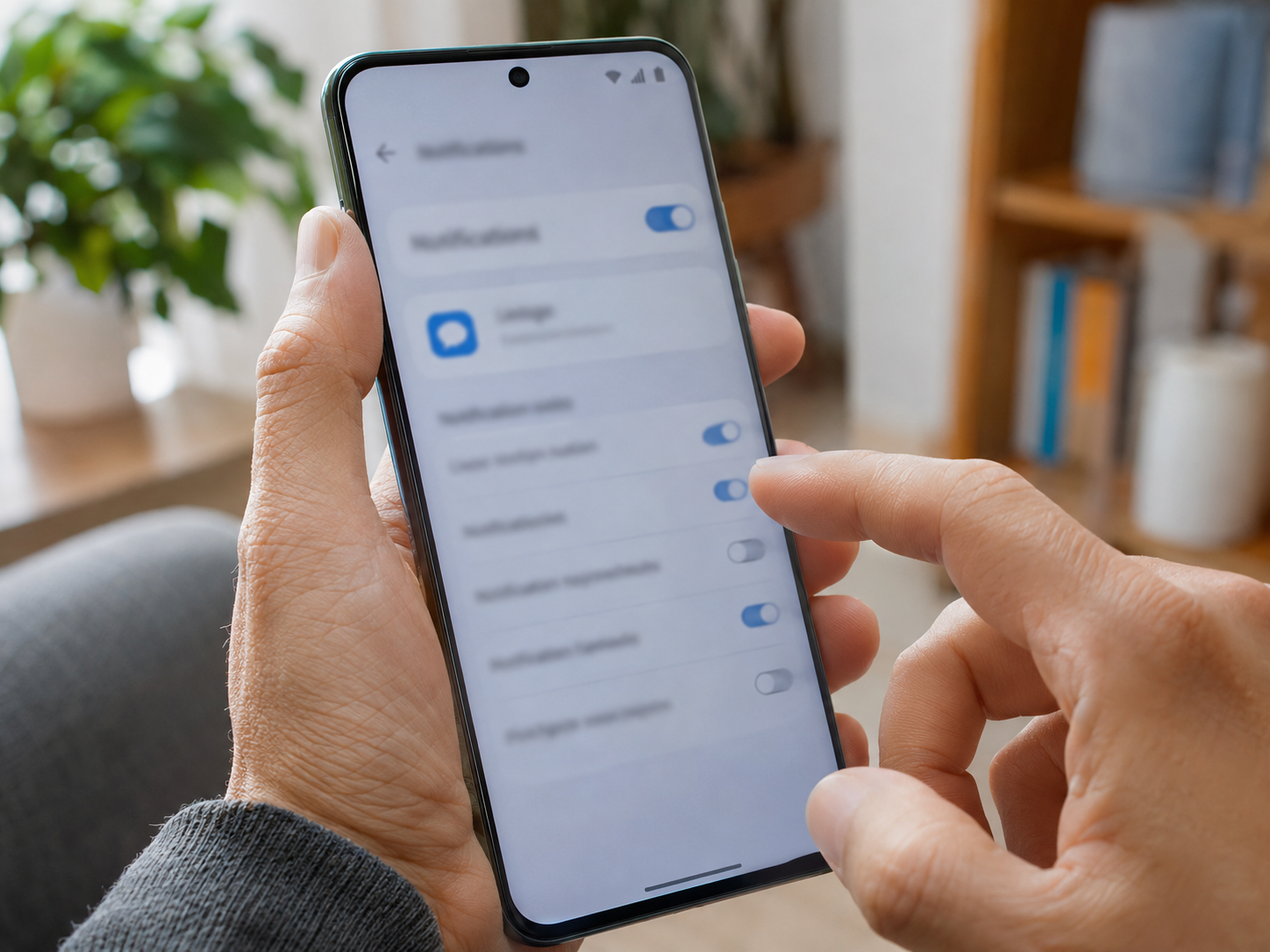
If calls and messages arrive but one app stays quiet, check that app’s notification settings first. Android menus vary by phone, so search Settings for “notifications” if the labels differ.
Are notifications enabled for the app?
Open Settings → Notifications → App notifications, select the affected app, and turn notifications on. On some phones, open Settings → Apps → [app name] → Notifications instead. Check individual notification categories too. An app may send delivery alerts while keeping promotions silent.
Google’s Android notification guide explains how to enable alerts for an app and its notification categories.
Did the app send a silent notification?
Swipe down from the top of the screen and look for the app’s alert. A silent notification may appear in the shade without sound or vibration. Open that notification’s settings and switch the relevant category to alerting if you want a sound or lock-screen alert.
Is Do Not Disturb or another mode active?
Open Quick Settings and check Do Not Disturb, Bedtime, Driving, or another mode. These modes can filter notifications by app or time. Review the mode’s schedule if alerts go missing at the same time each day. Google’s guide to Android modes and Do Not Disturb describes these controls.
Does the app have an internet connection?
Open the app and refresh its content. If it cannot connect, switch between Wi-Fi and mobile data to compare. Check whether Data Saver or a restricted background-data setting applies to that app. Menu names and options vary by phone and Android version.
Did battery settings restrict the app?
Check the app’s battery settings if alerts arrive only after you open it. Some phones limit background activity to extend battery life. Review the app’s battery usage options and follow your device maker’s guidance; avoid turning off battery protections for every app.
What should you try before reinstalling?
Restart the phone, update the app through its official app store, and check for a system update. If only one app still fails, check its help page or contact its developer. Before clearing app data or reinstalling, confirm that the app has synced anything you need.
For another Android guide, read how to check which apps used mobile data.
About the author: Emmanuel Kofi Ampiah writes practical guides about everyday devices. Learn about Emmanuel or view his portfolio.



