
If your Android mobile data allowance disappears faster than expected, check which apps used the data and when they used it. A monthly total may show that a video app consumed the most data, but that does not explain a sudden increase yesterday. Match the phone’s usage dates to the carrier’s billing period, check the correct SIM and inspect foreground and background activity before changing settings.
Open the mobile data usage screen
Android menus vary by phone maker and software version. On Google Pixel, open Settings, choose Network & internet, select SIMs and then open App data usage. Other phones may place the option under Connections, Mobile networks or Data usage. Search Settings for “App data usage” or “Data usage” if the menu differs.
If your phone has two SIMs, select the SIM that handled mobile data during the period you want to investigate. Check which SIM is set as the default for mobile data. A usage total for the wrong SIM will not match the bill you are checking.
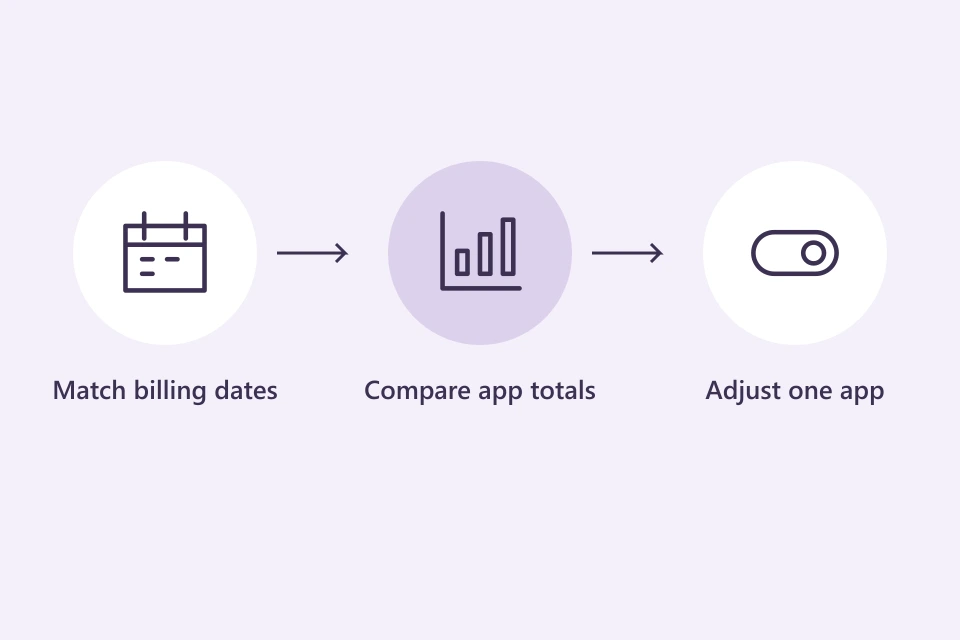
Set the date range to match your bill
Find the data usage cycle or billing period selector. Set the start and end dates to match the carrier’s statement as closely as possible. Some phones let you choose a billing cycle start date. Others show a rolling usage period. If the phone cannot match the carrier’s dates, record the dates shown so you know the comparison is approximate.
Your phone and carrier may measure data differently. The carrier’s meter determines the billed usage. The phone’s counter is a diagnostic tool that helps identify which apps are worth checking. Differences may occur because of billing cut-off times, network accounting, roaming or usage across multiple devices and SIMs.
Compare app totals and inspect details
Look at the apps with the largest data totals. Tap an app to see more detail. Android may show foreground and background data separately. Foreground data is used while you actively use an app. Background data is used when the app runs tasks while you are not looking at it.
Video streaming, social media, cloud backups, navigation and app updates can all use significant data. A messaging app may use little data for text but more when it automatically downloads videos and photos. Check the app’s own settings before restricting it.
Understand foreground and background usage
High foreground use may be expected if you stream video, join video calls or download large files while using the app. Check video quality and offline download settings. Many streaming services let you reduce mobile playback quality or restrict downloads to Wi-Fi.
High background use deserves closer inspection. A photo backup service may upload images while your phone is locked. A podcast app may download new episodes. A cloud storage app may sync large files. Open the app’s settings and review whether it supports Wi-Fi-only sync or a mobile data limit.
Reduce data use without breaking important services
- Enable Data Saver: Android’s Data Saver feature limits background mobile data for many apps. You may allow selected apps to use unrestricted data when needed.
- Set media downloads to Wi-Fi: Review automatic downloads in messaging, music, video and podcast apps.
- Lower video quality: Choose a lower mobile streaming quality when high resolution is not necessary.
- Pause cloud backups: Schedule large backups for Wi-Fi when the app supports that option.
- Review app updates: Configure Google Play to update apps over Wi-Fi where available.
- Check hotspot use: A laptop or tablet connected to your phone may use much more data than the phone itself.
Do not block background data for every app without checking the consequences. Messaging notifications, email, security alerts, navigation and authentication tools may depend on background activity. Restrict one nonessential app at a time and observe the result.
Check roaming and hotspot activity
If you travelled or crossed a border, inspect roaming data separately. Your carrier may charge roaming differently from local data. Turn off data roaming when you do not need it and check the network selected by your phone. If you use a travel SIM or eSIM, confirm which line is active for data.
Also check whether you enabled a mobile hotspot. A connected laptop may download operating system updates, sync cloud files or stream video. Review the hotspot device list and disconnect devices you do not recognize. Set a hotspot password and share it only with people who need access.
Set a warning or data limit
Many Android phones let you set a data warning and, on some models, a data limit. Choose a warning below your plan allowance so you have time to investigate. If you set a hard limit, understand that Android may disable mobile data when the limit is reached. Carrier billing cycles and phone counters may not align exactly, so do not treat the phone’s limit as a guaranteed billing control.
How to test whether a change worked
- Record the current data counter and date.
- Change one setting in the app that appears to use excessive data.
- Use the phone normally for a day or another representative period.
- Return to App data usage and compare the same app.
- Check whether essential notifications and sync functions still work.
- Compare the result with the carrier’s usage meter.
A single day may not represent your normal use. Repeat the check during a typical week, especially if you use more data on weekends or during travel. Keep a note of which setting you changed so you can reverse it if needed.
Common questions
Why does my phone show less data than my carrier?
The phone and carrier may use different measurement periods or accounting methods. Roaming, hotspot activity and multiple SIMs can also affect the comparison. Use the carrier’s meter for billing.
Does Data Saver stop all background data?
No. Some apps may receive unrestricted access, and foreground activity still uses data. Review the apps allowed to use unrestricted data.
Why is an app using data when I am not opening it?
It may sync files, download media, refresh content or run backups. Check its background data and automatic download settings.
Can I stop an app from using mobile data?
Some Android phones let you restrict background data or disable mobile data for selected apps. The available controls vary. Check the consequences before blocking a critical app.
Final data-check checklist
- Select the correct SIM and billing period.
- Compare the apps with the highest totals.
- Inspect foreground and background usage.
- Review video, backup, update and download settings.
- Check roaming and hotspot activity.
- Set a warning before the plan allowance runs out.
- Test one change at a time and compare with the carrier meter.
If your phone also struggles with nearby file transfers, read our guide to sending files with Quick Share on Android. For general connection troubleshooting, see our laptop Wi-Fi troubleshooting guide.
Reference: Google Pixel Help: Reduce and manage mobile data usage.



