
No Sound in Windows 11? Check the Output Before Drivers
Fix missing Windows 11 audio by checking output devices, volume levels, test sounds and the official troubleshooter before changing drivers.
Step-by-step tech fixes for Windows, Wi-Fi, printers, phones, CCTV and business IT.
Fix missing Windows 11 audio by checking output devices, volume levels, test sounds and the official troubleshooter before changing drivers.
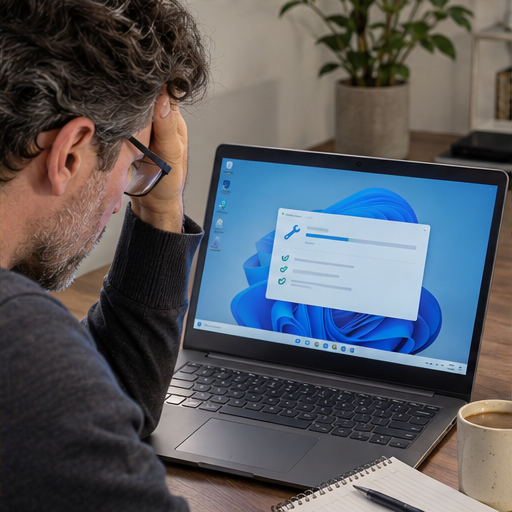
Find out whether Windows Update is truly stuck, then use safe checks for storage, connection, pending restarts and the Windows Update troubleshooter.
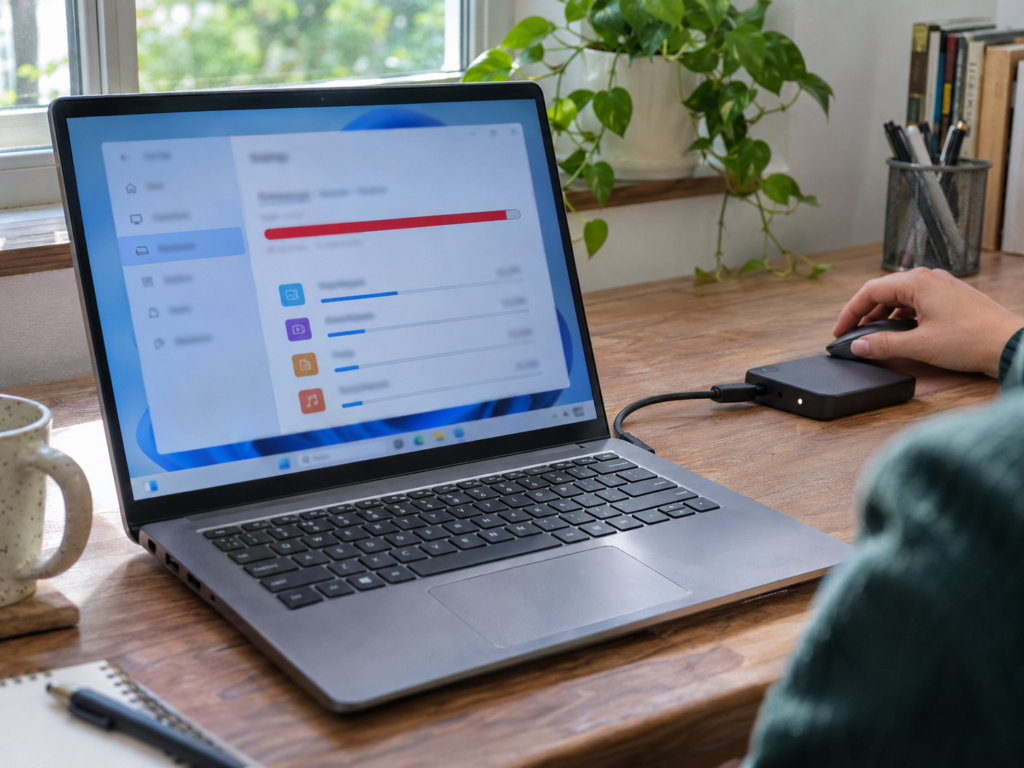
Find what uses space on your Windows C: drive, review Cleanup recommendations, and avoid deleting Downloads or system folders by mistake.

If your webcam works nowhere or only fails in one meeting app, check the camera shutter, Windows privacy permissions, app selection, and USB connection.
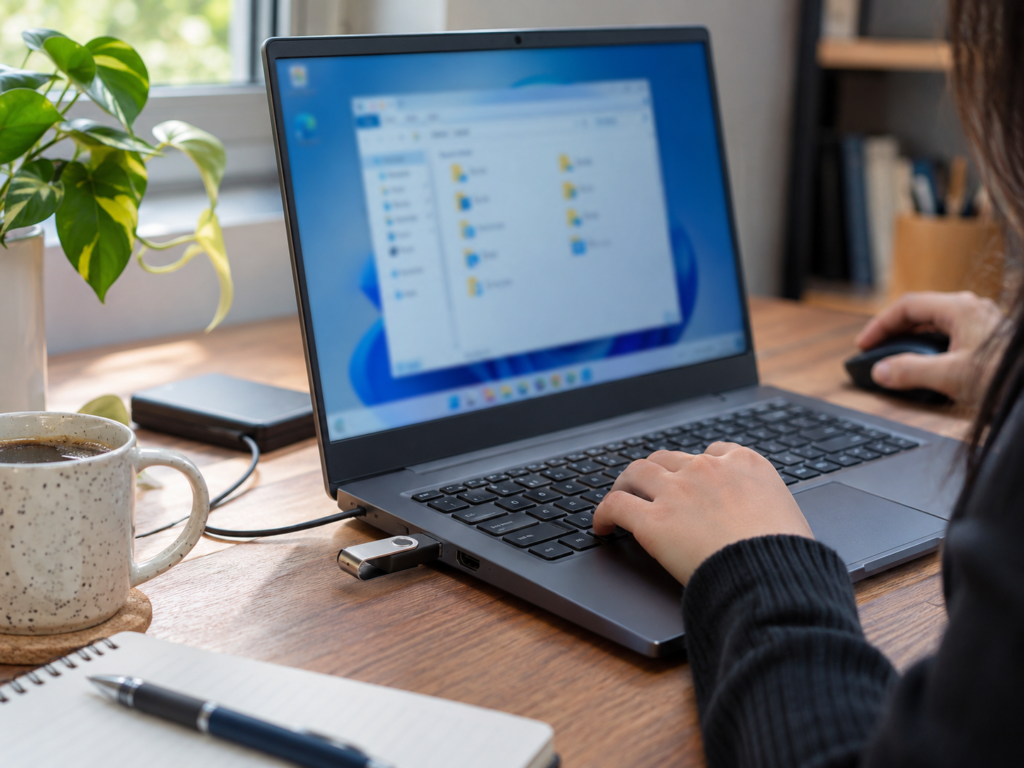
A USB drive can disappear because of a loose connection, missing drive letter, or disk problem. Try these checks and avoid formatting if the files matter.
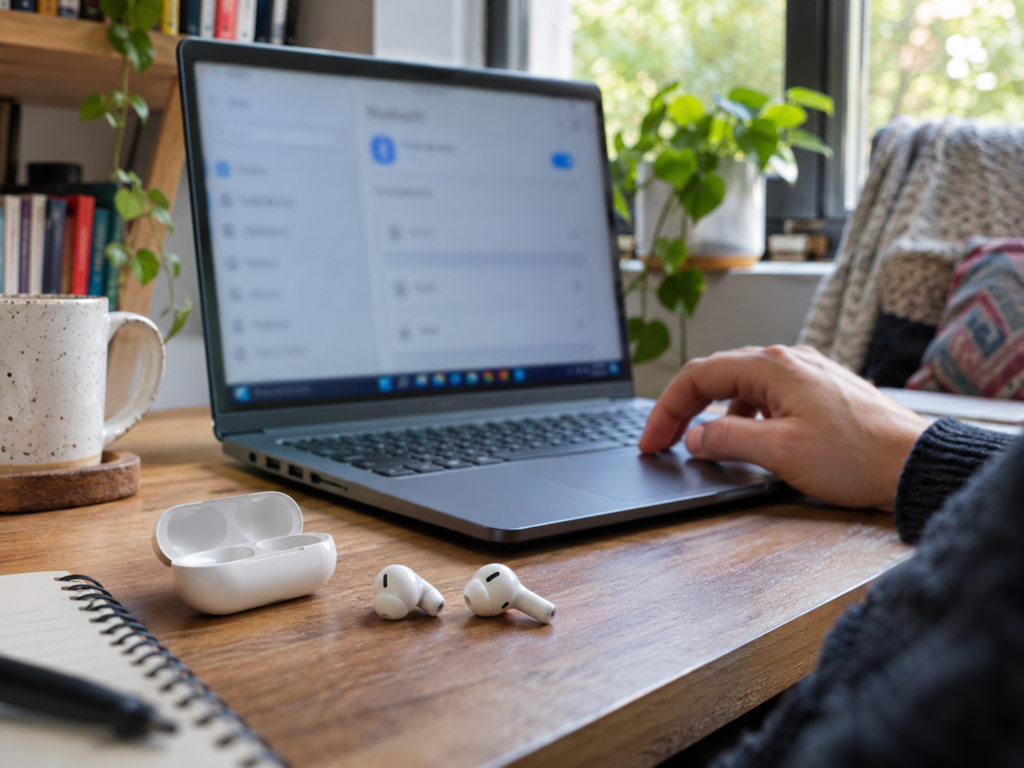
Bluetooth headphones won’t pair or connect to your Windows laptop? Check pairing mode, battery, saved devices, and sound output before changing drivers.
Test notification banners, priority exceptions and projector settings before your audience sees your Windows desktop.
Measure the sign-in delay and test one startup app at a time before disabling software you depend on.
Choose text size, display scale or browser zoom to enlarge exactly what you need while keeping your monitor’s recommended resolution.
Use the size of a clock error to decide whether to correct the time zone, synchronize Windows or check a single meeting.
Recover a capture from the clipboard, check Snipping Tool’s save settings and find the actual Screenshots folder on your PC.
Find earlier clipboard items with Windows key + V, pin reusable text and check what remains after you clear history.



