
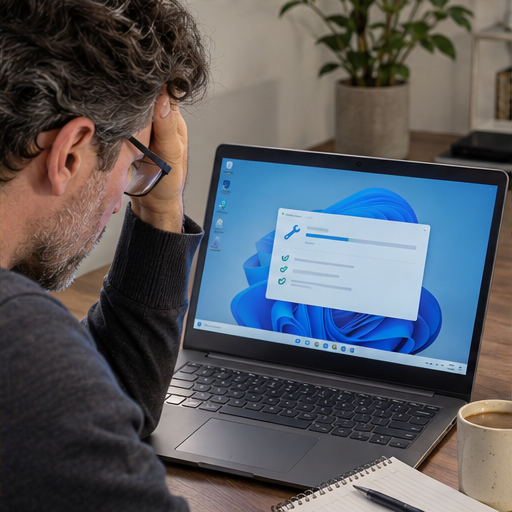
When Windows says a printer is offline, do not keep pressing Print. Several copies may wait in the queue and start together when the connection returns. Run one controlled test page instead. Start by checking whether the printer can print a page from its own control panel, then test a Windows job. This separates a printer or paper problem from a computer, cable or network problem.
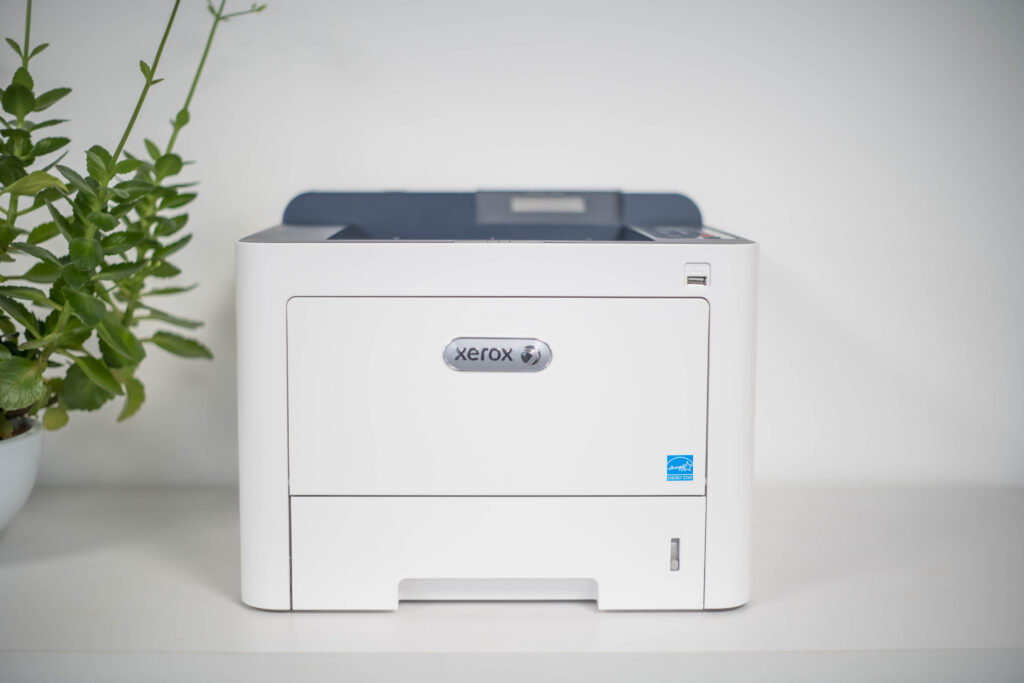
Check the printer before changing Windows settings
Look at the printer’s display or status lights. Check for paper jams, an open cover, an empty tray, low toner or ink warnings and any error message. If the printer has a control panel, use its menu to print a status or configuration page. The exact name differs by model.
A local page tests the printer’s ability to process a job and put marks on paper without relying on your laptop. On a multifunction printer, a photocopy also tests paper handling and the print mechanism. If the device cannot print locally, fix the displayed error or follow the manufacturer’s instructions before troubleshooting Windows.
Open the Windows print queue
- Open Settings in Windows 11.
- Select Bluetooth & devices, then Printers & scanners.
- Select the printer you intend to use.
- Choose Open print queue.
- Review the waiting jobs and check whether the queue is paused or showing an error.
Check the printer name carefully. Windows may show an old queue, a duplicate queue or a software printer such as Microsoft Print to PDF. A job sent to the wrong queue will not reach the physical device. If you use a shared office printer, cancel only your own unwanted jobs. Ask the queue administrator before removing another person’s job.
Send one Windows test page
From the printer’s settings or Printer properties, look for Print test page. The option may appear in a different location depending on the driver and Windows version. Send one test page and watch both the queue and the printer. Do not send several copies while waiting for the first one.

Use the result to choose the next check
| Last successful test | Next area to inspect |
|---|---|
| No local page | Paper, cover, consumables and printer control-panel errors |
| Local page only | USB connection, network reachability, Windows queue and driver |
| Windows test page | Application, selected printer and document |
| Another computer prints successfully | Your laptop’s queue, connection or driver |
A successful local page proves that the printer can print without Windows. A successful Windows test page proves that the selected Windows queue can send a job. Each result narrows the problem, but it does not identify every possible cause by itself.
Check USB and network connections
For USB printers, connect the cable directly to the computer for the first test. Avoid a hub or docking station until you confirm that the direct connection works. Try another known working USB port or cable if the printer remains offline. Check whether Windows detects the device when you reconnect it.
For a Wi-Fi or Ethernet printer, check the network shown on the printer’s status page. Confirm that the computer and printer can reach each other on the intended network. A guest Wi-Fi network may allow internet access while blocking communication with local devices. If the printer has an Ethernet connection, check the cable and switch port as well.
Do not factory-reset a shared printer or router as a routine troubleshooting step. That may erase network settings and disconnect other users. Ask the network owner or IT team before changing shared equipment.
Check the printer status and driver
Open the printer queue and look for options such as Use Printer Offline or Pause Printing. If Windows has enabled one of these options by mistake, correct it and send one test page. If the printer still fails, check the exact model and driver version. Use Windows Update or the printer manufacturer’s official support site to find a compatible driver.
Do not install drivers from unknown download sites. On a company-managed computer, ask IT before removing a printer or installing software. The organization may use a print server or a managed queue that must remain configured.
If the Windows test page works but the document does not
Open Notepad, type a short line and print it to the same physical printer. If the page arrives, the printer and queue are probably functioning. Return to the original application and confirm that it selected the same printer. Check whether the document contains an unsupported font, unusual page size or a large image that causes the application to stall.
If the application selected Microsoft Print to PDF, Windows will ask you to save a file instead of printing paper. Choose the physical printer from the list and send one page. Check the document’s print preview and page range before sending the full job.
Clear a stuck job carefully
If one of your own jobs is stuck, cancel it from the queue and wait for Windows to remove it. If it does not clear, restart the printer and computer only when it is safe to do so. On a shared print server, do not stop print services or delete other users’ jobs without authorization. Contact the person who manages the queue.
Common problems
The printer prints a local page but Windows says Offline
Check the selected queue, cable or network connection and printer status option. Confirm that Windows is sending to the correct printer.
Another computer can print but mine cannot
Compare the queue name, driver and connection on both computers. The issue may be local to your Windows profile or printer setup.
Windows asks me to save a file
You may have selected Microsoft Print to PDF. Choose the physical printer for a paper copy.
Several copies print after the printer reconnects
Open the queue before sending another job. Cancel duplicate jobs that belong to you and keep the test to one page.
Common questions
Should I restart the Print Spooler first?
Not as the first step. Check the local printer page, queue and connection first. On a managed device, ask IT before changing print services.
Does a photocopy test the Wi-Fi connection?
No. A photocopy checks the scanner and print mechanism without sending a job from Windows.
Can I delete every job in a shared queue?
No. Cancel only your own unwanted jobs. Ask the queue administrator to investigate jobs belonging to other users.
Final printer test checklist
- Check the printer display, paper and consumables.
- Print a local status page or photocopy.
- Open the correct Windows print queue.
- Send one Windows test page.
- Check USB or network connectivity.
- Confirm the correct driver and physical printer.
- Test a simple document before printing the full job.
For more printing help, read our guides to printing on both sides without an upside-down back page and printing a PDF at its actual size.
Reference: Microsoft Support: Troubleshooting offline printer problems in Windows.



