
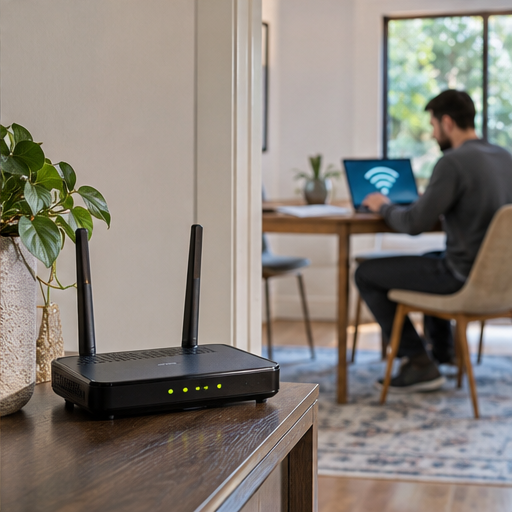
If Wi-Fi works beside the router but drops in the next room, test the signal at several positions before buying a range extender or changing router settings. Walls, floors, metal shelving, mirrors and the location of the router can affect wireless coverage. A repeatable test helps you identify where the connection becomes unreliable and whether the problem follows the room, the device or the network.
Run the same test in three places
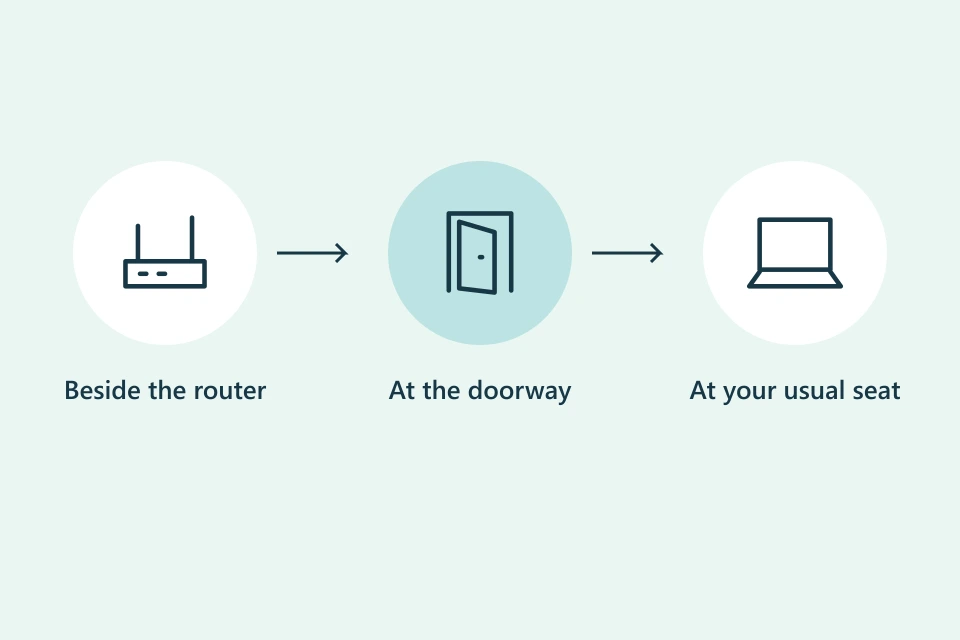
Use the same laptop or phone and the same Wi-Fi network. Test beside the router, just inside the doorway of the problem room and at your usual desk or seat. At each position, load the same website or run the same short call test. Keep the device on Wi-Fi throughout. On a phone, turn mobile data off temporarily so cellular service does not hide a weak Wi-Fi connection.
What the doorway test tells you
If the connection works beside the router and at the doorway but fails at the desk, the signal may weaken as it passes through the room’s walls or furniture. Move the device away from metal cabinets, appliances and large screens. Test with the door open and closed. If the result changes, the building layout or materials may be affecting the signal.
If the connection fails even at the doorway, check whether the router itself has a problem or whether the laptop’s wireless adapter behaves differently from other devices. Test another phone or laptop in the same positions. A problem that affects every device is more likely to involve coverage or the router than one laptop.
Understand 2.4 GHz and 5 GHz Wi-Fi
Many routers provide 2.4 GHz and 5 GHz Wi-Fi. The 2.4 GHz band often reaches farther and may pass through obstacles more effectively, while 5 GHz can provide higher speeds over shorter distances. Actual performance depends on the router, device, channel conditions and building layout.
If your router shows separate network names for the bands, test both from the problem room. Connect to one band, run the same test and record the result. Then connect to the other and repeat. If the router combines both bands under one network name, it may steer the device automatically. Avoid splitting or renaming networks until you have established that the band is the cause.
Improve router placement
Place the router in a central, open location where practical. Avoid hiding it inside a cabinet, behind a television or on the floor. Keep it away from large metal objects and sources of interference. If the router has external antennas, follow the manufacturer’s placement guidance rather than assuming every antenna should point in the same direction.
Do not move a business router or access point without permission. The device may serve cameras, phones, point-of-sale systems or other equipment. Coordinate changes with the network owner and record the original location so you can reverse the change if coverage gets worse elsewhere.
Decide whether a mesh unit or access point will help
A mesh system or additional access point may improve coverage, but placement matters. A wireless mesh unit needs a usable connection back to the main router. If you place it deep inside the dead zone, it may receive the same weak signal as the laptop. Test a location between the router and the problem room where the signal is still stable.
A wired access point often provides a more reliable connection when you can run Ethernet to the location. A range extender may be simpler to install, but it can reduce available throughput depending on its design and placement. Check the product’s compatibility and performance requirements before buying equipment.
Check for interference and congestion
Nearby wireless networks can compete for airtime, especially in apartments and offices. Microwaves, Bluetooth devices and some wireless equipment may also affect performance in certain conditions. If the problem happens at specific times, record when it occurs and compare the result at a different time of day.
Do not change Wi-Fi channels repeatedly without a plan. Modern routers often select channels automatically. If you manage the router, use its diagnostic tools or a trusted Wi-Fi analyzer to identify congestion. In a workplace, ask IT to review access point placement and channel planning.
Check the laptop or phone too
If other devices work well in the problem room but one laptop disconnects, inspect that device. Check whether Airplane mode is off, the Wi-Fi adapter is enabled and the driver is current. Use Windows Update or the laptop manufacturer’s support page for drivers. If the device is managed by an employer, contact IT before changing driver or network settings.
Check whether a thick phone case, damaged antenna or device orientation affects the result. Test another device in the same position. If only one device has trouble, do not buy a new router before ruling out a client-device issue.
Record the results before making changes
Keep a simple table with the test location, device, network band, signal indicator and whether the connection stayed stable. Change one thing at a time, such as router position or band. Repeat the three-location test after each change. This helps you identify what actually improved the connection.
Common problems and next steps
- Works beside the router only: Check router placement, walls and the device’s supported band.
- Works at the doorway but not at the desk: Test furniture, doors and obstacles near the usual seat.
- Only one device drops: Check its adapter, driver, antenna and saved network profile.
- Every device drops at the same time: Check the router, access point and internet service.
- Mesh unit has weak backhaul: Move it closer to the router or consider a wired access point.
Common questions
Is 2.4 GHz always better through walls?
It often has better range than 5 GHz, but the result depends on the building, interference and equipment. Test both bands in the actual room.
Should I buy a Wi-Fi extender?
Only after you identify a coverage problem and test where the extender can receive a stable signal. A poorly placed extender may not improve the connection.
Will a faster internet plan fix a dead spot?
No. A faster internet plan does not fix weak Wi-Fi coverage inside the building. Improve placement or access point coverage first.
Why does Wi-Fi drop when I close the door?
The door and nearby building materials may weaken the signal. Compare the same test with the door open and closed, then consider moving the access point or adding coverage.
Final Wi-Fi coverage checklist
- Test beside the router, at the doorway and at the usual seat.
- Use the same device and test at each position.
- Compare 2.4 GHz and 5 GHz where available.
- Move the router to an open, central location if authorized.
- Place mesh units where they still receive a strong signal.
- Check other devices before blaming the laptop.
- Record the result after each change.
If the laptop still disconnects, use our guide to reading a Windows Wi-Fi report after a disconnect. You can also compare a wired connection with wireless using our Ethernet versus Wi-Fi test.
Reference: Microsoft Support: Wi-Fi and your home layout.



