
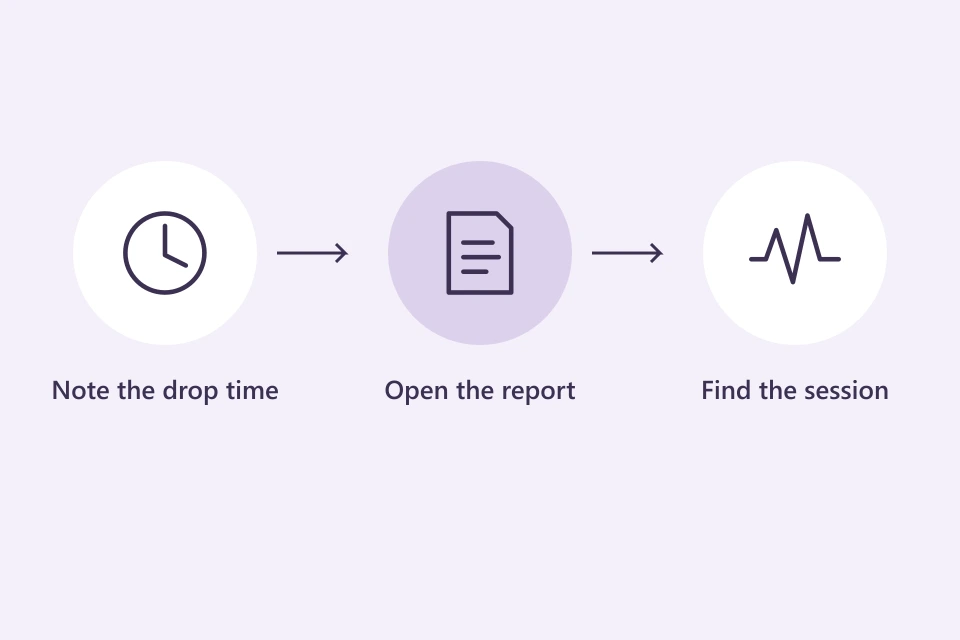
When Wi-Fi disconnects during a video call, note the exact time before you reconnect. Windows includes a wireless network report that can help you review connection attempts and disconnects on a timeline. Instead of reading a long diagnostic file from the beginning, use the time of the failure to find the relevant session and compare it with the sessions before and after.
What the Windows wireless report contains
The wireless network report is an HTML file generated by Windows. It summarizes recent Wi-Fi sessions and includes details about wireless adapters, connection attempts and disconnect events. The report is useful for narrowing down when a problem happened. It does not automatically identify a defective router or prove that the internet provider caused the outage.
The report covers a recent period, commonly the last three days. Generate it soon after the issue occurs so the event remains within the report’s history. If the computer is managed by your employer and you do not have administrator access, ask IT to generate it or provide the exact time of the disconnection.
Generate the report
- Save your work and open Start.
- Type Command Prompt.
- Right-click Command Prompt and choose Run as administrator if your account is authorized.
- Enter
netsh wlan show wlanreportand press Enter. - Read the file path displayed in the command window.
- Copy the path into File Explorer’s address bar and open the HTML report.
The command creates the report locally. If Windows displays an access or permission error, do not try to bypass your organization’s controls. Ask your administrator or IT support team to run the diagnostic.
Find the session around the disconnect
Start with the timestamp you wrote down when the call dropped. Find the session that covers that time. Review its start time, end time, network name and disconnect information. Compare the session immediately before and after it. A laptop that went to sleep when someone closed the lid produces a different pattern from a laptop that repeatedly lost its wireless connection while in use.
Look for repeated failures. One disconnect may result from a user action, a laptop sleep event or a temporary network interruption. Several disconnects at regular intervals may suggest a different problem. Compare the times with what happened on other devices in the same location.
Understand the disconnect reason carefully
Windows may show a reason or status associated with a connection event. Read the description in context. A reason code is a clue, not a complete diagnosis. Driver behavior, signal quality, authentication, router settings and power management can all affect a Wi-Fi session.
If the report shows that the wireless session remained connected during the time of the failed call, investigate the internet connection or meeting app next. The laptop may have stayed connected to the router while the router itself lost internet access. Test another website and compare another device on the same network.
Compare the report with other evidence
Ask whether a phone or another laptop also disconnected at the same time. If several devices lost access together, the router, access point or internet service deserves attention. If only one laptop disconnected, inspect its wireless adapter, driver and power settings.
Check the signal strength and location where the failure occurred. A laptop may remain connected near the router but lose the connection behind a wall or metal cabinet. If the issue happens only in one room, compare the signal at the doorway and at the usual desk.
Check the wireless adapter and driver
Open Device Manager and expand Network adapters. Find the wireless adapter and record its exact name. Check for a warning icon or device status message. If a driver update is needed, use Windows Update or the laptop manufacturer’s official support page. Avoid driver downloads from unfamiliar sites.
On a work computer, ask IT before updating or rolling back a driver. A managed device may use a tested driver version or network profile. Record the Windows version, adapter model and report timestamp so support can reproduce the investigation.
Check power and sleep behavior
If the disconnect occurs when the laptop lid closes or the device enters sleep, compare the event time with Windows power settings. Some laptops disconnect from Wi-Fi during sleep to save power. That may be normal behavior rather than a network fault. Check whether the call dropped while the laptop was active or after a sleep transition.
Do not change advanced power settings at random. First establish whether the disconnect aligns with sleep or idle behavior. If you need the laptop to remain connected during a specific work task, use the power options approved by your organization and follow the manufacturer’s guidance.
Share the report safely
The report may contain device details, network names, adapter information and other identifiers. Do not publish the full file or post it in a public forum. Share it only with the person or support team investigating the problem. If you only need advice on a particular event, provide a relevant excerpt with personal or network identifiers removed where practical.
Common troubleshooting patterns
- Only one laptop disconnects: Check its wireless adapter, driver, power settings and saved network profile.
- Several devices disconnect together: Check the router, access point, modem and internet service.
- Disconnects happen in one room: Test signal strength and physical obstacles.
- Disconnect occurs when the lid closes: Compare the timestamp with sleep and power events.
- Wi-Fi remains connected but websites fail: Check the router’s internet connection, DNS and the affected application.
Common questions
Does the wireless report prove my router is faulty?
No. It records Windows wireless events. Compare the report with other devices and router status before deciding which component has a problem.
How far back does the report go?
It covers recent wireless activity, commonly the last three days. Generate it soon after the disconnect and check the current Microsoft guidance for your Windows version.
Can I create the report without administrator rights?
Some environments require elevated access. If Windows refuses the command, ask your IT administrator to generate the report.
Should I reinstall the Wi-Fi driver after one disconnect?
No. First review the report, test another device and check whether the issue repeats. Reinstalling a driver without evidence may add another problem.
Final diagnostic checklist
- Write down the exact time of the disconnect.
- Generate the report with the Windows command.
- Find the matching session and compare nearby events.
- Check whether other devices disconnected too.
- Review signal, adapter, driver and power behavior.
- Share only relevant report details with authorized support.
If the report points to a signal problem, read our guide to Wi-Fi that works by the router but drops in the next room. For a wider network comparison, see how to tell whether Ethernet or Wi-Fi is the problem.
Reference: Microsoft Support: Analyze the wireless network report.



