

When you schedule an Outlook meeting with people in different countries, the time zone matters as much as the date. A meeting set for 9:00 a.m. in Dubai should appear at the correct local time for colleagues in Accra, London or New York. Outlook converts meeting times for attendees, but the organizer must create the event in the intended time zone and check dates around daylight-saving changes.

Why time zones cause meeting mistakes
A time zone describes the local clock rules used in a region. Some regions change their clocks during the year. Others keep the same offset. Daylight-saving changes do not happen on the same date everywhere. As a result, the time difference between two cities may change during the year.
A time-zone abbreviation such as CST is not enough to identify a location. Different regions use the same abbreviation for different offsets. Write the city or region in the invitation, and use the time-zone selector in Outlook rather than trying to calculate an offset from memory.
Set the time zone before creating the meeting
- Open Outlook Calendar and create a new event or meeting.
- Enter a clear subject and add the required attendees.
- Open the event’s date and time controls. If the time-zone fields are hidden, open the additional scheduling options.
- Select the time zone for the location whose clock time defines the meeting.
- Enter the local start and end times for that location.
- Add the city and time zone to the meeting description when the location is important.
- Review the event preview before sending the invitation.
Outlook’s menus differ between classic Outlook for Windows, new Outlook, Outlook on the web and mobile. Look for the time-zone control in the event editor. If you cannot find it, check the calendar settings for your version rather than assuming the computer’s current time zone controls every event.
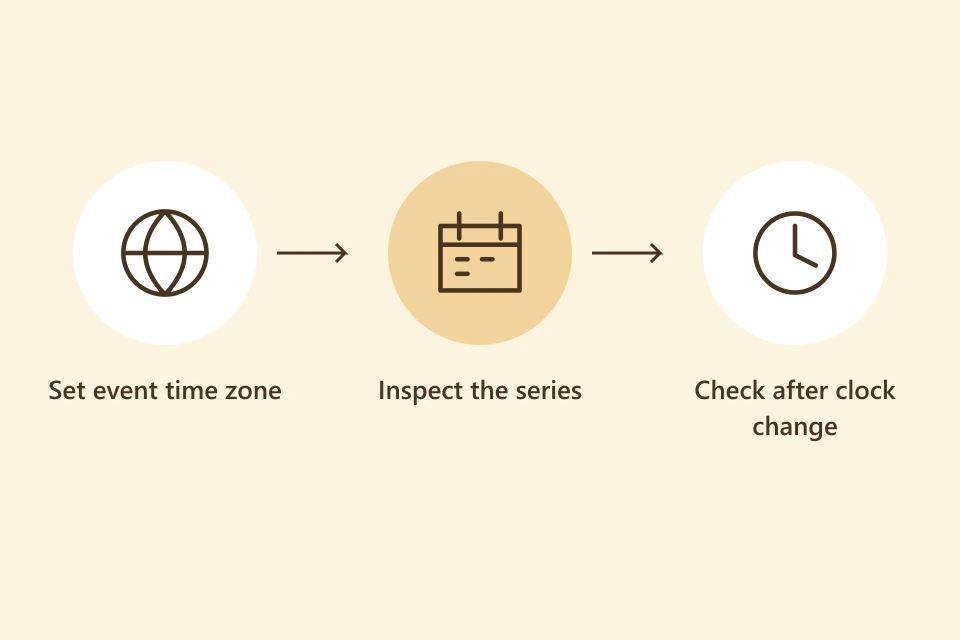
Check what attendees will see
Outlook stores meeting time information so each attendee’s calendar can display the corresponding local time. The organizer and recipient may therefore see different clock times for the same meeting. That is expected. What matters is that each calendar displays the intended moment.
Before sending an important invitation, compare the proposed time with a trusted time-zone converter or the recipient’s working hours. Use the exact date, not only the city pair. For example, the difference between Dubai and London changes when the United Kingdom moves between standard time and daylight time. Dubai does not make the same seasonal clock change.
Do not type a converted time into the start field while leaving the event zone set to the wrong city. That creates a meeting at the wrong instant. Set the correct zone first, enter the local time for that zone and then check the converted time shown for another location.
Schedule meetings across daylight-saving changes
Recurring meetings need special attention. A weekly meeting at 10:00 a.m. in one city should usually remain at 10:00 a.m. in that city’s local time. When another city changes its clocks on a different date, attendees there may see the meeting move by one hour on their calendar.
Inspect at least one occurrence before and one after the next daylight-saving transition. Confirm that the meeting remains at the intended local office time. If the meeting must happen at a fixed global instant instead, explain that requirement to attendees and check each occurrence.
When someone travels, their Outlook display time zone may change. That should affect how they view calendar entries, not the actual meeting instant. Ask the traveler to verify the event on the correct date instead of editing the invitation to match the time shown on a different device.
Use Outlook calendar time-zone settings
Outlook lets users configure the time zone used to display calendar times. Some versions also let you show a second or third time zone. This is useful if you regularly coordinate with colleagues in another region. Add meaningful labels such as Dubai and London so you do not confuse two clocks with similar offsets.
Check the operating system time zone too. On Windows, open Settings, select Time & language, then Date & time. Confirm that the time zone and automatic clock settings match your location. A wrong computer clock can confuse scheduling and authentication, even though Outlook handles meeting time conversion separately.
Fix a meeting that was sent at the wrong time
- Open the meeting in your calendar and confirm the intended city, date and local time with the organizer or attendees.
- Check the event’s selected time zone.
- Correct the time zone or start and end times. Avoid changing both without understanding which value was wrong.
- Send the update to all attendees so their calendars receive the corrected event.
- Ask key attendees to confirm the updated local time, especially if the meeting is urgent.
- For a recurring series, inspect future occurrences after daylight-saving transitions.
Do not create a second invitation while leaving the incorrect meeting active. Attendees may accept both and join the wrong one. Update or cancel the original invitation clearly.
Common cross-time-zone scheduling problems
- Wrong date: A late meeting in one time zone may fall on the next calendar day for another attendee. Include the date and city in the description.
- Ambiguous abbreviation: Replace abbreviations with a named region such as Europe/London or Asia/Dubai where the interface provides it.
- Daylight-saving mismatch: Check the exact date because the time difference may change during the year.
- Travel or device setting: A laptop may display the calendar in a different zone after travel. Verify the event itself before editing it.
- Recurring series: Check future dates after regional clock changes rather than validating only the first occurrence.
Practical example: Dubai and Accra
Suppose your office in Dubai schedules a meeting for 3:00 p.m. local time. Accra remains on Greenwich Mean Time throughout the year, while Dubai uses Gulf Standard Time. The time difference is therefore consistent for this city pair. Enter 3:00 p.m. with the Dubai time zone selected. Then verify that the calendar for an Accra attendee displays the corresponding local time on the chosen date.
For a meeting involving London, repeat the check for the exact date because the United Kingdom changes its clocks seasonally. Do not reuse a conversion from a meeting held several months earlier.
Common questions
Does Outlook convert meeting times automatically?
Outlook normally displays the same meeting at the corresponding local time for each attendee. The organizer still needs to select the correct time zone and verify the event details.
Should I create the meeting in my current location or the office location?
Use the time zone that defines the intended local start time. If the meeting must follow a particular office’s schedule, create it using that office’s time zone.
Why did a recurring meeting move by one hour?
One region may have changed its clocks while another did not. Inspect the event after the transition and confirm that it still matches the intended local time.
Can attendees see a different date?
Yes. A meeting close to midnight in one region may fall on the previous or next calendar day elsewhere. Include the city and date in the invitation.
What if the time-zone option is missing?
Check the event editor for your Outlook version and review its calendar settings. If your organization manages Outlook settings, ask IT for guidance.
Final checklist before sending
- Choose the event’s intended time zone before entering the time.
- Include a city or region in the invitation.
- Check the date and local time for at least one attendee in another region.
- Inspect recurring meetings after daylight-saving changes.
- Send an update to the original invitation if you correct a mistake.
Good scheduling depends on the exact date, city and time zone. Verify all three before you send the invitation. For more practical IT help, explore our guides on fixing a Windows microphone that fails during calls and troubleshooting a laptop that will not connect to Wi-Fi.
Reference: Microsoft Support: Manage time zone settings in Outlook.


