

When a OneDrive document changes unexpectedly, version history gives you a way to inspect earlier saved versions. It is useful when someone overwrites a spreadsheet, removes paragraphs from a report or changes a presentation by mistake. Before you restore anything, identify exactly what went wrong. Restoring an entire file may remove edits that other people made after the version you want.

Understand what version history does
OneDrive version history stores earlier versions of supported files. You can review the available versions and, where the interface supports it, open or preview one before restoring it. The feature is different from the recycle bin. Version history helps you recover an earlier state of a file that still exists. The recycle bin helps you recover a file that someone deleted.
Version availability depends on the account, file type, storage location, organization settings and retention policies. A work or school account may follow administrator-controlled retention rules. If the version you need does not appear, ask the file owner or Microsoft 365 administrator whether another recovery option exists.
Find version history in OneDrive
- Open OneDrive in a browser and sign in with the account that has access to the file.
- Browse to the correct folder. Confirm the file name and location before you continue.
- Select the file, then open its context menu.
- Choose Version history. Depending on the layout, this option may appear under More actions.
- Review the dates, times and names associated with the available versions.
- Open or preview a candidate version when the interface offers that option. Check its contents before you restore it.
You may also reach version history from supported Microsoft 365 apps. For example, open a Word, Excel or PowerPoint file and look for its version history option near the file name or under File information. The exact menu changes between the web, desktop and mobile apps.
Choose the right version
Do not select a version only because its timestamp looks close to the time of the mistake. A colleague may have made a useful change shortly before the unwanted edit. Compare the version’s contents, editor and timestamp. If several people work on the same file, ask them when they last made important changes.
For a spreadsheet, inspect the affected sheet, formulas, named ranges and important totals. For a Word document, check headings, tables, comments and tracked changes. For a presentation, review the slides that matter and confirm that the images and notes remain intact. A file that looks correct on its first page may still have lost important work elsewhere.
Restore the whole file or copy only what you need?
Use Restore when the entire file should return to an earlier state. This replaces the current version with the selected earlier version and creates a new current version in the version history. The older version remains available according to the service’s retention behavior, but do not rely on this as your only backup.
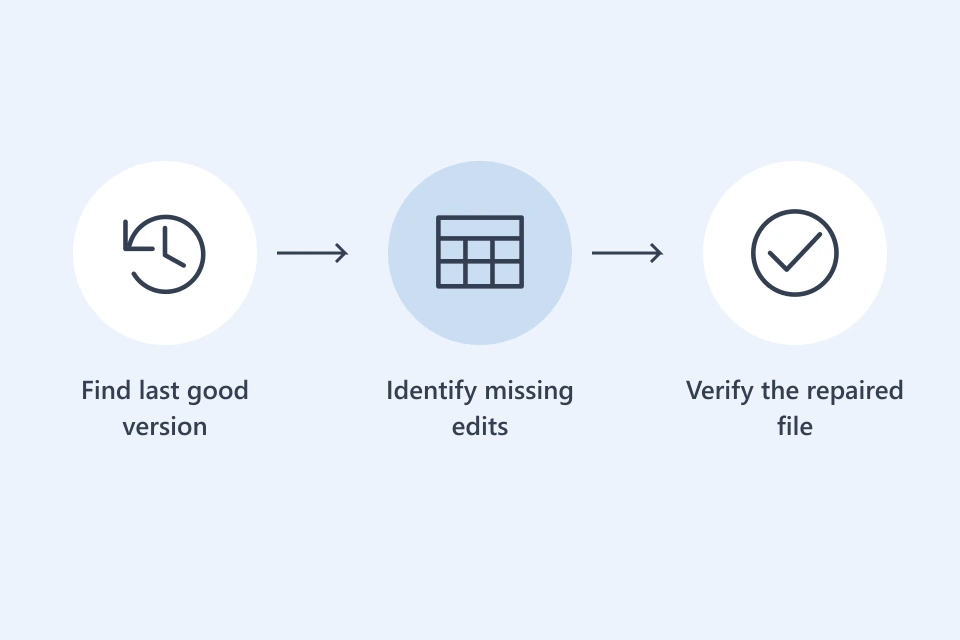
Use a selective repair when only a small part of the file is wrong. Open the older version, copy the missing paragraph, cells or slide content, and place that material into the current file. This approach protects newer edits elsewhere in the document. In Excel, compare formulas as well as displayed values. A cell may show the expected number while its formula has changed.
Before a full restore, tell active collaborators to pause editing. If someone continues working while you restore, their changes may conflict with the recovery. For a shared business file, agree who will perform the restore and who will verify it.
Step-by-step: restore an earlier version
- Open Version history for the file.
- Identify the version that contains the correct information.
- Open or preview it and check the sections affected by the mistake.
- Confirm that collaborators know you plan to restore the file.
- Select Restore beside the correct version and confirm the action if prompted.
- Open the current file again. Check the repaired content and any newer information you intended to keep.
- Tell collaborators that the file has been restored and ask them to reopen the current copy.
What if the file was deleted?
If the file no longer appears in its folder, check the OneDrive recycle bin before looking for version history. Select the deleted item and use Restore if it is the correct file. Work or school accounts may have a second-stage recycle bin managed by an administrator. Retention periods vary, so act promptly and contact IT if the file is missing from the recycle bin.
If the file was deleted from a synced computer, check OneDrive online as well. A deletion may sync across devices. Do not create several replacement files with the same name until you know which copy is authoritative. That can make recovery and collaboration harder.
Why an earlier version might be missing
- Retention limits: Older versions may have expired under the account’s retention policy.
- Wrong account: You may be signed in with a personal account instead of the work or school account that owns the file.
- Wrong location: The file may be in a SharePoint library or another user’s OneDrive.
- Unsupported workflow: Some file types or storage arrangements do not expose the same version history controls.
- Insufficient permission: You may be able to view the file but not restore it.
Prevent the same problem next time
Use clear file names and store working documents in the correct team folder. Give colleagues only the access they need. For important spreadsheets, keep a documented owner and a backup process approved by your organization. Before a major edit, consider saving a clearly named checkpoint if your workflow requires one. Version history helps with recovery, but it does not replace a proper backup plan.
When a document is shared, review who can edit it. A person who only needs to read a report should not receive edit access. Our guide to checking who can open a shared OneDrive link explains how to inspect links and permissions. If you work with Google Drive too, see how to share a Google Drive folder without giving edit access.
Common questions
Does restoring an earlier version delete the version history?
Restoring makes the selected version current. OneDrive’s version history behavior retains versions according to its policies, but check the available list after restoring and keep an independent backup for critical files.
Can I recover one Excel cell instead of the whole workbook?
Open the earlier version and copy the required cell or range into the current workbook. Check formulas, formatting and references before saving.
Can I restore a file from another person’s OneDrive?
You need sufficient permission to access and restore it. Ask the owner or administrator to perform the recovery if the option is unavailable.
Is version history the same as a backup?
No. Version history is a recovery feature within the storage service. A separate backup protects against a wider range of deletion, account and service problems.
Final verification
After recovery, open the file from its normal shared location. Check the corrected section, recent edits, formulas and permissions. Ask one collaborator to confirm that they see the expected current version. Keep a note of what you restored and why. This gives the next person a clear record if the same issue returns.
Reference: Microsoft Support: Restore a previous version of a file stored in OneDrive.


