
A long Excel report becomes difficult to read when the column headings appear only on the first printed page. A reader may reach page three and no longer know whether a column contains quantity, unit price, tax or total. Excel has a Print Titles feature that repeats selected heading rows at the top of every printed page. It does not duplicate rows in the worksheet or change your formulas.
Understand Print Titles and Freeze Panes
Freeze Panes keeps selected rows or columns visible while you scroll around the worksheet on screen. Print Titles repeats selected rows or columns on paper or in a PDF export. They solve different problems. You may use both features in the same workbook, but setting Freeze Panes does not automatically repeat headings when you print.
Print Titles works in desktop Excel. Some browser or mobile versions may not expose the full page setup controls. If you cannot find the option in Excel for the web, open the workbook in the desktop application and set up the print layout there.
Choose the rows you want to repeat
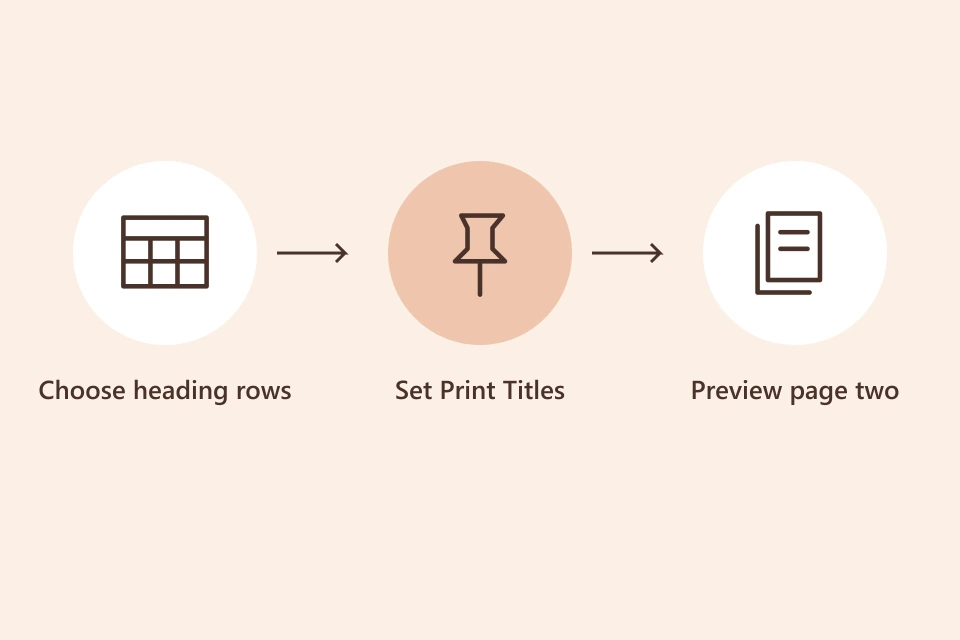
Look at the worksheet before opening Page Setup. Decide which rows contain the column labels that readers need on every page. If row 3 contains the headings, repeat row 3. If the table uses two heading rows, such as a report title followed by column names, you may need both. Avoid repeating a large logo or introductory block unless it helps readers interpret each page.
Set Print Titles in desktop Excel
- Open the workbook in the Excel desktop application.
- Select the worksheet you intend to print.
- Open the Page Layout tab.
- Select Print Titles in the Page Setup group.
- Open the Sheet tab in the Page Setup dialog if it is not already selected.
- Click inside the Rows to repeat at top field.
- Select the heading row or rows in the worksheet. Excel inserts a row reference such as
$3:$3or$3:$4. - Confirm the dialog and open File, then Print.
Use the row numbers along the left side of the worksheet to select full rows. If you type a reference manually, check the dollar signs and row numbers. The reference should cover only the rows that contain the headings you want repeated.
Preview more than the first page
Page one already contains the original heading row, so it does not prove that Print Titles works. In Print Preview, move to page two and check the top of the page. The same column headings should appear above the continued data. If the report has several pages, inspect a later page too.
Check the page breaks and print area. A wide worksheet may print across several pages horizontally. Print Titles can repeat heading rows at the top, but you may also need to repeat identifying columns at the left for a report that spans multiple sheets of paper. Use the Columns to repeat at left field when appropriate.
Keep the printed report readable
Repeating too many rows leaves less room for the data on every page. Keep the repeated section short. If a title, logo and several blank rows occupy half the page, adjust the layout so the reader sees more useful information. Use clear headings and consistent number formats.
Check the page orientation, paper size, margins and scaling. A report with many columns may need landscape orientation. If you scale the entire worksheet to one page tall and one page wide, Excel may make the text too small. Consider setting the width to one page and the height to Automatic so the report can continue down multiple pages while keeping its columns together.
Why Print Titles may be unavailable
- You are editing a cell: Press Enter or Escape to leave cell-editing mode, then try Page Layout again.
- You selected several worksheets: Select a single worksheet before changing its print titles.
- You are using Excel in a browser: Open the workbook in desktop Excel if the required page setup option is missing.
- The workbook is protected: Check whether sheet or workbook protection prevents layout changes.
- The print area is incorrect: Review the selected print area and page breaks to make sure the report includes the intended data.
Repeat column labels for wide reports
If your report spans several pages from left to right, readers may lose the row labels that identify each record. In the same Page Setup dialog, use Columns to repeat at left. Select the identifier column or columns, such as an employee name or product code. Then preview a page on the right side of the report and confirm that those labels appear there.
Do not repeat columns that take up too much room. Choose only the fields readers need to identify each row. If the report is too wide, consider splitting it into separate reports or removing unnecessary columns from the print area.
Prepare a clean PDF copy
After setting Print Titles, use File, Print and select a PDF printer or Excel’s export option. Preview the PDF before sharing it. Check that the repeated headings appear on every page, the final totals remain included and no important column has moved to an unexpected page.
Open the saved PDF at normal size and inspect the first, middle and last pages. If you need a physical print, use the same paper size and scaling settings you checked in Excel. A correct worksheet setup can still produce a poor print if the printer driver changes the scale.
Common questions
Does Freeze Panes repeat headings when I print?
No. Freeze Panes affects scrolling on screen. Use Page Layout and Print Titles to repeat rows on printed pages.
Can I repeat two heading rows?
Yes. Select both full rows in Rows to repeat at top. Preview the next page to make sure the extra heading area does not take too much space.
Can I repeat a column on every printed page?
Yes. Use Columns to repeat at left when a report spans multiple pages horizontally and readers need the same identifying column on each page.
Why do headings appear in preview but not in my PDF?
Check that you exported the same worksheet and print settings you previewed. Reopen the saved PDF and inspect page two. If the output differs, repeat the export from desktop Excel.
Final checklist
- Select only the worksheet you want to print.
- Use Page Layout and Print Titles.
- Set the correct rows and, if needed, columns to repeat.
- Check page two and a later page in Print Preview.
- Review orientation, margins, paper size and scaling.
- Export a PDF and inspect the saved file before sharing.
For related Excel print layout problems, read our guide to keeping spreadsheet columns together when printing. If the printer itself is causing problems, see how to trace a Windows print job with a test page.
Reference: Microsoft Support: Print rows with column headers on top of every page.



