
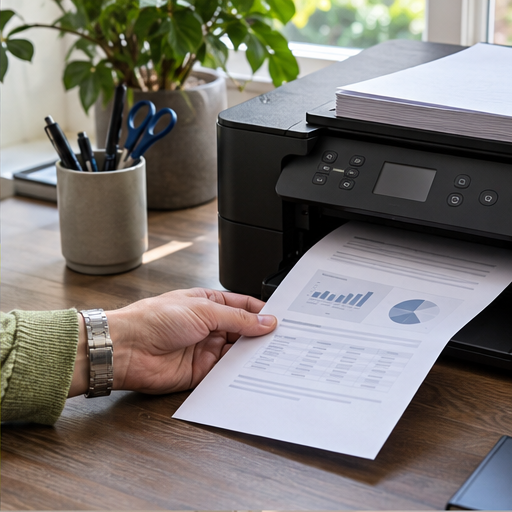
If the back of a double-sided document prints upside down, the printer may be using the wrong page-flip setting. The correct choice depends on the document’s orientation and the edge you want to bind or turn. A two-page test sheet saves paper and helps you identify the correct setting before printing a large report, manual or handout.
Understand long-edge and short-edge flipping
Duplex printing sends a sheet through the printer so it can print on both sides. The driver needs to know how the reader will turn the page. For a normal portrait document, long-edge flipping usually works like a book. The reader turns the page from left to right, and the top of the back page remains upright.
Short-edge flipping usually works like a notepad or calendar that turns over the top edge. It is common for landscape documents that need the back side to remain upright when the sheet flips along its short edge. The right setting depends on the finished document, so always test it rather than relying on the orientation label alone.
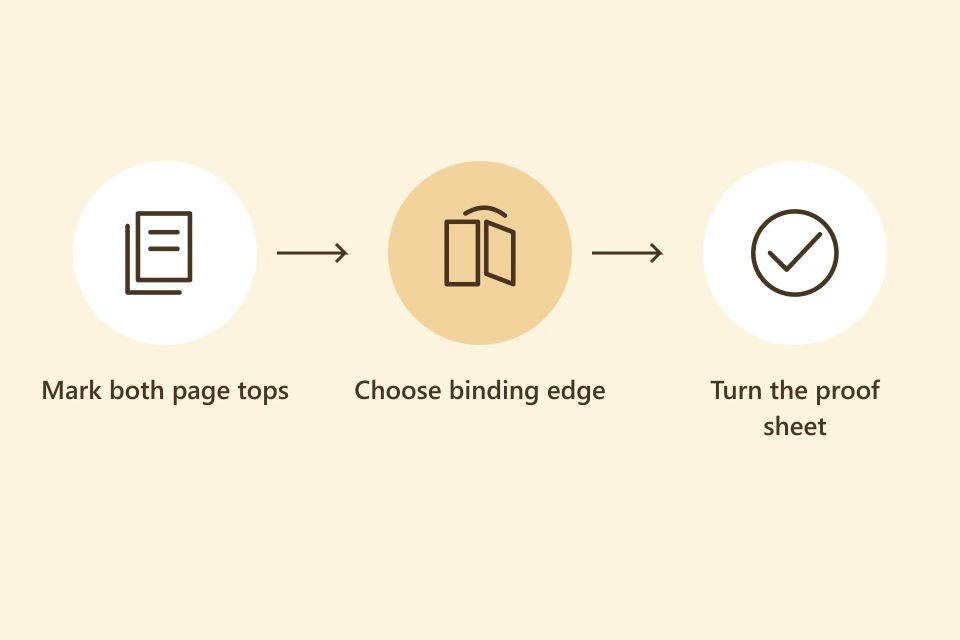
Make a simple two-page test document
Create a document with two pages. Add a large page number and an arrow marked TOP near the top margin of each page. Use portrait or landscape orientation to match the document you plan to print. Print only these two pages for the test.
After printing, hold the sheet as you would read the finished document. Turn it along the intended binding edge. Both arrows should point toward the top of the page. If the back page is upside down, change the flip setting and print another test. This method works better than using a blank sheet because the arrows reveal the orientation immediately.
Find the duplex setting in your application
- Open the document in the application you use for printing.
- Choose Print and select the correct printer.
- Look for Print on Both Sides, Two-Sided or Duplex.
- Choose Flip on Long Edge or Flip on Short Edge.
- Check the preview and confirm the page orientation.
- Print the two-page test before sending the full document.
In Adobe Acrobat, duplex options may appear in the Print dialog or inside Printer Properties or Preferences. The exact controls depend on the printer driver. If you cannot see a duplex option, the printer may not support automatic duplex printing or the installed driver may not expose it.
Set the option in Printer Properties
Some applications show only a basic print dialog. Open Printer Properties, Preferences or More settings to find the printer’s own two-sided option. Look for wording such as Duplex, 2-Sided Printing, Binding or Page Flip. Choose the edge that matches the way you will turn the finished pages.
Avoid setting conflicting duplex options in both the application and the driver. If the application controls duplex printing, leave the driver setting consistent. If the driver controls it, check the application’s option and make sure it does not override the selection. Print a test after changing the setting.
What changes when you print landscape pages?
Landscape documents are wider than they are tall. The long and short edges therefore differ from a portrait sheet. Think about the physical edge you want to turn, not only the orientation displayed in the document. A landscape presentation handout may need a different flip setting from a portrait report.
For a calendar, booklet or landscape table, print a proof and hold it in the intended reading position. Check the top of the front and back pages after turning the sheet. If the document has mixed portrait and landscape pages, test the sections separately because one duplex setting may not suit every layout.
Print manually when the printer has no duplex feature
If the printer supports only single-sided printing, you may print odd pages first and then reinsert the paper to print even pages. The correct reinsertion direction depends on the printer’s paper path and tray design. Do not assume that instructions for another printer apply to yours.
- Create a two-page test with clear TOP arrows on both pages.
- Print the first side only.
- Mark the paper’s leading edge and printed face lightly in pencil.
- Follow the printer’s manual for how to reinsert the sheet.
- Print the second page on the reverse side.
- Hold the result in reading position and check both arrows.
- Record the correct reinsertion direction for that printer.
Once the test works, print a small batch before sending the full job. Keep the printer’s paper orientation consistent. Some printers feed from the top of the stack and others feed from the bottom or reverse the sheet internally.
Common reasons the back page prints upside down
- Wrong binding edge: Change between long-edge and short-edge flipping and run another proof.
- Wrong page orientation: Confirm that the document and paper settings both use the intended portrait or landscape layout.
- Driver override: Check Printer Properties for a duplex option that conflicts with the application.
- Manual reinsertion error: Use a marked test sheet and the printer’s specific feed instructions.
- Mixed page layouts: Test sections with different orientations before printing the entire file.
How to avoid wasted paper
Print two pages first. Use the same paper size and tray that the full job will use. Check page scaling, orientation, margins and duplex settings together. If the document includes a cover page or blank pages, inspect the page range so the printer does not shift the intended front-and-back pairs.
When the proof is correct, print a small group of pages and inspect them before running a large batch. Save the working printer preset if your driver supports it. Give the preset a clear name such as Portrait Booklet or Landscape Calendar, rather than relying on a remembered setting.
Common questions
Which option should I use for a normal portrait report?
Long-edge flipping is the usual choice for a portrait report that reads like a book. Confirm with a two-page test because printer drivers may use different labels.
Why does the preview look correct but the back prints upside down?
The preview may show page layout without accurately representing the physical duplex flip. Check the driver setting and test a marked sheet.
Can every printer print on both sides automatically?
No. Some printers support automatic duplex, while others require manual reinsertion or cannot print on both sides at all. Check the model specifications.
Why does manual duplex print the second side on the wrong page?
The sheet may have been reinserted in the wrong orientation or stack order. Follow the printer-specific instructions and test one sheet.
Final duplex printing checklist
- Match the document and paper orientation.
- Decide which edge the reader will turn.
- Choose long-edge or short-edge flipping.
- Check the application and printer driver settings.
- Print a marked two-page test.
- Use the printer manual for manual duplex reinsertion.
- Inspect a small batch before printing the full document.
If the printer still produces unexpected results, check its status and driver. Our guide to tracing a Windows print job with a test page helps isolate common printing problems. For documents that print at the wrong scale, read why a PDF prints smaller than its actual size.
Reference: Adobe: Print double-sided documents on face-up printers.



