

When you share a Google Drive folder with a customer, supplier or colleague, choose the access level before you send the invitation. If the person only needs to read finished documents, give them Viewer access. Do not give Editor access simply because it is the default choice in a sharing window. Also check what else sits inside the folder. A shared folder may contain working files, drafts or internal notes that the recipient does not need to see.

Understand Google Drive access roles
Google Drive uses roles to control what people do with shared files and folders. The common roles are Viewer, Commenter and Editor. A Viewer can open the content but cannot make ordinary edits. A Commenter can add comments or suggestions in supported file types. An Editor can change content and may have additional sharing abilities depending on the file and organization settings.
Folder permissions affect items stored inside the folder. When you share a folder, people who receive access may also access its contents. This is why you should prepare a clean delivery folder instead of sharing a large working folder that contains unrelated material.
Create a separate delivery folder
- Open Google Drive and create a new folder for the recipient or project.
- Give it a clear name, such as Customer Delivery – Project Name.
- Move or copy only the files the recipient needs into the folder.
- Open each file and confirm that it is the correct final version.
- Check that the folder does not contain confidential drafts, internal quotations or personal data that should remain private.
A separate delivery folder reduces the chance of exposing material by mistake. If you need to send one document only, share the document itself instead of its parent folder. If the recipient needs several documents, a dedicated folder makes the handoff easier to understand.
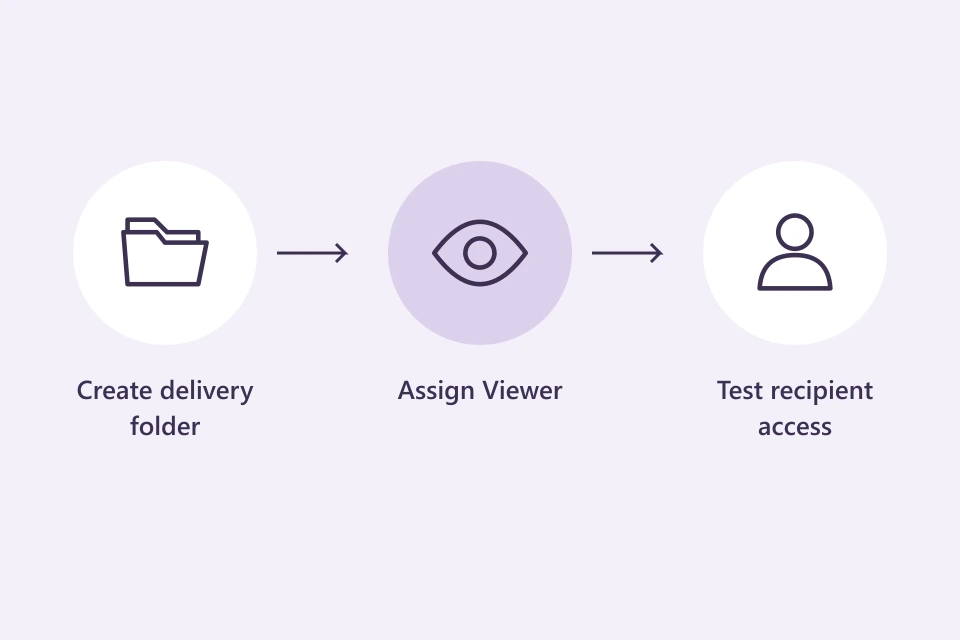
Share the folder as Viewer
- Right-click the delivery folder in Google Drive and select Share.
- Enter the recipient’s exact Google account email address or choose the correct contact.
- Open the role selector beside the recipient’s name.
- Choose Viewer.
- Check the message and recipient address before sending.
- Select Send or Share, depending on the interface.
Do not assume that the email address belongs to the person you intend to invite. Confirm it through a trusted channel if the files are sensitive. A spelling mistake may send access to the wrong account.
Choose the right General access setting
Open the folder’s sharing dialog and inspect General access. Restricted limits access to people who have been granted permission. This is a good starting point for private business documents. Anyone with the link allows people who obtain the link to access the item without an individual invitation, subject to account and administrator rules. A work or school administrator may restrict which choices are available.
Use Restricted when you know the recipients. Avoid Anyone with the link for customer records, payroll files, contracts, identity documents or other sensitive information. If a public link is necessary for a non-sensitive brochure, confirm that the file contains only material approved for public distribution.
Check existing access before sending
Open the sharing panel and review the people and groups already listed. A folder may have been shared previously with a department group or a former contractor. Removing one person’s access from a file does not always remove access inherited from its parent folder or shared drive. Check the folder’s current audience and the location where it sits.
Shared drives have their own membership and access rules. If a folder belongs to a shared drive, check the drive’s membership as well as the folder-level settings. You may not have permission to override every inherited role. Ask the shared drive manager or Workspace administrator if you need to narrow access.
Test access using the recipient’s account
Your own account is not a useful test of what a customer can see because you may have owner or administrator access. Ask the recipient to open the link while signed in to the invited account. If you use an approved test account, make sure it has no other permission to the folder. Otherwise the test may succeed for the wrong reason.
Check that the recipient can open each required file. Confirm that the sharing role is Viewer and that the document does not expose an edit control to that account. Do not ask anyone to send you their password. If the recipient cannot open the folder, verify the invited email address, account selection and any organization restrictions.
What Viewer access does and does not guarantee
Viewer access prevents ordinary editing of the original file. It does not prevent a person from taking a screenshot, photographing a screen or recording information they can see. Depending on the file type and settings, downloading, printing or copying may also be available. Google Workspace administrators and file owners may have additional controls for some file types.
Before sharing sensitive content, decide whether the recipient should see it at all. Removing download, print or copy options where supported adds a control, but it does not stop every form of copying. For highly confidential data, consider sending a redacted document or using an approved secure document system.
Change or remove access later
- Find the folder in Drive and open Share or Manage access.
- Locate the person or group whose access you want to change.
- Use the role selector to choose a different role, or select Remove access if the person no longer needs it.
- Review General access and remove a broad link if the folder should remain restricted.
- Check the parent folder or shared drive if the person still has access.
- Ask the recipient to confirm that access has changed when the task requires verification.
If a person still opens the folder after you remove their direct permission, look for inherited access through a group, parent folder or shared drive. Also remember that removing online access does not recall copies the person downloaded earlier.
Common problems
The recipient can edit even though I selected Viewer
Check whether the recipient has another Editor permission through a group, parent folder or shared drive. Inspect the specific file as well as the folder. A separate direct permission may be stronger than the role you expected.
The folder link asks the recipient to request access
Confirm that you shared it with the same account the recipient is using. A work or school administrator may restrict external sharing. Ask the administrator if the recipient is outside your organization.
I cannot remove a person’s access
You may not own the folder or may not have permission to manage inherited access. Contact the owner or shared drive manager. Do not move confidential files into another location without checking your organization’s policies.
Can I share one file without sharing the whole folder?
Yes. Open the individual file’s sharing settings and invite the recipient there. Check the parent folder too, because the recipient may already have access to other items.
Common questions
Is Viewer safer than Editor?
Viewer is appropriate when the recipient only needs to read the file. It reduces the risk of unwanted changes, but it does not prevent someone from copying information they can see.
Should I use Anyone with the link?
Use it only when broad access is intentional and the content is suitable for that audience. For named customers or staff, Restricted access is usually the better choice.
Does sharing a folder share every file inside it?
Folder access generally applies to its contents. Check the folder before inviting anyone and avoid placing unrelated private files inside a shared delivery folder.
Does removing access delete downloaded copies?
No. It changes access to the online item. It does not retrieve copies someone already downloaded or captured.
Final checklist
- Create a dedicated folder with only approved delivery files.
- Invite the correct email address.
- Choose Viewer when the recipient only needs to read.
- Use Restricted access for named recipients.
- Review inherited permissions and shared drive membership.
- Test with the invited account and check the result.
- Remove access when the project or business need ends.
Use the same careful approach when sharing files in Microsoft OneDrive. Read our guide to checking who can open a shared OneDrive link. If someone changes a shared file by mistake, see how to restore an earlier version of a OneDrive file.
Reference: Google Drive Help: Share and manage access to files and folders.

