
When a PDF report has a cover page, contents page and numbered chapters, the page number printed in the footer may not match the position shown by the PDF viewer. For example, the document’s printed page 1 may be the third page in the file. If you type a range without checking this difference, you may print the wrong section or send private pages to a shared printer.
Understand PDF page positions and printed numbers
A PDF viewer counts the physical pages in the file. The document creator may also add printed page numbers such as i, ii, 1, 2 or A-1. A cover, contents page, appendix or blank divider can cause these numbering systems to differ.
Before printing an extract, identify both the page number shown by the viewer and the number printed on the page. Use the heading, footer or page thumbnail to confirm the content. Do not assume that page 10 in the report is the tenth page in the PDF file.
Use page thumbnails to select the correct pages
- Open the PDF in Adobe Acrobat.
- Open the Page Thumbnails panel from the navigation pane.
- Click a thumbnail and inspect the full page to confirm its heading or footer.
- Select the first page you need.
- Hold Shift and select the last thumbnail for a continuous range, or use Ctrl on Windows and Command on Mac to select separate pages where supported.
- Open Print and choose the option for selected pages if the application provides it.
Thumbnail selection is useful when printed numbering differs from the viewer’s page count. It also helps when a document includes blank pages, foldouts or appendices. If your Acrobat version does not provide the same selection behavior, use the page-range field after mapping the correct PDF positions.
Map printed page numbers to PDF positions
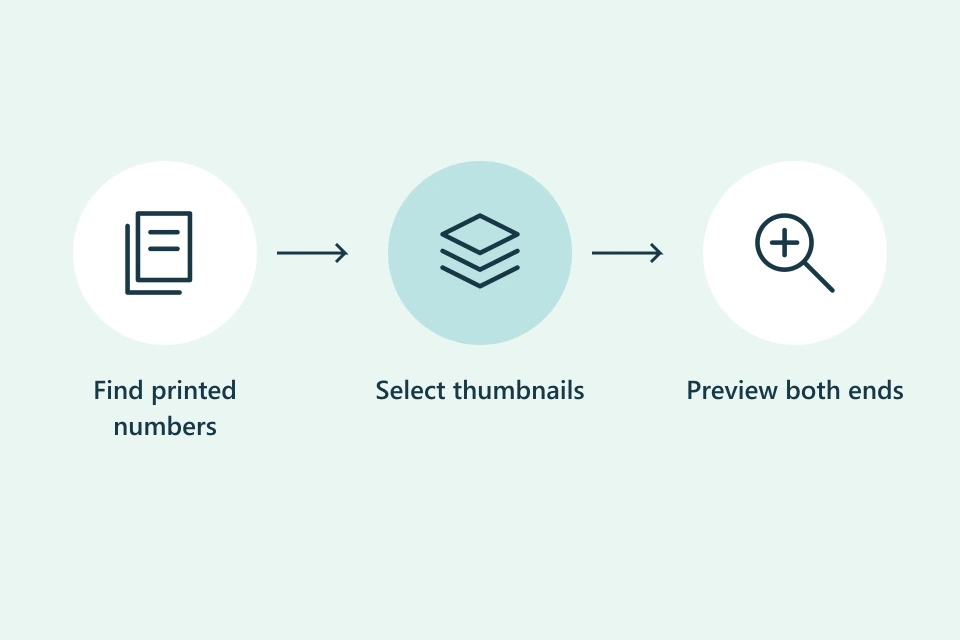
For a short report, make a simple list before printing. Record the printed page number, the PDF viewer position and a short heading. For example, printed pages 8 to 10 might appear at PDF positions 12 to 14 because the file includes a cover and contents pages. This small check prevents a common range-selection error.
For a large document, use bookmarks or the table of contents to locate the section. Check the first and last page of the section, then inspect any blank or divider pages between them. If the section includes a foldout, appendix or attachment, decide whether it belongs in the print job.
Check the print preview before sending the job
Open Print and review the preview pages. Inspect the first selected page and the last selected page. Count the expected number of pages. If you need three consecutive pages, the preview should show three pages unless you have chosen multiple pages per sheet or another layout option.
Check page orientation, paper size and scaling as well. A correct page range can still produce an unusable result if the printer scales the content or rotates a landscape page unexpectedly. For documents with sensitive information, check the printer location and collect the pages promptly.
When is typing a page range safe?
Typing a range is convenient when you know how the PDF viewer interprets the numbers. First map the printed page numbers to the actual PDF positions. Then enter the correct positions in the print dialog. Different applications may use different range syntax, so follow the labels and help text shown by your version.
If the selection is important, print one copy to a secure printer or create an approved extract for review. Open the result and check the first and last pages. Do not distribute a partial document until you confirm that the correct pages appear in the right order.
Print separate pages from different sections
Some jobs need selected pages that are not consecutive. Use the application’s supported page-selection method and inspect each selected page. Separate ranges with the syntax shown in the dialog. For example, you may need a cover page, a signature page and one appendix. Make sure the print preview shows exactly those pages and no unrelated material.
If you use thumbnail selection, check the order of the selected pages. Some workflows preserve the order in which you select pages, while others follow the original document order. Preview the result before printing multiple copies.
Protect private information when printing extracts
PDF reports often contain personal, financial or business information. Before sending a job to a shared printer, confirm that the selected pages contain only the material intended for the recipient. A range that includes the wrong appendix or a hidden page may expose information unnecessarily.
Use secure print release or a printer located in an authorized area when available. Collect the pages immediately and dispose of incorrect test prints according to your organization’s document handling rules. If you create a separate PDF extract, save it in an approved location and apply the same access controls as the original document.
Common page-selection mistakes
- Counting the cover as printed page 1: Check the footer or document numbering before entering a range.
- Forgetting blank dividers: A blank page still occupies a PDF position and may shift the page range.
- Missing the final page: Inspect the last selected thumbnail and the final preview page.
- Using the wrong page-range syntax: Follow the format supported by the application and printer dialog.
- Printing multiple pages per sheet: Check layout settings so the selected pages do not shrink unexpectedly.
Common questions
Why does the PDF viewer show a different page number from the footer?
The viewer counts pages in the file. The document creator may use a separate numbering system for front matter, chapters or appendices.
Can I select pages with thumbnails in every PDF reader?
No. Selection controls vary by application and version. If thumbnail selection is unavailable, map the correct PDF positions and enter the range in the print dialog.
How do I print pages 8 to 10 if the cover and contents come first?
Find the PDF positions that contain printed pages 8, 9 and 10. Enter those positions or select the corresponding thumbnails, then check the preview.
Why did the print job include a blank page?
The PDF may contain a blank divider or a page included for duplex layout. Inspect the thumbnails and decide whether that page belongs in the extract.
Final checklist before printing
- Confirm the printed page numbers and PDF positions.
- Use thumbnails, bookmarks or headings to identify the correct pages.
- Check the first and last pages in the print preview.
- Count the pages and inspect any blank or divider pages.
- Confirm paper size, orientation and scaling.
- Use a secure printer for confidential material.
- Review the printed copy before distributing it.
For other PDF printing problems, read our guides to printing a PDF at its actual size and printing double-sided pages with the correct orientation.
Reference: Adobe Acrobat: Page thumbnails and bookmarks in PDFs.



