
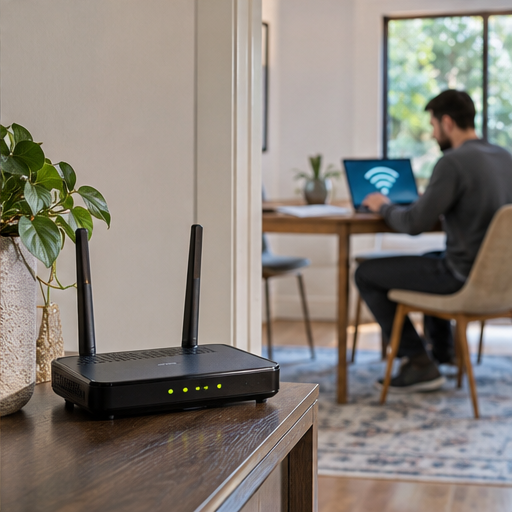
A Windows laptop may fail to connect to Wi-Fi because wireless is turned off, the saved password has changed, the signal is weak or the router has lost internet access. Start with simple checks before changing advanced network settings. Test another device on the same network, confirm Wi-Fi is enabled and move closer to the router. These steps help you identify whether the problem affects the laptop or the whole network.
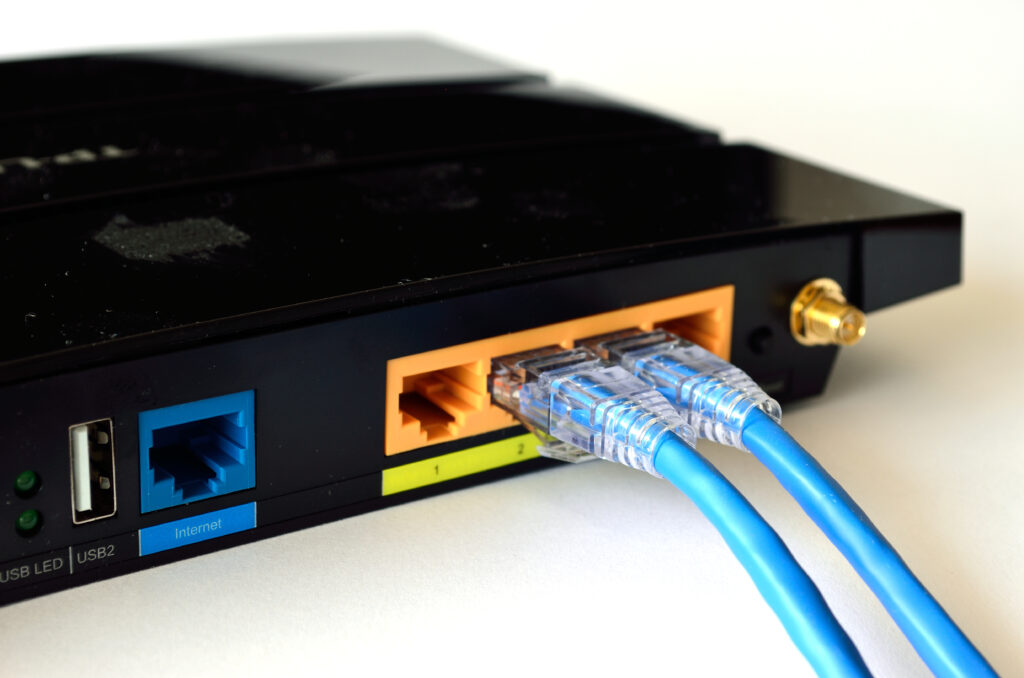
1. Check whether other devices can connect
Try connecting a phone or another computer to the same Wi-Fi network. Open a website that requires an internet connection. If other devices connect successfully, the issue may be limited to the laptop. If no device connects, check the router, modem and internet service before changing the laptop’s network settings.
If possible, connect the laptop to another trusted Wi-Fi network, such as a personal hotspot. If the laptop connects elsewhere, its wireless adapter may be working and the issue may involve the original router or its settings.
2. Check Wi-Fi and Airplane mode
Open Quick Settings from the Windows taskbar and confirm that Wi-Fi is on and Airplane mode is off. Some laptops also have a physical wireless switch or a keyboard shortcut that controls wireless connectivity. Check the laptop manual if the Wi-Fi control appears disabled.
If the Wi-Fi option is missing entirely, open Device Manager and expand Network adapters. Check whether the wireless adapter appears and whether Windows has disabled it. If it is disabled, enable it if you are authorized. If the adapter is missing or shows an error, record the device name and error message.
3. Restart the laptop and router safely
Save your work and restart the laptop. If other devices also have connection problems, restart the router using its power button or the manufacturer’s instructions. Wait for the router to finish starting and reconnect before testing again.
Do not press the router’s factory reset button for a routine restart. A factory reset may erase the Wi-Fi name, password, internet settings and other configuration. If the router belongs to a business or shared building, ask the network administrator before restarting it.
4. Move closer to the router
Move the laptop closer to the router and test again. Walls, distance, metal cabinets and interference can weaken Wi-Fi. If the connection works near the router but fails in your usual room, the problem may be coverage rather than the laptop.

5. Forget and reconnect to the Wi-Fi network
If Windows saved an old password or network profile, forget the network and connect again. You will need the current Wi-Fi password. Open Settings, select Network & internet, choose Wi-Fi and open Manage known networks. Select your network and choose Forget. Then select the Wi-Fi icon on the taskbar, choose the network and enter the current password.
Wi-Fi passwords are case-sensitive. Check for typing errors and confirm the network name before reconnecting. If the router owner recently changed the password, ask for the current credentials rather than repeatedly trying an old one.
6. Run Windows network troubleshooting
On Windows 11, open the Get Help app and search for the Network and Internet troubleshooter. Follow the steps and note any result or error message. On Windows 10, open Settings, Network & Internet and Status, then choose Network troubleshooter if the option is available.
Windows may identify a disabled adapter, configuration problem or another common issue. The troubleshooter does not detect every fault, so test the connection again after it finishes. If it makes a change, note what it changed before trying another fix.
7. Check the wireless adapter and driver
Open Device Manager and expand Network adapters. Find the wireless adapter and check its status. If it is disabled, enable it. If it shows a warning icon, open Properties and record the device status message. Check Windows Update or the laptop manufacturer’s official support site for a driver that matches your exact model and Windows version.
Do not download drivers from unfamiliar websites. A wrong driver may make the connection worse or introduce security risks. On a company-managed laptop, ask IT before updating, rolling back or removing a network driver.
Check whether the router or laptop is the problem
Use a simple comparison. If another device connects to the same Wi-Fi network but the laptop does not, focus on the laptop’s saved profile, adapter, driver and network settings. If no device connects, check the router’s status lights, internet connection and provider service. If the laptop connects to a phone hotspot but not the home router, the problem may involve router compatibility or settings.
For a more controlled comparison, connect the laptop to the router using Ethernet if the laptop or a supported adapter has a port. Turn Wi-Fi off during the wired test. If Ethernet works and Wi-Fi fails, investigate the wireless path. Our guide to telling whether Ethernet or Wi-Fi is the problem explains this test.
Use Network reset only as a last resort
Windows Network reset removes and reinstalls network adapters and returns network settings to their defaults. You may need to set up VPN software, virtual switches or other network tools again. Use it only after checking the router, Wi-Fi settings, saved profile and adapter driver. Read Microsoft’s instructions and record any custom settings before proceeding.
Common problems and solutions
- Wi-Fi option is missing: Check Device Manager, the wireless switch and the adapter driver.
- Incorrect password message: Confirm the network name and current password with the router owner.
- Connected but no internet: Test another device and check the router’s internet status.
- Works near the router only: Investigate coverage, obstacles and router placement.
- Only one laptop fails: Check its saved profile, adapter, driver and network configuration.
- All devices fail: Check the router, modem and internet provider before resetting the laptop.
Common questions
Why does my laptop say Connected but no internet?
The laptop may have a Wi-Fi connection to the router while the router has lost internet access. Test another device and check the router’s internet status.
Should I reset the router?
Try a normal restart only when you are authorized. Avoid factory reset unless the network administrator or manufacturer directs you to do it.
Will forgetting the network delete the router password?
It removes the saved profile from that Windows device. You need the current password to reconnect.
When should I update the Wi-Fi driver?
Update it when the adapter shows an error or other evidence points to a driver issue. Use Windows Update or the laptop manufacturer’s official support page.
Final Wi-Fi troubleshooting checklist
- Test another device on the same network.
- Check Wi-Fi and Airplane mode.
- Restart the laptop and, if appropriate, the router.
- Move closer to the router.
- Forget and reconnect using the current password.
- Run the Windows network troubleshooter.
- Check the wireless adapter and official driver.
- Use Network reset only after simpler checks fail.
For more network troubleshooting, read our guides to Wi-Fi that drops in the next room and reading a Windows Wi-Fi report after a disconnect.
Reference: Microsoft Support: Fix Wi-Fi connection issues in Windows.



