

Estimate CCTV storage from the bitrate your recorder actually saves, not from camera resolution alone. A 4 MP camera does not use one fixed amount of disk space. Motion, image noise, frame rate, codec, compression settings and the selected recording stream all affect storage. Measuring the real stream gives you a better estimate of how many days of footage your hard drive will retain.
Understand bitrate before calculating storage
Bitrate measures how much data a video stream produces each second. CCTV systems commonly show bitrate in kilobits per second (kb/s) or megabits per second (Mb/s). Check whether the recorder reports the main stream, substream or total stream. A mobile app may display a low-bandwidth substream while the recorder stores the higher-quality main stream.
For storage planning, use the stream that the recorder writes to disk. If the camera records audio or more than one stream, include those data sources too. A bitrate value from a live preview may not represent the stored footage.
Calculate storage for one camera
For a continuous stream measured in decimal megabits per second, use this practical estimate:
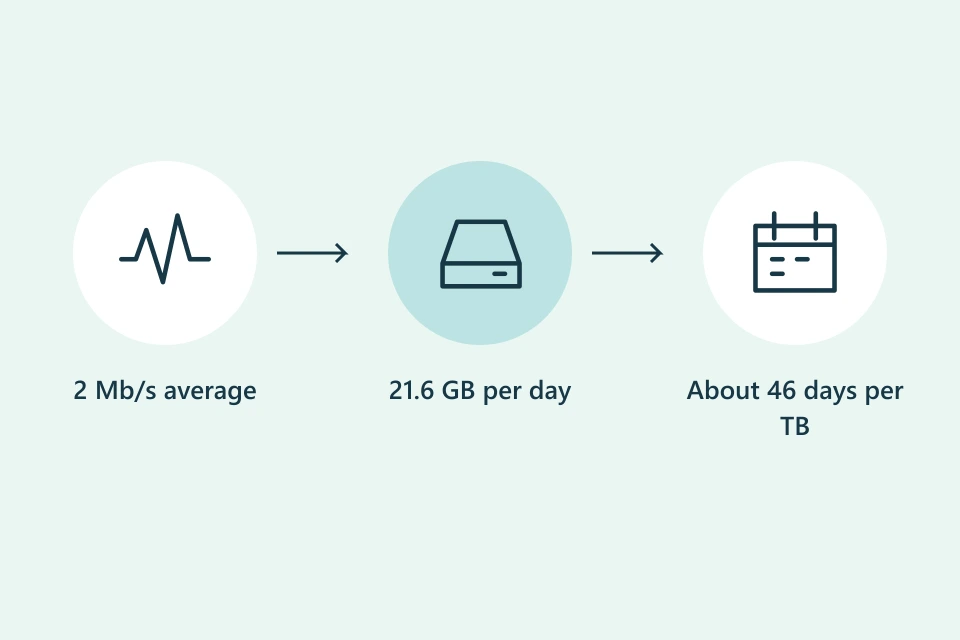
Gigabytes per day = average bitrate in Mb/s × 10.8
The factor comes from 86,400 seconds in a day, divided by eight bits per byte and converted to decimal gigabytes. For example, a camera averaging 2 Mb/s produces about 21.6 GB of data per day before filesystem overhead, audio or reserve space.
For a 4 Mb/s stream, the estimate is 43.2 GB per day. For a 1 Mb/s stream, it is 10.8 GB per day. These are planning estimates. Actual recorder usage may differ because of variable bitrate, metadata, audio, container overhead and how the manufacturer reports disk capacity.
Estimate storage for multiple cameras
Calculate the daily usage for each camera, then add the results. If eight cameras each average 2 Mb/s, the total is 8 × 21.6 GB, or about 172.8 GB per day. A recorder with 4,000 GB of usable recording space would hold roughly 23 days at that rate before reserve and overhead.
Do not assume every camera uses the same bitrate. An outdoor camera facing trees, traffic or moving people may generate more data than a camera watching a quiet corridor. Record the bitrate for each channel during representative activity. Use the total of all channels for the recorder estimate.
Use usable disk capacity, not the label on the drive
A hard drive advertised as 4 TB does not necessarily provide 4,000 GB of space for video. The recorder formats the disk and may reserve space for its system, database or operating functions. Some systems also reserve space to maintain a buffer. Read the recorder’s storage status page and use the capacity available for recording.
For a simple estimate, divide usable capacity in GB by the combined daily usage in GB. If 3,600 GB is available and the cameras use 172.8 GB per day, the estimate is about 20.8 days. Keep a reserve rather than planning to fill every last gigabyte. The recorder’s overwrite behavior and retention policy also affect what footage remains available.
Measure actual bitrate on the recorder
- Open the recorder’s local interface or administrator web page.
- Find the camera or encoding settings for each channel.
- Look for the bitrate shown for the main recording stream.
- Check whether the stream uses constant bitrate (CBR) or variable bitrate (VBR).
- Record values during quiet periods and busy periods.
- Repeat the measurement at different times of day, including night.
- Use a representative average for your estimate and retain the observed peak for capacity planning.
Some recorders show current bitrate, while others show only the configured maximum. A configured maximum is not the same as the average data rate. If the recorder exposes disk usage over time, use that measurement as a cross-check.
Continuous recording and motion-triggered recording
Continuous recording writes video all day. The calculation is straightforward because the stream records for 24 hours. Motion-triggered recording depends on how often the scene triggers recording and how long the recorder keeps footage before and after each event.
Do not estimate motion recording from one quiet day. A shop may have little activity overnight and heavy movement during business hours. Trees, rain, insects, headlights and changing shadows can also trigger motion detection. Sample at least several representative days, including the busiest operating period.
For motion recording, note the actual daily increase in storage on the recorder. Divide the increase by the number of days measured. If storage grows by 120 GB over four days, the average is 30 GB per day. Use a longer sample when activity varies significantly by weekday, weekend or season.
Account for codec, frame rate and image quality
H.264 and H.265 are common video codecs. H.265 often achieves lower bitrate for comparable visual quality, but the result depends on camera settings, scene detail and recorder support. Do not assume a fixed percentage saving. Compare recorded footage and measured storage before changing codecs across a production system.
Frame rate affects how many images the camera records each second. A higher frame rate may improve motion detail but usually increases data use when other settings remain similar. Lowering the frame rate too far may make fast movement difficult to review. Choose settings based on the security purpose, such as identifying a face at an entrance or reading a vehicle plate.
Noise can increase bitrate, especially at night. A camera with poor lighting may produce a noisy image that requires more data to encode. Improve lighting and camera placement before lowering image quality without testing. Check that the result still supports the identification task.
Plan for retention and evidence requirements
Ask how many days of footage the site needs to retain. A small shop may have a different requirement from a school, warehouse or residential building. Follow local law, contract terms and the organization’s privacy policy when setting retention. Do not keep footage longer than the approved purpose requires.
For important installations, calculate storage with a realistic average bitrate, then add a reserve. Test the oldest playable recording after the system has operated for the intended retention period. A recorder’s displayed disk capacity does not prove that the footage is available and playable for every channel.
Worked example: a four-camera installation
Assume four cameras have measured average bitrates of 2.0, 2.5, 1.5 and 3.0 Mb/s. Their combined bitrate is 9 Mb/s. Multiply 9 by 10.8 to estimate 97.2 GB per day. If the recorder has 2,000 GB of usable video capacity, divide 2,000 by 97.2. The result is about 20.6 days before overhead and reserve. A sensible installation plan should leave room for variation rather than promise exactly 20 days.
After installation, compare the estimate with actual disk growth over at least a week. If the recorder uses more space than expected, inspect night noise, frame rate, audio, extra streams and motion activity. Update the retention estimate using the measured result.
Common questions
Does camera resolution determine storage?
No. Resolution affects the amount of image detail, but bitrate and recording time determine the data written. Measure the stream stored by the recorder.
Is the substream enough for the calculation?
Only if the recorder stores that substream. Many systems use the main stream for recording and the substream for remote viewing. Confirm the recording configuration.
Will H.265 always halve storage?
No. Compression results vary with the scene, settings and equipment. Compare actual recordings and disk growth before relying on a saving estimate.
How much extra space should I reserve?
There is no universal percentage for every recorder. Use the manufacturer’s guidance, actual disk allocation and observed daily growth. Keep enough margin for busy scenes and bitrate peaks.
How do I confirm the real retention period?
After the system has run for the required period, search for the oldest date and play footage from each channel. Confirm that the recorder has not overwritten the evidence earlier than expected.
Final storage checklist
- Measure the main stream that the recorder stores.
- Record average and peak bitrate for each camera.
- Calculate daily use for each channel and add the totals.
- Use the recorder’s usable capacity, not the drive’s advertised size.
- Sample motion recording during busy and quiet periods.
- Allow a reserve and verify the oldest playable footage.
Storage is only one part of a reliable CCTV installation. You should also test image quality under difficult lighting. Read our guides on testing a camera’s view of a backlit doorway and why moving faces blur on a security camera at night.
Reference: AXIS Camera Station 5 documentation.


