
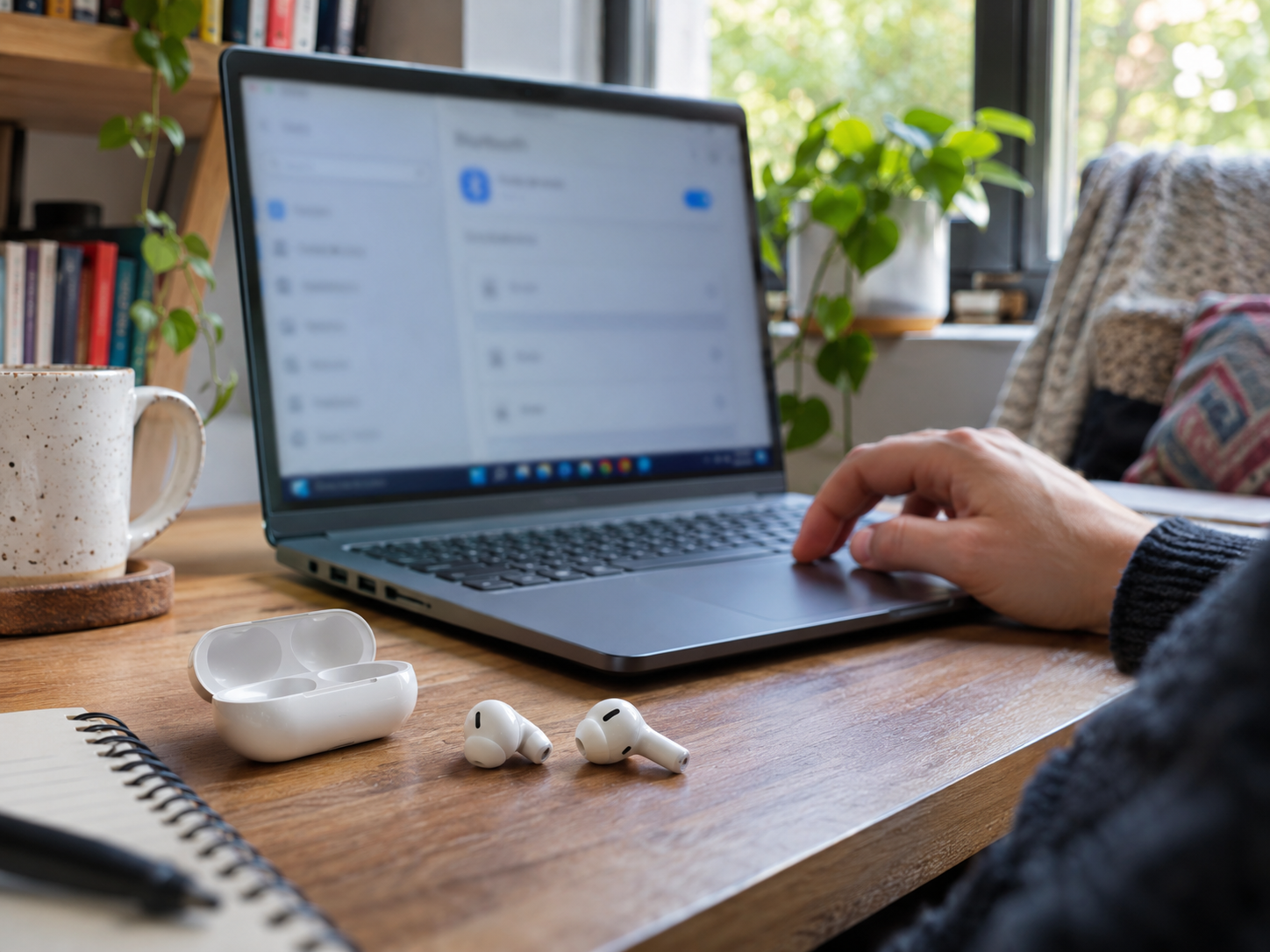
Bluetooth headphones can appear in Windows without connecting, or connect while sound still plays through the laptop. Check the headphones and Windows settings before changing drivers.
Are the headphones charged and in pairing mode?
Charge the headphones, switch them on, and follow the maker’s instructions to enter pairing mode. A power-on sound does not always mean pairing mode has started. Keep the headphones near the laptop while you test.
If the headphones connect to your phone at the same time, pause that connection or turn Bluetooth off on the phone for this test. Some models support two active connections; others switch to whichever device connected first.
Is Bluetooth turned on in Windows?
Open Settings → Bluetooth & devices and check that Bluetooth is on. Turn it off, wait several seconds, and turn it on again. If your laptop has a wireless keyboard key or hardware switch, check that too.
Should you remove and pair the headphones again?
If Windows lists the headphones but cannot connect, open Settings → Bluetooth & devices → Devices. Select the headphones, choose Remove device, then select Add device → Bluetooth and pair them again. Removing the saved entry does not reset the headphones.
Are the headphones selected as the sound output?
A successful Bluetooth connection does not guarantee that Windows sends audio to the headphones. Open Settings → System → Sound and choose the headphones under Output. Play a short audio clip and check the headphone volume.
For a call, also check the meeting app’s speaker setting. The app can use a different output from Windows.
Does another app or device reveal where the fault sits?
Test the headphones with a phone or another computer. Then test a different Bluetooth accessory with the laptop. If the headphones fail with several devices, consult their manual or support page. If several accessories fail only on this laptop, run the Windows Bluetooth troubleshooter from the Get Help app and check Windows Update.
Microsoft’s Bluetooth troubleshooting guide covers pairing, missing devices, and driver checks. If Wi-Fi also drops on this laptop, see these Wi-Fi checks.
What if Windows still cannot find the headphones?
Restart the laptop and the headphones, then retry pairing. Check the laptop maker’s support page for Bluetooth drivers that match the exact laptop model. Avoid driver-download sites that bundle unrelated software.
About the author: Emmanuel Kofi Ampiah writes practical guides about everyday devices. Learn about Emmanuel or view his portfolio.



