

Before you send a OneDrive file to a customer, colleague or supplier, check exactly who has permission to open it. A shared link does not always give access to everyone who receives it. Some links work only for named people. Others work for anyone who has the link. A recipient might also open the file through an existing group or folder permission, even when you remove the link you originally sent.

This guide shows you how to inspect sharing links, direct permissions and inherited access in OneDrive. It also explains how to test a link safely, remove access and reduce the risk of exposing business files. The steps apply to OneDrive for work or school and may look slightly different in personal OneDrive or in organizations with customized Microsoft 365 policies.
Start with the file’s Manage access panel
Open OneDrive in your browser and locate the exact file or folder. Select the item, open its context menu and choose Manage access. In some layouts, you may need to select the information icon or open the sharing details first. Confirm the file name and folder path before changing anything. A similarly named file in another project folder may have a different audience.
The panel helps you identify people, groups and sharing links that grant access. Review each section rather than looking only at the link you copied. A person might have permission through a Microsoft 365 group, a direct invitation or the parent folder. Write down the names and access levels that should remain before you remove anything.
Understand the main OneDrive link types
- Anyone with the link: A recipient who obtains the link may open it without being individually named, subject to any password, expiry or organization restrictions. Treat this as a broad-access link because recipients may forward it.
- People in your organization: The link is limited to eligible accounts in your Microsoft 365 organization. It is not intended for external customers or suppliers.
- Specific people: Only the people you select are intended to use the link. A forwarded link does not automatically authorize a different person.
- People with existing access: This link points to the item but does not grant new permission. The recipient must already have access through another route.
Your organization may hide or restrict some options. Microsoft 365 administrators can apply policies that limit external sharing, link expiry or who may create Anyone links. If an option is missing, ask your administrator rather than trying to bypass the policy.
Check direct access and inherited permissions
Links are only one part of the access picture. Look for named people and groups in Manage access. Check whether each person has View or Edit permission. View access usually allows someone to read or download, depending on the service settings. Edit access allows changes to the shared item and may allow further sharing if the organization permits it.
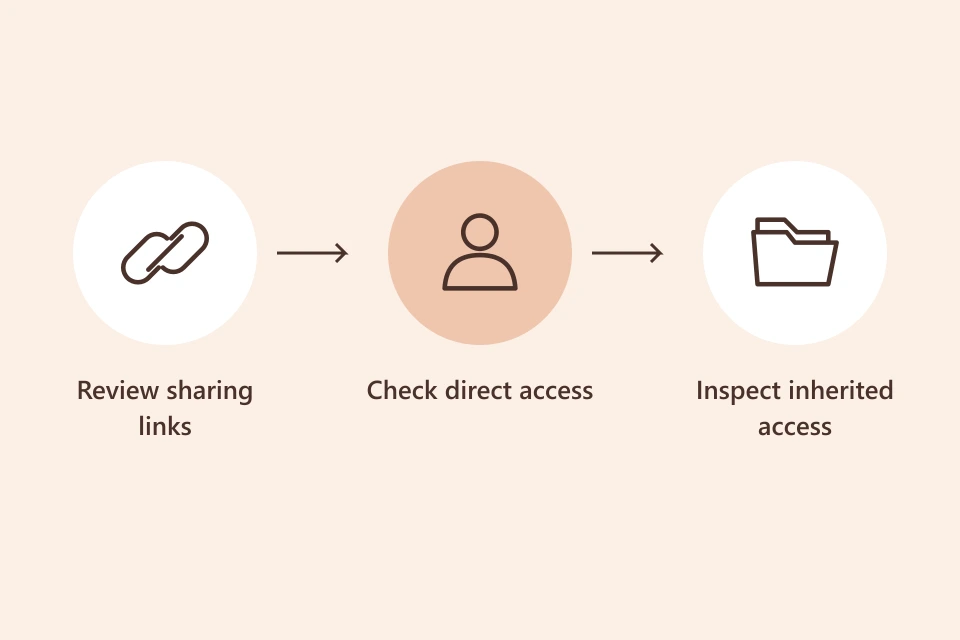
Next, check whether the file sits inside a shared folder or SharePoint library. A person who can open the parent folder may also open the file. This is inherited access. Removing a file-specific link does not necessarily remove access granted by the parent folder, a SharePoint site or a group membership.
For example, imagine you share a payroll spreadsheet with one manager using a Specific people link. The spreadsheet also sits in a department folder that the entire finance team can access. Removing the manager’s link does not remove the finance team’s folder permission. Review the folder’s access separately before you conclude that the file is private.
How to check who can open a shared OneDrive link
- Open OneDrive using the account that owns or manages the file.
- Find the exact file and select Manage access.
- Review every active link. Note its audience, permission level, expiry date and password requirement where shown.
- Review direct people and group permissions. Confirm that each person still needs access.
- Check the parent folder or SharePoint library for inherited permissions.
- Open the link using an account that represents the intended recipient. Confirm that the person receives the expected access level.
- Record the date of the review and any changes you made.
Test a link without confusing the results
Use a test account that matches the audience you want to verify. If you shared the file with a particular customer, ask that customer to confirm access or use an approved test account with the same type of permission. A signed-out browser window is useful for checking whether an Anyone link works without authentication, but it does not prove that no signed-in colleague has access.
Do not ask an employee to share their password or sign in on your device. Use an authorized account and follow your organization’s security procedures. Test both the link and the file itself. Confirm that a Viewer cannot edit the document and that an Editor has only the access your organization intends.
Remove a link or reduce its permissions
If a link reaches a wider audience than necessary, open Manage access and select the link’s options. Choose the available command to remove the link or change its settings. The exact labels vary across OneDrive versions and account types. If you still need to share the file, create a replacement link with a narrower audience, such as Specific people.
After removing the link, inspect direct access and group permissions again. If someone should lose access completely, remove the relevant direct permission or ask the folder or site owner to adjust inherited access. Do not remove a broad group permission without checking who else depends on it. A change to a shared department folder might interrupt an entire team.
Remember that revoking online access does not retrieve a copy someone already downloaded, printed or captured. If the file contained confidential information and you suspect unauthorized access, contact your IT or security team. They may need to review audit logs, sharing policies and incident procedures.
Practical habits for safer file sharing
- Choose the narrowest audience that meets the task.
- Give View access when recipients only need to read the file.
- Use expiry dates where available for temporary projects.
- Avoid Anyone links for payroll, identity documents, customer records and other sensitive files.
- Review folder permissions before placing a sensitive file in a shared location.
- Remove links when a project ends, then check other access routes.
- Keep a simple record of the file owner, intended audience and review date.
Common questions
Can I see every person who opened my OneDrive link?
Manage access shows permissions and links, not necessarily a complete history of every view. Work or school administrators may have audit information available through Microsoft 365, depending on licensing, configuration and retention. Ask your administrator if you need an access investigation.
Does deleting a link remove all access?
No. It removes access provided by that link. Direct permissions, group membership and inherited folder or site permissions may remain. Review each route.
Why can someone open a file after I remove their link?
They may have another permission, such as access through a group or shared parent folder. They may also have downloaded a copy earlier. Check the Manage access panel and the surrounding folder.
Should I use an Anyone link for a customer?
Use it only when broad forwarding is acceptable and your organization permits it. For a named customer, Specific people is usually a safer choice. Confirm that the customer can sign in with the invited account.
Final check before you share
Think of access as a set of routes, not a single link. Review links, direct permissions, groups and inherited folder access. Test the file with an appropriate account. After changing permissions, repeat the check and record what you verified. For related cloud-storage tasks, read our guides on sharing a Google Drive folder without giving edit access and restoring an earlier version of a OneDrive file.
Reference: Microsoft: Manage sharing and permissions in OneDrive and SharePoint.


