

Google Forms collects information through more than one route. The form may save a respondent’s Google account email address through a response setting. The creator may also have added an email question that asks people to type an address themselves. A linked spreadsheet may contain older email records even after you change the form. Check all three before you describe a survey as anonymous or tell people that it does not collect email addresses.

This guide explains how to review Google Forms email collection, test the form as a respondent and protect responses that already exist. The exact labels may vary as Google updates its interface or as a school or business administrator applies Workspace settings.
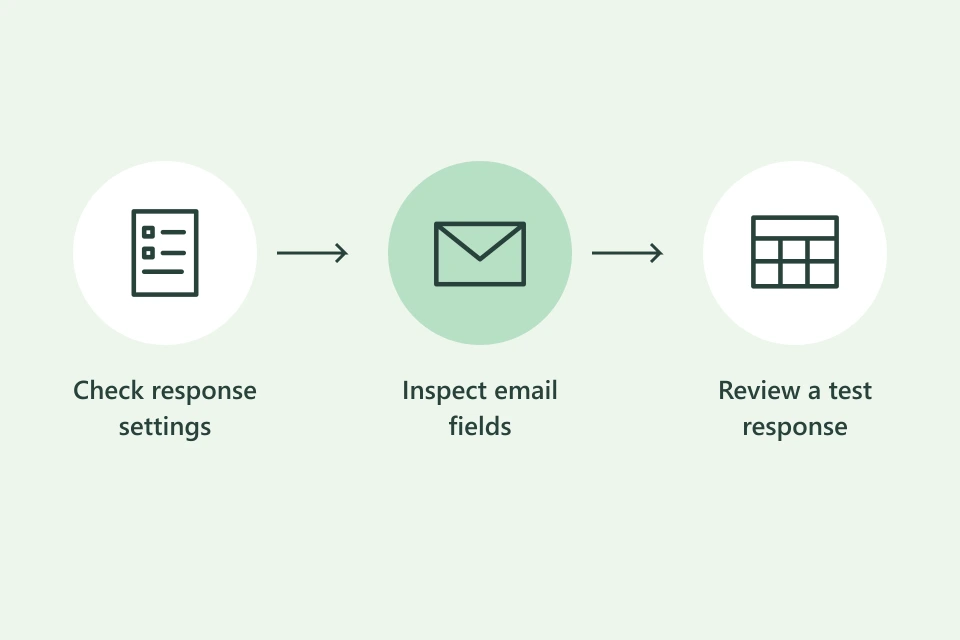
Check the Collect email addresses setting
Open the form in edit mode and select Settings. Find the Responses section and inspect Collect email addresses. Depending on the current interface and account, you may see options such as Do not collect, Verified or Responder input.
- Do not collect: The form does not automatically record a respondent’s email address through this setting.
- Verified: Google records the email address associated with the signed-in Google account. This is useful when you need a verified identity, but it is not anonymous.
- Responder input: The form asks the respondent to enter an email address. The person types the value, so check the question wording and validation.
Select the option that matches the purpose of your form. If you need to contact respondents, explain why you need their address and how you will use it. If you do not need it, avoid collecting it simply because the option is available.
Inspect the questions in the form
Turning off automatic collection does not remove an ordinary question that asks for an email address. Review every question, including sections that appear after a respondent selects a particular answer. Look for labels such as Email, Contact address, Personal email or Work email.
Also check fields that may identify a person without asking for an email. A full name, staff number, student ID, phone number, uploaded document or detailed free-text answer may identify someone. A survey is not anonymous merely because it has no email field.
Review required questions carefully. If a respondent must enter a name or employee number to submit the form, state that clearly. If you need anonymous feedback, remove fields that identify respondents and avoid asking for details that reveal their identity indirectly.
Why does Google Forms still ask respondents to sign in?
A sign-in requirement does not always mean that the form records an email address. Some features and organization policies require a Google account. For example, limiting a form to one response may require sign-in. File-upload questions also require respondents to sign in to a Google account. A school or company may restrict the form to people in its Workspace organization.
Separate two questions during your review: does the respondent need to sign in, and does the form save the respondent’s email address? Check the collection setting and run a test. Do not promise anonymity until you understand both the form settings and any Workspace restrictions.
Test the form before you share it
A preview inside the editor is useful, but a real test submission gives you stronger evidence about what the form records. Use a test account that represents your intended audience. Do not enter another person’s personal information into a test response.
- Open the published responder link in a separate browser window or profile.
- Check whether Google asks you to sign in before showing the questions.
- Complete the form with clearly marked test information. Avoid real names, addresses or phone numbers.
- Submit the test response.
- Return to the form editor and open the Responses tab.
- Review the summary and individual response. Check for an email field or other identifying details.
- If the form links to Google Sheets, open the spreadsheet and inspect its columns too.
- Delete the test response if it should not remain in the live results.
What happens to email addresses already collected?
Changing the collection setting affects future submissions. It does not automatically erase email addresses already stored in previous responses. Review the existing response records and decide whether you still need them. Follow your organization’s retention policy before deleting records that relate to official work, school administration or customer requests.
If the form sends responses to a linked spreadsheet, remember that the spreadsheet is a separate Google file. Changing the form’s collection setting does not remove old spreadsheet values or change the spreadsheet’s sharing permissions. Check who has Viewer, Commenter or Editor access to the spreadsheet. Remove access that people no longer need, while keeping the file available to authorized owners.
Limit who can view the responses
Form editors may see response data. People with access to a linked spreadsheet may also see the data stored there. Review the sharing settings for both resources. Give access only to staff who need to manage or analyze the responses. Avoid posting a response spreadsheet in a broadly accessible team folder if it contains personal information.
When you share summary results, remove identifying details that are not necessary. A small group may be identifiable from a combination of job title, location and a comment even when names and email addresses are hidden. Consider whether a chart or grouped summary answers the question without exposing individual responses.
Common problems and how to fix them
The form still asks for an email address
Check whether Collect email addresses is set to Responder input. Then inspect the questions for a separate email field. If the form belongs to a school or business, check whether an administrator has applied account restrictions.
The response spreadsheet still has an email column
Older submissions may contain addresses collected before you changed the setting. Check the date of the responses and compare them with a new test submission. Do not delete historical records until you confirm that your retention requirements allow it.
Respondents cannot submit without signing in
Review options such as Limit to 1 response, file uploads and organization-only access. Each may affect the sign-in experience. Decide whether the feature is essential. If it is not, change the relevant setting and test the published form again.
Can a form be anonymous if it asks for a name?
No. A name directly identifies the respondent. Other combinations of answers may also reveal identity. Remove identifying questions if anonymity is part of the survey’s purpose.
Common questions about Google Forms email collection
Does Do not collect delete previously saved email addresses?
No. It controls automatic email collection for new responses. Review existing form responses and linked spreadsheets separately.
Does requiring a Google sign-in mean Google Forms stores the email?
Not by itself. Sign-in requirements and email collection are separate settings. Check the response collection option and inspect a test submission.
Can I collect an email address only when someone wants a reply?
You may add an optional contact question and explain that respondents should complete it only if they want a reply. Make sure the question is not required if people should be able to submit without providing an address.
Who should have access to the response spreadsheet?
Only people who need the data to perform their work. Review the spreadsheet’s sharing panel separately from the form’s editor access.
Final checklist before publishing
- Choose the correct Collect email addresses option.
- Remove unnecessary email, name and ID questions.
- Check sign-in, file-upload and organization restrictions.
- Submit a test response and inspect the saved result.
- Review the linked spreadsheet for old or unexpected data.
- Limit access to form editors and spreadsheet viewers.
- Tell respondents what information you collect and why.
Good form design starts with collecting only what you need. Test the respondent experience and inspect the saved data before sharing the link. For related cloud file security advice, read our guides on checking who can open a shared OneDrive link and sharing a Google Drive folder without giving edit access.
Reference: Google Docs Editors Help: View and manage form responses.

