

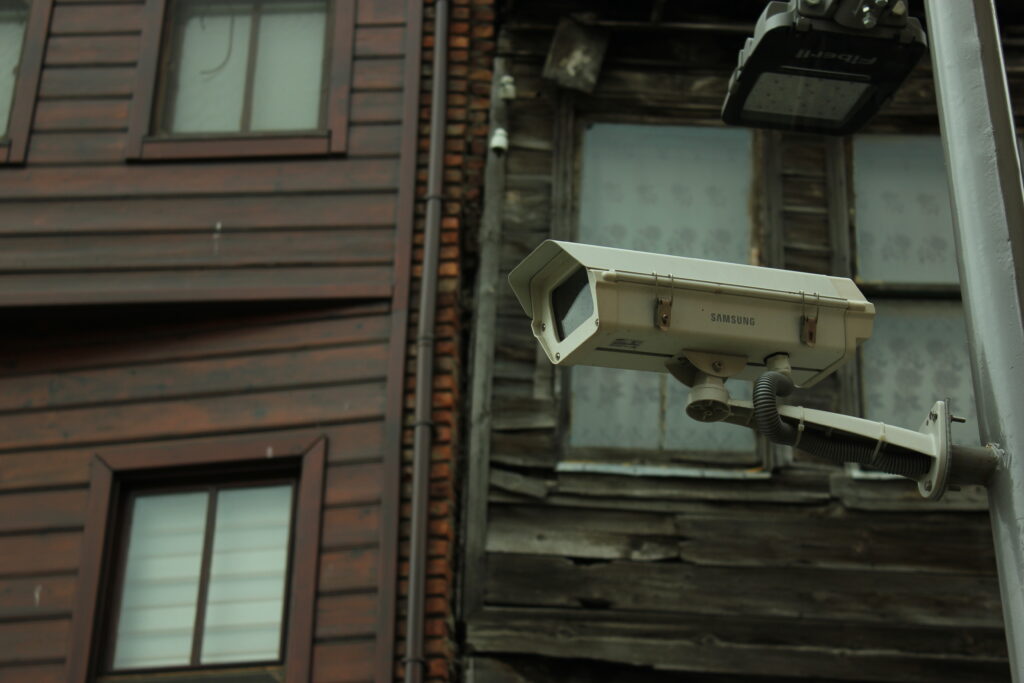
A security camera facing a bright doorway often struggles to show both the outdoor background and a person’s face. The pavement or sunlight outside may be much brighter than the entrance interior. If you adjust the image by looking only at an empty doorway, you may end up with footage that looks balanced but hides a person’s features when they walk in. Test the camera with a moving person and the lighting conditions that matter to the site.
Define what the camera must capture
Before changing settings, decide what the camera needs to show. A camera at a shop entrance may need to capture a face as someone crosses the threshold. A camera watching a vehicle gate may need to show the driver, vehicle and barrier. The correct framing and exposure depend on the task.
Choose the useful identification area in the image. Mark where a person should be when the camera needs to capture a clear face. Check the height and angle of the camera. If the camera points too far toward the sky or bright pavement, the background may dominate the exposure calculation.
Record a baseline before making changes
- Save a short clip of the doorway in its current condition.
- Capture an empty scene and a scene with a consenting person walking through.
- Record the camera’s exposure, WDR and image settings before changing them.
- Repeat the test with the door open and closed if both conditions occur in normal use.
- Save a representative frame where the person’s face is visible and another where it is not.
Use the same camera stream that the recorder stores. A phone app may show a lower-resolution substream and can hide problems visible in the recorded main stream. Review the clip on a monitor large enough to judge the face and other details.
Understand wide dynamic range
Wide dynamic range, usually shown as WDR in a camera menu, helps a camera handle scenes that contain very bright and very dark areas. It aims to retain useful detail in both regions. The exact implementation differs by camera model. Some systems combine multiple exposures, while others use different image processing methods.
Enable WDR only if the camera supports it and compare the result with the original setting. Use the same scene, person, movement and lighting. Check the face, clothing and background. Some WDR methods can create ghosting or unusual edges when a person moves between exposures. A still image may look good while a moving subject looks distorted.
Compare settings with a repeatable test
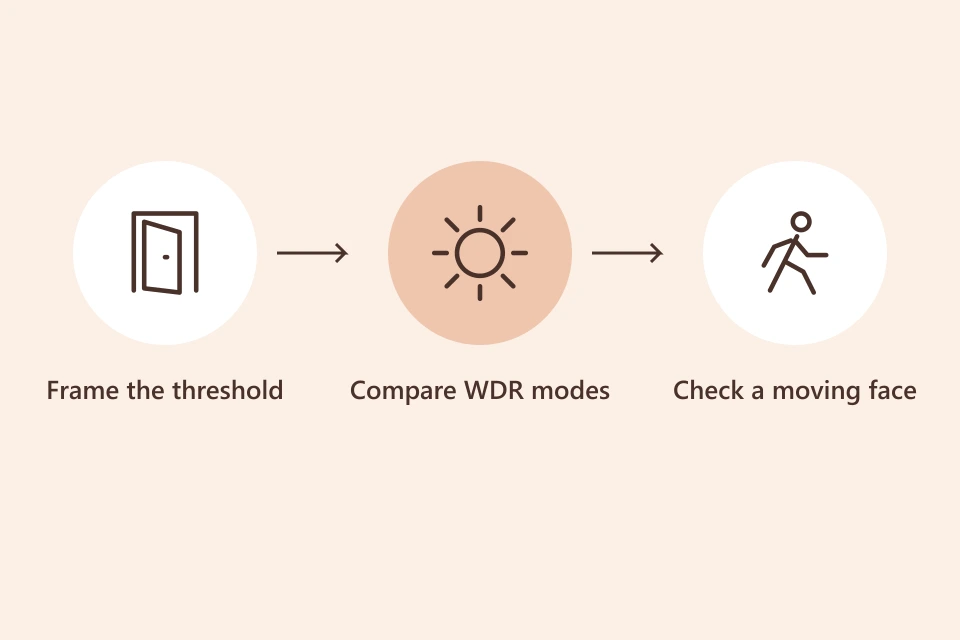
- Keep the camera position fixed.
- Ask a consenting person to walk through the doorway at a normal pace.
- Record the test with WDR disabled or at the current baseline setting.
- Enable WDR or select the next supported level.
- Repeat the same walk from the same direction.
- Compare recorded frames at the same point in the doorway.
- Check whether the face is more visible without unacceptable motion artifacts or excessive noise.
Do not change WDR, shutter speed, gain, brightness and contrast all at once. If you change several settings, you will not know which one improved or damaged the image. Change one setting at a time and save a sample clip after each adjustment.
Adjust the camera position and lighting
WDR cannot fix every placement problem. If bright sky fills half the frame, adjust the camera angle or crop the view if the site permits. Keep the entrance and the subject’s face inside the useful area. Avoid pointing directly at reflective glass, polished surfaces or strong light sources.
Consider improving the lighting near the entrance. Even lighting on a person’s face often helps more than increasing digital brightness. Ask a qualified installer to assess additional lighting, glare and the camera’s exposure range. Do not install a light where it creates a hazard or shines into drivers’ eyes.
Check the doorway at different times of day. Direct sunlight may enter the building in the morning or afternoon. A test performed at midday may not reveal the worst condition. Repeat the test when the sun reaches the camera’s field of view and after dark when artificial lighting is active.
Check exposure and shutter settings carefully
Some cameras allow manual or maximum exposure settings. A slower shutter may brighten a dark scene but can blur moving people. A faster shutter can preserve motion detail but may darken the image. Make small changes and inspect recorded footage. Follow the camera manufacturer’s guidance for the model and firmware in use.
Gain and digital noise reduction also affect image quality. High gain can brighten shadows while making the image grainy. Strong noise reduction can smooth details such as eyes, hair or clothing. Avoid chasing a bright picture if it removes the detail needed for identification.
How to judge the final result
Review the footage at normal playback speed and pause at the threshold. Check whether you can distinguish the face, clothing and direction of movement. If the camera is intended to capture a face, test the actual distance and angle from which a person approaches. A clear face from one direction does not guarantee a clear face from the other.
Also review the image at night and during rain or other typical conditions. Water on a dome, reflections from glass and nearby lights may change the result. Save the final settings and sample clip. This gives the next technician a baseline for future maintenance.
Common problems and solutions
The outside looks clear but the person’s face is dark
Test WDR and improve lighting on the person. Check whether the camera angle includes too much bright outdoor area. Do not simply raise brightness without reviewing noise and highlights.
The face looks doubled or has strange edges
Compare WDR modes and look for ghosting during movement. If the camera uses multi-exposure processing, moving subjects may create artifacts. Try a different supported WDR level or adjust the scene and lighting.
The image is too bright when the door closes
Check whether the camera changes exposure when the bright outdoor area disappears. Use a repeatable open-door and closed-door test. Review the camera’s backlight compensation and exposure options.
The camera cannot show the face and the outdoor background at once
The scene may exceed the camera’s dynamic range. Reposition the camera, add suitable lighting or use a model designed for difficult backlight. Confirm the required identification distance before replacing equipment.
Common questions
Should WDR always stay enabled?
No. Use it when the scene needs it and confirm the result with moving subjects. Some scenes look better with standard exposure.
Does a higher resolution solve backlight?
No. More pixels do not guarantee detail in a face that is too dark or overexposed. Exposure, lighting, angle and dynamic range still matter.
Can I test the camera with a still image?
A still image helps compare exposure, but it does not reveal all motion artifacts. Record a person walking through the scene as well.
Should I change the camera angle myself?
Only if you are authorized and the camera is safely accessible. Use a qualified installer for high or hazardous locations, and follow site safety rules.
Final field checklist
- Define the identification area and required detail.
- Save the original settings and a baseline recording.
- Test with a moving person in the real doorway lighting.
- Compare WDR and exposure one setting at a time.
- Inspect the scene at different times of day.
- Save the final clip and document the settings.
Exposure is only one part of reliable CCTV footage. Check how much recording space the camera uses with our guide to estimating CCTV storage from measured bitrate. If faces blur after dark, read why moving faces blur on a security camera at night.
Reference: Axis white paper: Wide Dynamic Range.


