
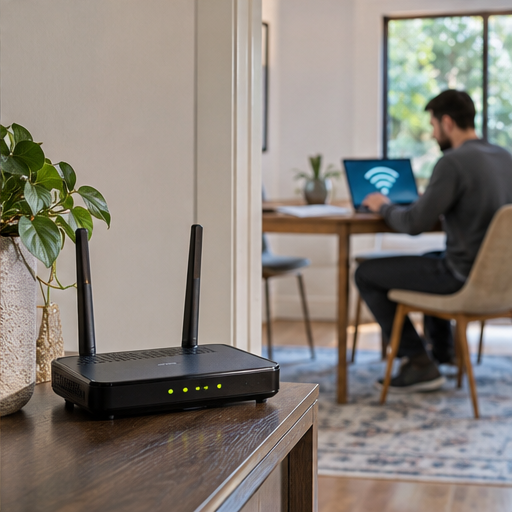
If you need to connect another device to a Wi-Fi network, Windows 11 may show the password saved on your PC. Use a computer that you own or are authorized to manage. First confirm the network name. A saved password for an old router may look plausible even after the router has been replaced and configured with a different key.

Check the network name first
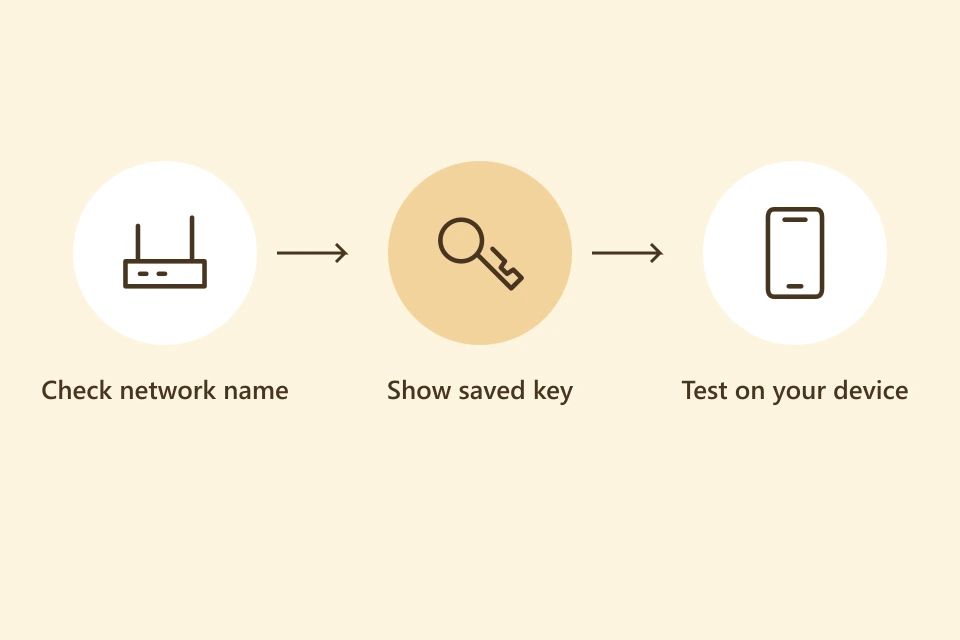
Open Windows Settings and select Network & internet. Check the connected Wi-Fi network name. Compare it with the name printed on the router or the network information provided by the person who manages it. If your laptop has connected to several networks with similar names, do not assume the first saved profile is the one you need.
View the password for the connected network
Windows 11 versions provide Wi-Fi password controls in the network properties area. Open Settings, choose Network & internet and select the properties for the connected Wi-Fi network. Look for the Wi-Fi network password control and choose Show if it is available. Windows may ask you to confirm access before displaying the saved key.
Microsoft changes the wording and location of controls between Windows releases. If you do not see the same option, check the current Windows support instructions for your version. Do not install a third-party password viewer from an unfamiliar website.
Find a password for another saved network
If the network is not currently connected, open Settings, select Network & internet, then Wi-Fi and Manage known networks. Select the saved network name. Some Windows 11 versions show a password control in the network properties. If the option is unavailable, connect to the network first if you are authorized and it is safe to do so, then check the connected network properties.
Not every Wi-Fi network uses a shared password. A workplace or school network may use individual usernames, certificates or enterprise authentication. In that situation, Windows may not show a single password that works for every person. Ask the network administrator for the correct access method.
Use the classic Network and Sharing Center when available
On supported Windows configurations, you can also inspect the active wireless profile through the classic Control Panel interface. Open Network and Sharing Center, select the Wi-Fi connection, choose Wireless Properties and open the Security tab. Select Show characters to reveal the network security key if your account and network configuration permit it.
The exact path may vary by Windows build and device policy. If the classic option is missing, use the Settings method or consult Microsoft’s current documentation. Managed devices may restrict access to saved network credentials.
Share Wi-Fi access with a visitor safely
If a visitor needs internet access, use a guest network when the router supports it. A guest network separates visitors from devices on your main home or business network, depending on how the router implements isolation. Ask the router owner or administrator to create or enable it if necessary.
Give the visitor the credentials through a private channel. Avoid posting the password in a public group or leaving it visible on a desk. If your router supports a QR code for Wi-Fi sharing, confirm that it contains the guest network details and not the main network password.
Test the saved password without losing your working connection
Do not forget the current Wi-Fi profile just to test a password on another device. First record the network name and check the saved key. If possible, use an authorized spare device to test the credentials. Keep your main laptop connected until you know the new device can connect successfully.
If the key fails, check for typing errors, spaces and capitalization. Wi-Fi passwords are case-sensitive. The router may also have been reset or reconfigured since Windows saved the original key. Ask the network owner to confirm the current password rather than repeatedly guessing.
Protect saved network credentials
A Wi-Fi password may provide access to printers, shared folders, cameras and other devices on the same network. Treat it as a network credential, not as harmless information. Share it only with people who are authorized to use the network. Change the password through the router’s approved administration process if you believe an unauthorized person has obtained it.
Do not send screenshots that reveal the password to broad groups. If you need to share it with a colleague, use an approved password-sharing method or provide access through a guest network. On a business network, follow the IT team’s process instead of changing router settings yourself.
Common problems
The Show password option is missing
Check your Windows 11 version and open the connected network’s properties. Use the classic Network and Sharing Center method if it remains available. A managed device may restrict credential viewing.
The password does not work on another device
Confirm the network name and check capitalization. The router may have a newer password than the one saved on your laptop. Ask the network owner to verify the current credentials.
The workplace network has no shared password
It may use enterprise authentication, certificates or individual accounts. Contact the network administrator and follow the approved connection process.
I cannot see a saved network in Manage known networks
The profile may have been removed or stored under another Windows user account. Check that you are using the correct PC account and network profile.
Common questions
Can I find the password for any nearby Wi-Fi network?
No. Windows can show credentials saved on a device you are authorized to use. It does not reveal passwords for networks the device has never joined.
Will showing the password disconnect my laptop?
Viewing the saved key does not normally require disconnecting from the network. Avoid forgetting the profile until you have another working way to connect.
Should I share my main Wi-Fi password with visitors?
Use a guest network when available. It gives visitors internet access without necessarily exposing devices on your main network.
Final checklist
- Confirm the exact Wi-Fi network name.
- Use Settings or the supported classic network properties view.
- Check whether the network uses a shared key or enterprise sign-in.
- Test credentials on an authorized device.
- Use a guest network for visitors where possible.
- Keep the password private and follow your organization’s policy.
If your laptop cannot connect after you confirm the password, read our guide to seven checks for a laptop that will not connect to Wi-Fi. For a controlled wired-versus-wireless test, see how to tell whether Ethernet or Wi-Fi is the problem.
Reference: Microsoft Support: Connect to a Wi-Fi network in Windows.



