
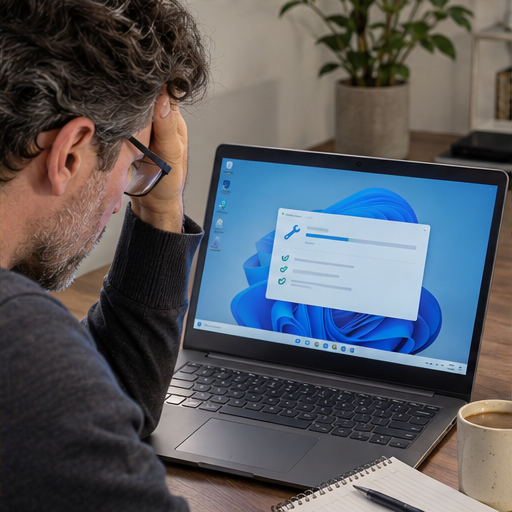
Before you share your screen in a meeting, stop and check what Windows notifications may show. A message banner can display a person’s name, a private message preview or a calendar reminder while your slides are visible. Windows Do not disturb helps reduce interruptions, but you should review its exceptions and test the audience’s view before presenting.
Turn on Do not disturb in Windows 11
- Open Settings on your Windows 11 computer.
- Select System, then Notifications.
- Turn on Do not disturb.
- Open the priority notifications settings and review which alerts may still appear.
- Check automatic rules that may switch Do not disturb on or off.
The exact labels can change between Windows releases. Do not assume the setting blocks every alert. Calls, reminders and selected apps may still interrupt depending on your priority list and automatic rules. Check the meeting app too because Teams, Zoom and other software may show in-app banners that use their own notification controls.
Review priority notifications and exceptions
Windows may allow selected people, apps or reminders to bypass Do not disturb. Review the list before you present. Remove exceptions that do not need to interrupt your session. Keep essential accessibility or safety alerts if you rely on them. The goal is to prevent private or irrelevant banners without blocking information you need for the presentation.
Check calendar reminders and calling apps separately. If a reminder must stay active for an important appointment, decide whether it should appear while you share your screen. A short presentation test is safer than discovering an exception in front of an audience.
Set automatic Do not disturb rules
In the Notifications settings, expand the automatic rules section. Windows may offer options related to specific times, display duplication, games or full-screen use. Review the rule for duplicating your display if you connect a projector or second monitor. Duplicate mode mirrors your screen, so a notification may appear on the audience display too.
If you extend the desktop or share only one application in an online meeting, do not assume the same automatic rule applies. Turn Do not disturb on manually before you share. Check the meeting app’s screen-sharing selection and choose the intended monitor or window.
Silence notifications inside the meeting app
Meeting apps may have their own notification settings. Review chat banners, message previews, call alerts and meeting reminders. If the app offers a status such as Do not disturb or presentation mode, use it when appropriate. Keep emergency or priority communication available through an agreed channel if your work requires it.
Close private email, messaging and customer records before sharing. Share one application window rather than the entire desktop when the meeting software supports it. This reduces the chance of showing unrelated files, browser tabs or private notifications.
Run a presentation test before the audience joins
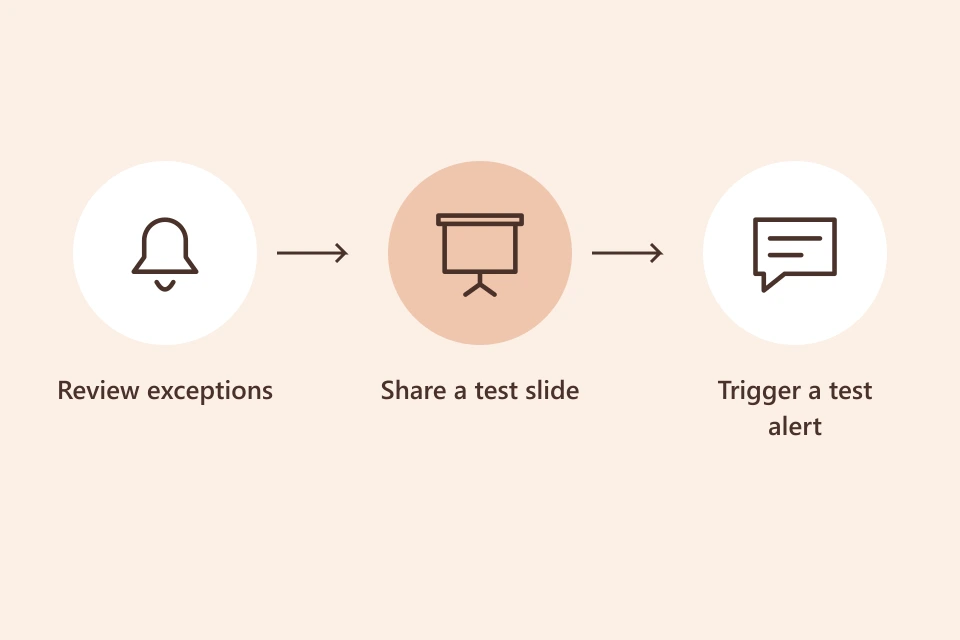
- Turn on Do not disturb and review the priority list.
- Open the slide deck or application you plan to present.
- Start a test screen share with a colleague or use a second device to view the shared screen.
- Trigger a harmless test notification from an app you use.
- Ask the colleague whether the banner appeared on the shared display.
- Check both the shared content and the presenter’s own monitor.
- Close the test session and make any required adjustments.
A second device helps you see what the audience receives. Your own monitor may show a notification that is not included in a window share, or the opposite may happen if you share the entire display. Test the exact sharing mode you plan to use.
Protect information while sharing your screen
Do not leave customer records, password managers, private messages or financial information open behind your slides. Close unrelated browser tabs and applications. If you need to demonstrate a system, use a test account and sample data rather than live customer information. Check the title bar and taskbar for names or alerts that may reveal details.
For a training session, prepare the exact windows in advance. Keep a separate browser profile for demonstrations if that fits your workflow. Avoid showing account settings, email addresses or internal URLs unless the audience needs them.
Turn notifications back on after the session
When the presentation ends, turn Do not disturb off if you normally receive alerts. Open Notification Center and review missed notifications. If you changed priority settings or automatic rules for the session, restore your usual configuration. This avoids missing messages later because a temporary presentation setting remained active.
Common problems
A notification still appears while Do not disturb is on
Check the priority notification list, automatic rules and the app’s own notification settings. Some alerts may bypass the Windows setting.
The projector shows banners but the laptop does not
Check whether the display is duplicated or extended. Test the exact screen-sharing mode and inspect the audience view on a second device.
The meeting app shows a chat preview
Review the app’s notification and presentation settings. Close private chats and share only the intended window where possible.
I forgot to turn Do not disturb off
Open Settings, System and Notifications and switch it off. Check Notification Center for messages that arrived during the presentation.
Common questions
Does Do not disturb block every notification?
No. Priority exceptions, automatic rules and some application-specific alerts may still appear. Review and test the configuration.
Should I share my whole desktop?
Share a single window when possible. If you need to share the full desktop, close private applications and test notifications first.
Will Do not disturb hide notifications from the audience?
It reduces interruptions, but the result depends on Windows settings, exceptions and the meeting app. Test the actual shared screen.
Final presentation checklist
- Turn on Do not disturb.
- Review priority apps, people and reminders.
- Check automatic rules for display duplication.
- Silence notifications inside the meeting app.
- Close private windows and browser tabs.
- Run a test share and trigger a harmless alert.
- Turn notifications back on after the session.
For other Windows productivity settings, see our guide to making Windows text bigger without blurring the screen. If your computer takes too long to become usable after sign-in, read how to find the app slowing down Windows startup.
Reference: Microsoft Support: Notifications and Do Not Disturb in Windows.



