
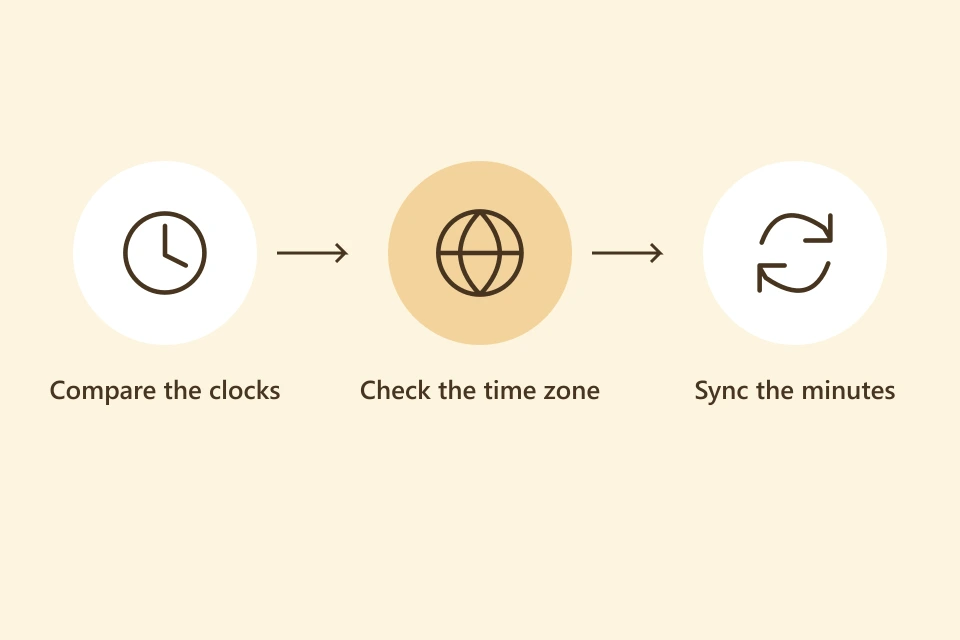
If your Windows laptop clock shows the wrong time, compare it with a trusted phone or another accurate clock before changing anything. A difference of exactly one hour often points to the time zone or daylight-saving setting. A difference of several minutes may indicate that Windows has not synchronized its clock. Identifying the type of error helps you choose the right fix.

Check the time zone first
Open Settings, select Time & language and then Date & time. Read the selected time zone, including the city or region shown in the description. If Windows selected the wrong region, choose the time zone that matches the location where the computer is being used.
Two regions may share the same UTC offset today but follow different daylight-saving rules. Select the correct region, not simply a time zone that happens to show the same current hour. This prevents the clock from becoming wrong when one region changes its rules.
Enable automatic time and synchronization
- Open Settings and choose Time & language.
- Select Date & time.
- Turn on Set time automatically if your device and organization allow it.
- Check the selected time zone.
- Connect to the internet.
- Select Sync now if the control is available.
- Compare the displayed time with a trusted clock.
Windows uses time synchronization to keep the system clock accurate. If the computer is offline, managed by an organization or unable to reach its configured time source, synchronization may fail. Note any error message instead of repeatedly clicking Sync now.
Check automatic time zone detection
Some devices offer an automatic time-zone setting based on location. If the laptop is using the wrong region, check whether automatic time-zone detection is enabled and whether Windows has permission to use location services. You may set the correct time zone manually if automatic detection is unavailable or inaccurate.
If you travel between countries, check the selected region after arrival. A laptop may retain the previous time zone even when your phone has updated. Do not assume that the displayed time is correct because the minutes match your phone.
Check the date as well as the time
A wrong date can create problems with secure websites, email, software updates and authentication. Check the calendar date and year in Date & time settings. If the date is correct but the clock is wrong, focus on time zone and synchronization. If both are wrong, note whether the automatic date and time settings are enabled.
When the time is wrong only in one application
Check the Windows taskbar clock first. If the system clock is correct but one calendar event or meeting appears at the wrong hour, inspect the event’s time zone and original invitation. Changing the entire PC’s clock to fix one meeting may shift every other appointment and create new problems.
For recurring meetings, check the event date and the time zone used by the organizer. Daylight-saving changes may affect the difference between two cities. Ask the organizer to confirm the intended local time before changing the invitation.
Why a managed computer may not let you change the clock
Work and school devices may receive time settings from an organization policy or domain controller. The date and time controls may be disabled or revert after a short period. Do not try to bypass those restrictions. Send IT the current time, selected time zone, error message and the time source if it is displayed.
Accurate time matters for security logs, authentication and network services. A managed device should use the organization’s approved time source. Ask the administrator to investigate repeated synchronization failures.
Check whether the clock keeps losing time
If the clock becomes wrong after every restart or when the laptop has been powered off for a long time, record when the problem returns. Check whether automatic time is enabled and whether the device synchronizes after connecting to the internet. On older computers, a failing internal clock battery may contribute to time loss while powered off. A technician should confirm this before replacing hardware.
If the time changes while the computer remains on, check time-zone settings, synchronization status and any management software. Do not install an unfamiliar clock utility to override Windows settings.
Common problems and solutions
- Exactly one hour wrong: Check the selected time zone and daylight-saving rules.
- Several minutes wrong: Connect to the internet and use Sync now if available.
- Wrong after travel: Check the region selected in Date & time settings.
- Only one calendar event is wrong: Inspect the event’s original time zone instead of changing the PC clock.
- Settings are locked: Contact IT because the device may use an organization-managed time source.
- Clock resets after shutdown: Record the pattern and ask a technician to check the internal clock battery if appropriate.
Common questions
Why is my laptop exactly one hour ahead?
The selected time zone or daylight-saving setting may not match your location. Check the region, not only the current UTC offset.
Why does the clock drift by a few minutes?
Windows may not be synchronizing with its configured time source. Check internet access and the Sync now result.
Should I set the clock manually?
Use automatic time and the correct time zone when available. Manual adjustment may be temporary if the underlying time source remains incorrect.
Can the wrong clock affect websites?
Yes. An incorrect date or time may interfere with secure connections, authentication and scheduled services.
Final time-check checklist
- Compare the clock with a trusted source.
- Check the selected time zone and region.
- Enable automatic time if permitted.
- Connect to the internet and synchronize.
- Check the date and year.
- Inspect calendar event time zones separately.
- Contact IT if settings are managed or synchronization fails.
If you schedule meetings with people in other countries, read our guide to sending an Outlook meeting across time zones. For other Windows display settings, see how to make Windows text bigger without blurring the screen.
Reference: Microsoft Support: Set time, date and time zone settings in Windows.



