
When a printer feeds paper normally but leaves it blank, many people reinstall drivers too early. First, make the printer print a page without the computer. That one test tells you whether the ink, toner, print mechanism or the Windows print job needs attention.
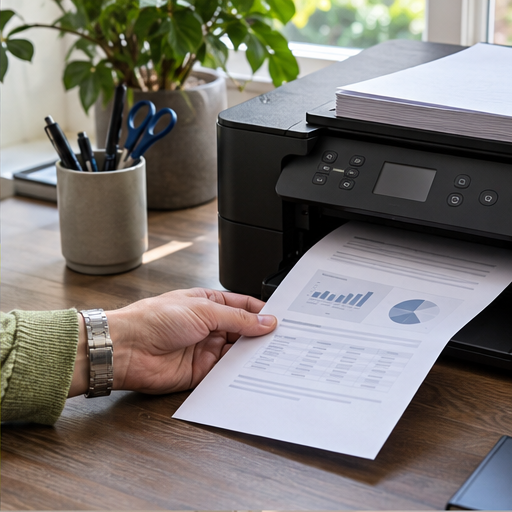
Step 1: Run a test page from the printer
- Check the printer screen for ink, toner, paper or cover warnings.
- Open the printer’s own menu and look for Print Quality Report, Diagnostic Page, Configuration Page or Test Page. The label varies by model.
- Print one page directly from the printer.
- Examine whether text, color blocks or patterns appear.
If the printer’s own diagnostic page is blank, Windows is unlikely to be the main cause. Focus on the printer and its consumables. If the local page looks normal but a document prints blank, move to the computer, app and driver checks.
Step 2: Check ink or toner
For inkjet printers, check ink levels and whether cartridges are installed and seated correctly. New cartridges may have protective tape that must be removed exactly as instructed. For laser printers, check toner installation and any protective sealing strip. Do not touch sensitive drum surfaces or open toner cartridges.
Low ink-level estimates are not perfect, so use the printer’s diagnostic print and manufacturer instructions to confirm the problem.
Step 3: Clean inkjet printheads correctly
An inkjet with dried or blocked nozzles may produce missing lines, faded colors or blank output. Open the printer’s maintenance menu or official app and use the recommended Printhead Cleaning cycle. Print a fresh diagnostic page afterward.
Cleaning uses ink. Avoid running many cycles back-to-back without reviewing results and the manufacturer guidance. If the manufacturer specifies manual cleaning, follow its exact instructions; do not pour household cleaning fluid inside a printer.
Step 4: Test a different document
- Open a simple document with one line of black text.
- Confirm the intended physical printer is selected, not Print to PDF.
- Check paper size, color/monochrome setting and print preview.
- Print just one page.
- Try a second app if the first document prints blank.
If the printer’s own test page and the simple document work but one PDF fails, inspect the PDF or application. Try the official viewer’s supported print options instead of replacing cartridges. Our guide to PDF print-size settings may also help with unexpected output.
Step 5: Check the Windows queue and driver
Open Settings → Bluetooth & devices → Printers & scanners in Windows 11. Choose your printer, inspect its status, and send one Windows test page where available. Check for duplicate printer queues and make sure your job is not going to the wrong device.
Update or reinstall drivers only from your printer manufacturer’s official support site or Windows Update. For a shared office printer, ask the print administrator before changing shared queues.
What the test results mean
| Result | Next check |
|---|---|
| Printer’s own test is blank | Cartridge, toner, ink, printhead or hardware |
| Local test works; Windows prints blank | Queue, driver, app or document |
| Only one color missing | Color cartridge or printhead diagnosis |
| Only one file prints blank | File content, preview and application |
Frequently asked questions
Should I replace all cartridges immediately?
No. Check the device’s ink or toner status and diagnostic print. Replace only what the evidence and manufacturer guidance indicate.
Can a PDF print blank when other files work?
Yes. A document or viewer-specific problem is possible. Test a simple file and verify print preview before blaming the printer.
What if the printer says Offline instead?
That is a different fault. Follow our guide to testing a printer that appears offline in Windows.
Manufacturer guidance
HP: Printer prints blank pages. Choose the documentation for your own model when maintenance steps differ.



