
Your phone connects to Wi-Fi, but a smart plug, bulb, camera or thermostat keeps failing during setup. The first thing to check is its supported Wi-Fi band. Many smart devices need a 2.4 GHz network even when newer phones and laptops use 5 GHz or 6 GHz.
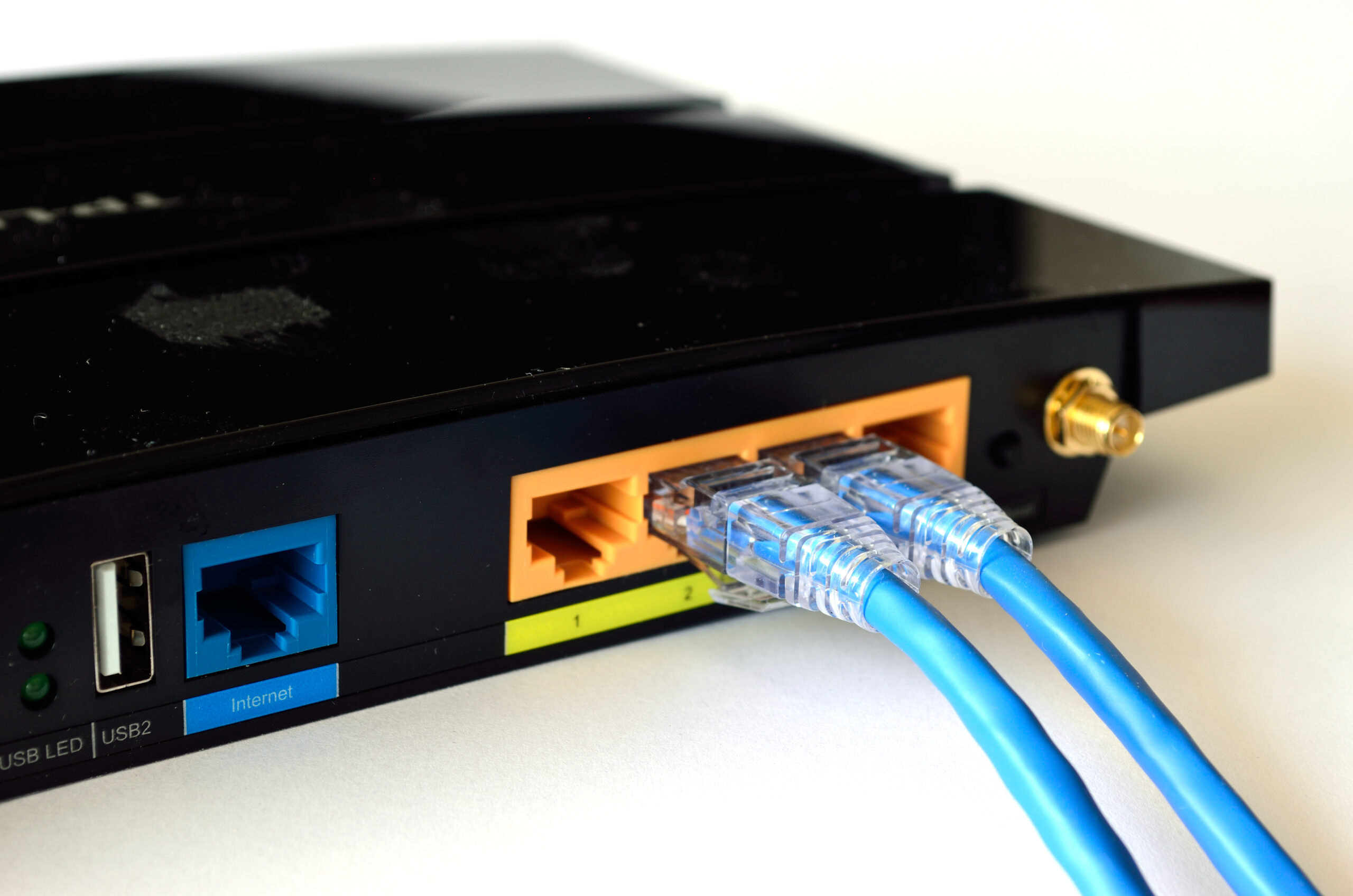
Why the Wi-Fi band matters
A dual-band router can broadcast 2.4 GHz and 5 GHz networks. The first often reaches farther and supports older or simpler devices; the second usually offers more capacity and speed over shorter distances. Some routers combine both bands under one network name, automatically steering compatible devices.
Google notes that some Nest products and many third-party smart home products only connect over 2.4 GHz. That does not mean every device is 2.4 GHz-only. Read the exact device’s requirements before changing your router.
Check your device specification
- Find the model number on the smart device or its packaging.
- Open the manufacturer’s setup instructions and look for Wi-Fi: 2.4 GHz, 5 GHz or a supported Wi-Fi standard.
- Check whether the setup needs a specific mobile app, Bluetooth permission or location permission.
- Confirm that your phone is connected to the home router rather than mobile data or a guest network.
Test a 2.4 GHz connection safely
If your router provides separate network names, select the supported 2.4 GHz name during setup. If it combines bands under one name, check the router’s official instructions for an IoT setup mode or temporary 2.4 GHz network option. Don’t rename or disable business networks without the administrator’s permission.
Move the device, phone and router closer for setup. After a successful connection, move the device to its intended location and test it again. A device can connect during setup but later drop out because its final location has poor signal.
Check security and guest network settings
- Password: Use the current Wi-Fi password and check capitalization.
- Security: Some older smart devices cannot join networks configured for WPA3-only authentication. Consult the router and device manuals before changing security modes.
- Isolation: Guest networks may block device-to-device discovery. Check whether your setup app requires local communication between phone and smart device.
- SSID: Confirm you selected the intended home network rather than a neighbor’s network with a similar name.
Do not weaken the security of your primary home or office network just to connect an outdated device. Consider a supported isolated IoT network when your router provides one.
Use the status light as a clue
Look up the device’s LED meanings in its manual. Fast flashing, slow flashing and steady lights can indicate different setup states. The color and blink pattern vary by manufacturer, so avoid guessing. Restarting a device and re-entering pairing mode is safer than repeatedly resetting the whole router.
Quick decision table
| Problem | Check next |
|---|---|
| App cannot find device | Pairing mode, Bluetooth/location permissions and phone’s Wi-Fi |
| Device rejects Wi-Fi | 2.4 GHz support, password and security mode |
| Connects nearby but fails in room | Signal coverage and interference |
| App finds device but cannot control it | Guest isolation, vendor cloud service or account sign-in |
Frequently asked questions
Should I turn off 5 GHz permanently?
No. Most homes benefit from both bands. Try the router’s supported IoT setup method and keep the network’s security intact.
Will a 2.4 GHz device work when my phone is on 5 GHz?
Often yes after setup, if the router permits traffic between the bands and the app supports that arrangement. Some setup flows require temporary changes.
Why does my smart camera work next to the router but not outside?
Coverage, building materials, interference and power are possible causes. Test signal quality at the installation point before moving equipment.
Official reference and related guide
Google: Connecting Nest and smart-home devices to Wi-Fi. Related: Wi-Fi works near the router but drops in another room.



