
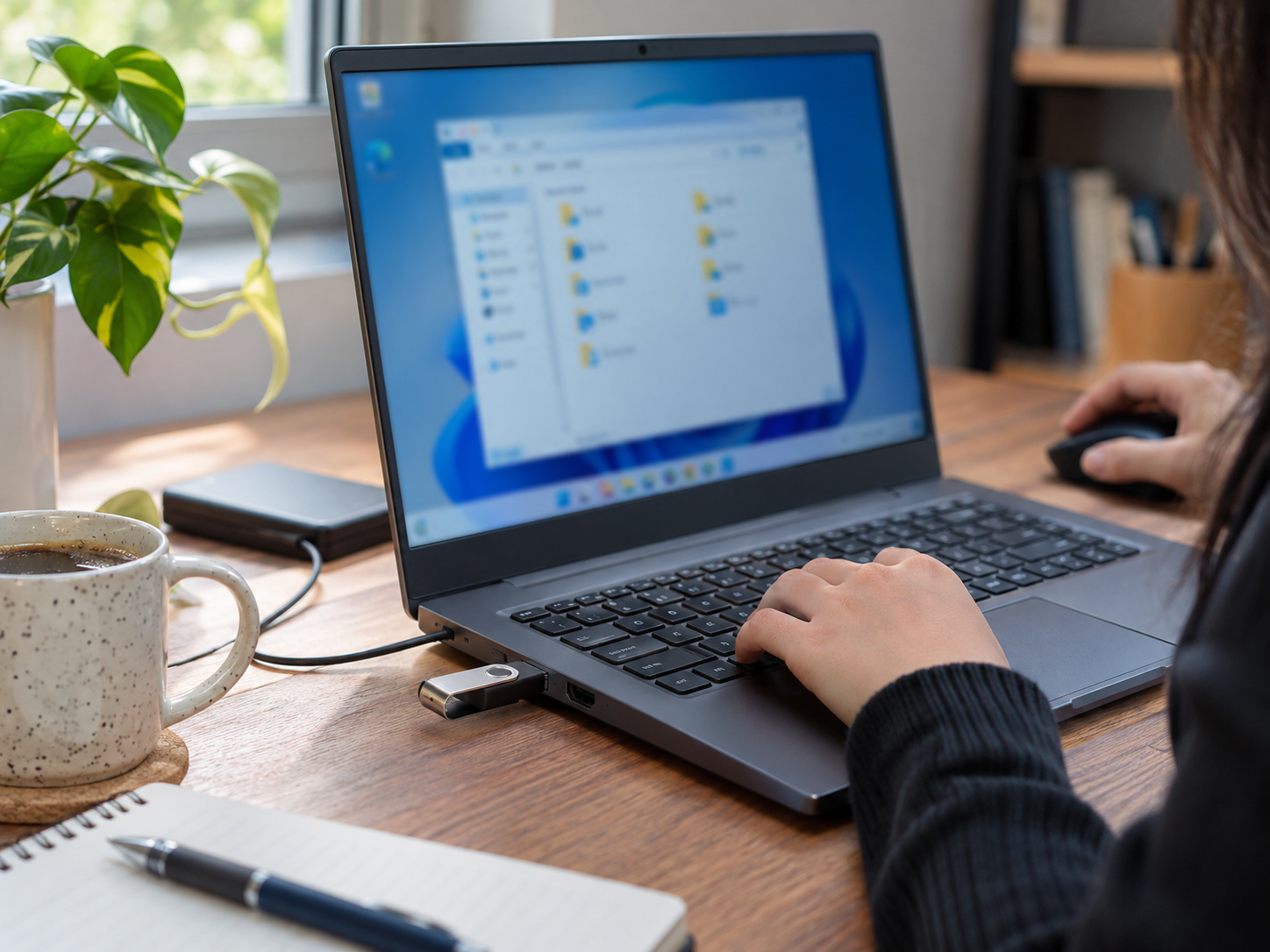
A USB drive that does not appear in File Explorer may have a connection issue, a missing drive letter, or a damaged file system. If it holds files you need, do not format or initialize it while troubleshooting.
Does the drive work in another USB port?
Unplug the drive and connect it directly to another port on the computer. Skip the hub for this test. Wait a few seconds, then open File Explorer and select This PC.
Look for a loose connector or visible damage. If the drive feels hot, makes unusual sounds, or disconnects repeatedly, stop reconnecting it and protect any remaining data.
Does another computer recognize the drive?
Connect it to another computer you trust. If it appears there, copy important files to a separate location before changing anything on the original computer. If neither computer detects it, the drive or its connector may have failed.
Does Disk Management show the drive?
Right-click Start and open Disk Management. Compare the listed disks by capacity, then check whether the USB volume appears without a drive letter.
If Windows shows a healthy volume with no letter, you can right-click that volume and use Change Drive Letter and Paths to assign an unused letter. Confirm the capacity and volume before making the change.
Should you initialize or format the USB drive?
Choose Cancel if Windows asks to initialize or format a drive that contains files you need. Microsoft warns that formatting destroys data on the selected volume. Do not create a new volume or change partitions as a first troubleshooting step.
If the drive appears as Unallocated, RAW, or Not initialized and the files matter, stop writing to it. A data recovery specialist can assess it. Microsoft’s Disk Management guide explains what the tool can change.
When should you replace the drive?
If the drive works on one computer but not another, check that computer’s ports and device support. If the drive fails across multiple computers and contains no needed files, replace it. For important files, keep another backup rather than relying on one USB stick.
For a related Windows file tip, see how to find a screenshot in Windows.
About the author: Emmanuel Kofi Ampiah writes practical guides about everyday devices. Learn about Emmanuel or view his portfolio.



