Samsung Galaxy S9 Plus Moisture Detected Warning: How to Fix It
 By Eamp
2026-06-23
0 Comments
By Eamp
2026-06-23
0 Comments
how to dry a phone safely, Samsung wireless charging guide, phone charging port cleaning tips, when to replace a phone battery, Android cache troubleshooting
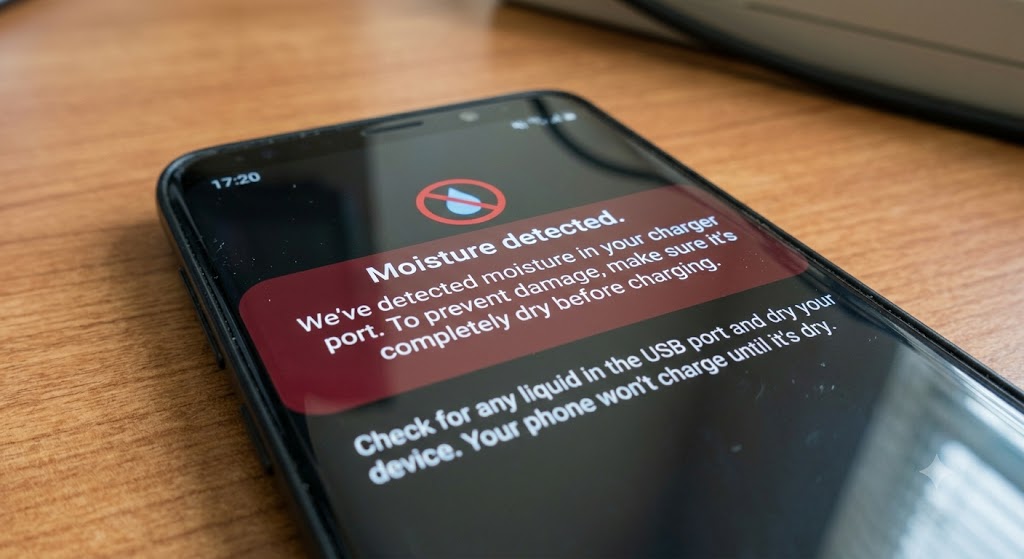
A moisture warning on a Samsung Galaxy S9 Plus usually means the phone thinks liquid or debris is present in the charging port. In many cases, the issue clears after drying the port, cleaning out lint, or resetting the USB-related system cache.
If the warning keeps returning even when the port is dry, the charging port or its sensor may be faulty and may need service or replacement.
Common Symptoms
Users with this issue often notice:
-
A water-drop or moisture alert when plugging in the charger.
-
The phone refusing to charge through the cable.
-
Repeated warning sounds or pop-ups when the cable is connected.
-
Charging that works only after a delay, reboot, or repeated attempts.
-
The warning appearing even when the phone has not been near water.
Possible Causes
Moisture in the port
The most obvious cause is actual moisture inside the USB charging port. Samsung devices may block charging to prevent damage when liquid is detected.
Debris or lint
Pocket lint, dust, or other tiny debris can trigger the warning because the phone may interpret contamination in the port as moisture or a poor connection.
USB settings cache problem
On some Samsung phones, the USB system cache can become stuck and keep showing the warning even after the port dries out. Clearing that cache can help.
Faulty charging port
If the warning returns constantly, the port itself may be damaged or worn out. In that case, cleaning may help temporarily, but replacement may be the real fix.
Software glitch
Occasionally, the phone’s detection logic can misbehave and show the warning when no liquid is present. A reboot or reset-style fix may resolve it.
Step-by-Step Troubleshooting
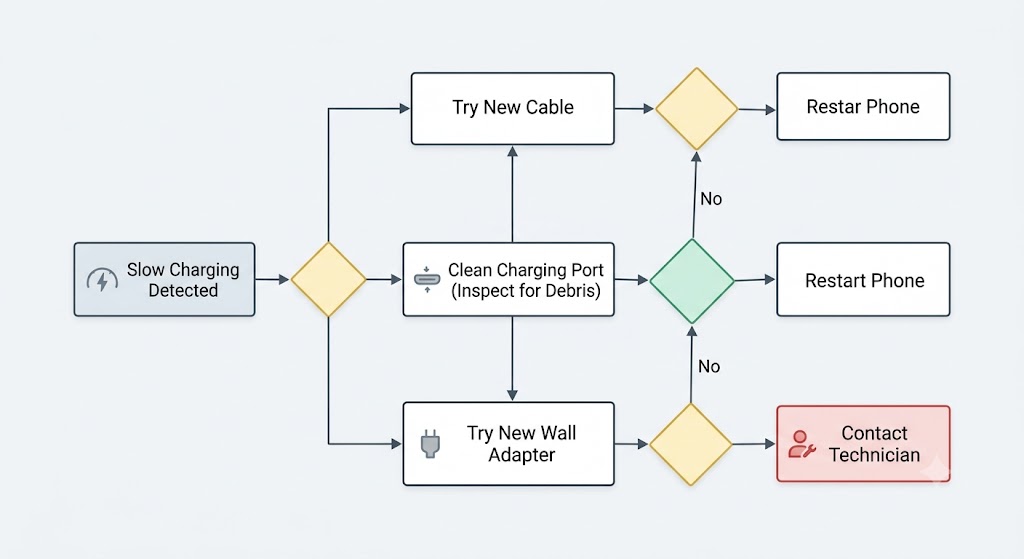
1) Stop using the cable for now
Purpose: Prevent possible damage while the phone thinks the port is wet.
Instructions: Unplug the charger immediately and avoid forcing power through the cable. If your phone supports wireless charging, use that instead while you troubleshoot.
Expected result: The warning should stop sounding, and you reduce the risk of damaging the port.
2) Dry the port safely
Purpose: Remove any trapped moisture.
Instructions: Power off the phone if possible, then gently shake it with the charging port facing downward to help release liquid. Wipe the outside with a dry, soft cloth and leave it in a well-ventilated place. Avoid heat guns, ovens, or other aggressive drying methods.
Expected result: After one to two hours, the warning should disappear if moisture was the only cause.
3) Clean out lint and debris
Purpose: Remove pocket dust that may be confusing the sensor or blocking the connector.
Instructions: Use a soft, dry cloth and, if needed, a non-metal tool such as a wooden or plastic pick to gently loosen lint at the port opening. Do not scrape the inside aggressively or use anything conductive.
Expected result: The cable should seat more firmly, and the warning may stop if debris was the cause.
4) Try wireless charging
Purpose: Keep the phone usable without relying on the charging port.
Instructions: Place the phone on a compatible wireless charger. Make sure the phone is dry before doing this. Samsung recommends wireless charging as an alternative when the port is moisture-locked.
Expected result: The phone should charge normally through the wireless pad while you continue troubleshooting the port.
5) Clear the USB settings cache
Purpose: Reset a stuck software warning.
Instructions: Go to Settings, then Apps, enable showing system apps, find USB Settings, open Storage, and clear the cache. After that, restart the phone.
Expected result: If the message was caused by a software glitch, the warning may stop appearing after reboot.
6) Reboot the phone
Purpose: Clear temporary system errors.
Instructions: Restart the device normally. If needed, fully power it off, then turn it back on after it has had time to dry.
Expected result: A reboot can remove a temporary detection error and restore normal charging.
7) Use a stronger charger only after drying
Purpose: Confirm whether the battery can accept charge once the warning clears.
Instructions: After the port is dry and the alert is gone, try a known-good Samsung charger and cable. Some users report better results with a higher-quality wall charger than with a weak USB source.
Expected result: The phone should begin charging normally if the port is healthy.
Advanced Diagnostics
If the warning keeps coming back, experienced users can do a few deeper checks.
-
Inspect the charging port under bright light for bent pins, corrosion, or packed lint.
-
Test with a different cable and charger to rule out accessory issues.
-
Check whether the warning appears only when the phone is on or also when it is powered off.
-
If you know the device has been exposed to salt water, drinks, or other liquids, the port may need more than drying and should be professionally cleaned.
-
If the USB cache fix and drying steps fail repeatedly, the charging port assembly may need replacement.
Safety warning
Do not plug the phone in repeatedly while the warning is active. Forcing a charge through a wet or contaminated port can cause corrosion or electrical damage.
When Repair Is Worth It
Repair makes sense when the phone is otherwise in good condition and the problem points to the charging port assembly. If the device charges wirelessly but not by cable, a port repair may restore full use without replacing the entire phone.
It is also reasonable to repair the phone if it is still a device you plan to keep for a while and the service cost is modest compared with replacement. Port replacement is often a practical fix when the rest of the handset works well.
When Replacement Makes More Sense
Replacement is often smarter when the phone has multiple problems, such as weak battery life, damaged screen glass, or repeated charging failures. If the warning keeps coming back after drying, cleaning, cache clearing, and using a known-good charger, the port or internal detection circuit may be worn out.
If repair costs are close to the value of the phone, replacing the device may be the more reliable option. That is especially true for older phones that already need several repairs.
Prevention Tips
-
Keep the phone away from wet surfaces and steamy environments.
-
Use a protective case that helps reduce lint buildup in the port.
-
Clean the charging port gently every so often.
-
Avoid charging immediately after the phone has been exposed to moisture.
-
Carry a wireless charger if your device supports it.
-
Use quality charging cables that fit snugly and do not wobble.
-
Store the phone in a pocket or bag where dust and crumbs are less likely to collect.
Small habits can reduce false moisture alerts and extend the life of the charging port. Keeping the connector clean and dry is the most effective long-term prevention.
Frequently Asked Questions
Why does my Samsung say moisture detected when it is dry?
The warning can be triggered by lint, debris, a software cache issue, or a sensor that is acting up. In some cases, the phone is misreading the port rather than detecting real water.
How long should I wait before charging again?
Samsung notes that moisture may evaporate within about one to two hours in normal conditions, though longer may be needed if the phone was exposed to more liquid.
Can I use rice to dry it?
Rice is not a reliable fix and can leave dust in the port. A dry cloth, airflow, and time are safer choices.
Will wireless charging work while the warning is active?
Yes, wireless charging is the recommended workaround if your model supports it, as long as the phone itself is dry.
What if the warning never goes away?
If drying, cleaning, rebooting, and clearing the USB cache do not help, the charging port or related hardware may need professional repair.
Final Thoughts
For a Samsung Galaxy S9 Plus showing a moisture warning, the most likely causes are trapped moisture, debris in the port, or a stuck USB cache. Start with safe drying, gentle cleaning, and a cache reset, then move to wireless charging or repair if the problem persists.
If the phone keeps warning after it is fully dry and clean, the charging port assembly is the strongest suspect and may need replacement.