
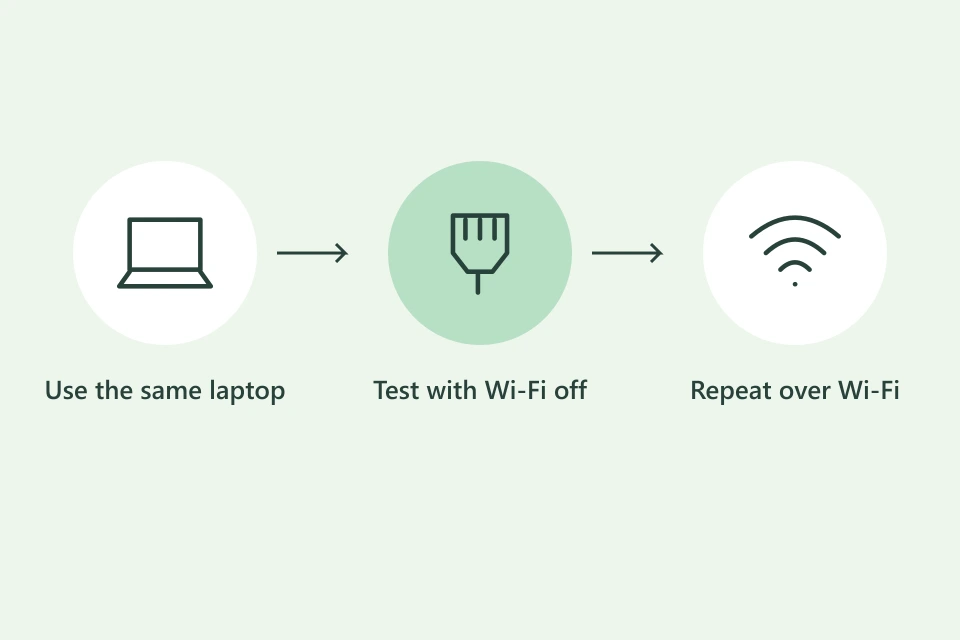
When a Windows laptop loses internet access, a wired Ethernet test helps you separate a wireless problem from a wider network problem. Use the same laptop, router and website. Change only the connection method. If Ethernet works while Wi-Fi fails, focus on the wireless adapter, signal or access point. If both fail, check the router, internet service and other connected devices before changing advanced settings.
Prepare a fair Ethernet and Wi-Fi comparison
Save your work and choose a website that requires a fresh connection. Avoid using a page that is already open or cached in the browser. Keep the laptop in the same location during both tests. If possible, connect directly to the router rather than through a dock, switch or wall socket for the first test.
Test the wired Ethernet connection
- Connect an Ethernet cable from a LAN port on the router to the laptop’s Ethernet port or a supported USB adapter.
- Wait for Windows to detect the wired connection.
- Turn Wi-Fi off temporarily so the laptop cannot use the wireless network for the test.
- Open Settings, choose Network & internet and select Ethernet.
- Check that Windows reports a connected status.
- Open a website or run a known network test.
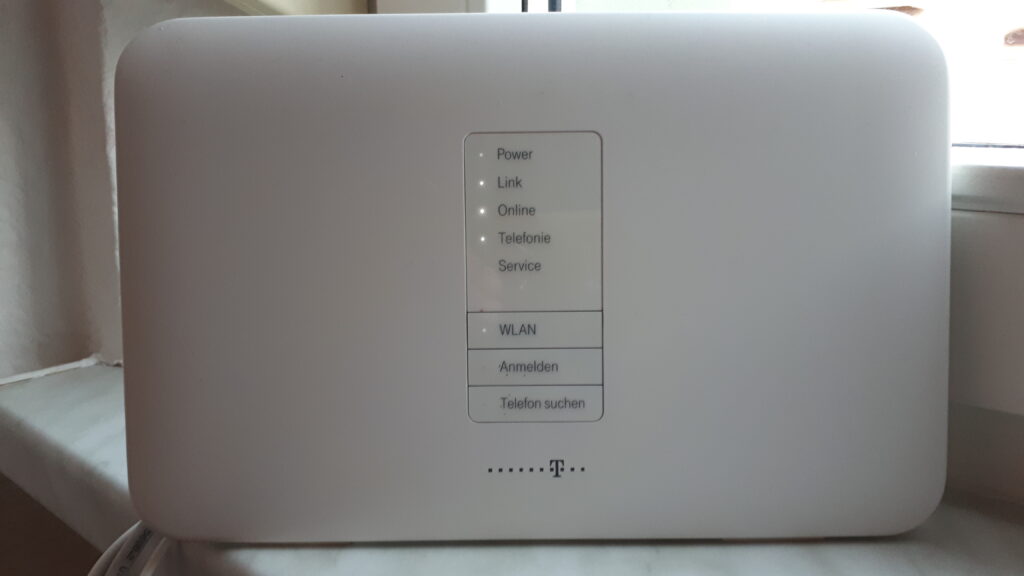
A link light on the router or adapter indicates that the physical connection has been detected. It does not prove that the laptop received a valid network address or reached the internet. If the cable shows a link but websites do not load, continue with the Windows network status and router checks.
Repeat the test over Wi-Fi
Unplug the Ethernet cable and turn Wi-Fi back on. Connect to the same wireless network you normally use. Open the same website or repeat the same test. Compare the result with the wired test.
If Ethernet works and Wi-Fi fails, the internet service was reachable during the wired test. Investigate the wireless connection, signal strength, saved network profile and wireless adapter. If both fail, test another device on the same router. If other devices also fail, the issue may be the router, modem or internet provider.
Interpret the results
| Ethernet result | Wi-Fi result | Likely next area to check |
|---|---|---|
| Works | Fails | Wi-Fi signal, wireless adapter, access point or saved profile |
| Fails | Works | Ethernet cable, LAN port, adapter or wired network configuration |
| Works | Works | Intermittent fault, signal location or application-specific issue |
| Fails | Fails | Router, modem, internet service or laptop network configuration |
This table narrows the investigation. It does not prove which device has failed. Repeat a test with a known working cable or another device before replacing hardware.
If Ethernet fails, check the cable and port
Try a known working Ethernet cable and a different LAN port on the router. Change one item at a time. If you use a USB-C or USB-A Ethernet adapter, connect it directly to the laptop instead of through a dock for the first test. Check Device Manager for the adapter and any warning icon.
A port light only confirms a physical link. Open Windows Settings and check the Ethernet status. If Windows reports an unidentified network or no internet, the laptop may not have received a usable IP address or gateway. Restart the router only if you are authorized and the network owner agrees. Avoid resetting the router to factory defaults for a routine test.
If Wi-Fi fails, check signal and saved settings
Move closer to the router and test again. Walls, metal objects, distance and interference can weaken Wi-Fi. If the laptop works near the router but fails in another room, coverage may be the issue. Try the other Wi-Fi band if your router exposes separate network names and the laptop supports them.
Confirm that Airplane mode is off and Wi-Fi is enabled. If the saved password or network profile is wrong, forget the network and reconnect using the current password. On Windows, open Settings, Network & internet, Wi-Fi and Manage known networks. Select the network and choose Forget, then connect again.
Check the Windows network adapter
Open Device Manager and expand Network adapters. Find the wireless or Ethernet adapter and check its status. If it is disabled, enable it if you are authorized. If it shows an error, record the exact message and device name. Check Windows Update or the laptop manufacturer’s support page for a compatible driver.
Do not download drivers from unfamiliar websites. Use the laptop manufacturer’s official support page and confirm the exact model. If the device belongs to an employer, ask IT before installing or rolling back a driver.
Use network reset only after simpler checks
Windows Network reset removes and reinstalls network adapters and returns network settings to their defaults. It may require you to set up VPN software, virtual switches or other network tools again. Use it only after checking the cable, router, Wi-Fi settings and adapter status. Follow Microsoft’s instructions and make a note of any custom settings before you proceed.
What to record before contacting support
- Laptop make and model and Windows version.
- Whether Ethernet works with Wi-Fi turned off.
- Whether Wi-Fi works when Ethernet is unplugged.
- Which cable, router port and adapter you tested.
- Whether another device connects to the same router.
- Any Windows error message or adapter warning.
- The approximate time the connection failed.
A clear report such as “same laptop, Wi-Fi fails, Ethernet works, two wireless networks tested” gives support a useful starting point. It is more helpful than saying only that the internet is down.
Common questions
Does an Ethernet link light prove the internet works?
No. It shows a physical link between devices. Windows still needs a valid network configuration and a working route to the internet.
Should I restart the router first?
Test the connection first if possible. If multiple devices fail, ask the network owner before restarting shared equipment.
Can a USB dock cause Ethernet problems?
Yes. The dock, adapter, cable or dock driver adds another variable. Test a direct connection or a known working adapter where possible.
What if Ethernet and Wi-Fi both work but one app fails?
The problem may involve the app, browser, VPN, firewall or service rather than the network connection itself. Test another website and check the affected app’s status.
Final comparison checklist
- Use the same laptop, router and website for both tests.
- Test Ethernet with Wi-Fi turned off.
- Test Wi-Fi with Ethernet unplugged.
- Try another device if both methods fail.
- Change one cable, port or setting at a time.
- Record the results before contacting support.
If the wireless test points to a Wi-Fi issue, read our guide to seven checks for a laptop that will not connect to Wi-Fi. For a more focused Windows network test, see Microsoft’s guide to fixing Ethernet connection problems in Windows.
Reference: Microsoft Support: Fix Ethernet connection problems in Windows.



