
Using your phone as a hotspot gives a laptop internet access when Wi-Fi is unavailable, but a Windows computer may use more mobile data than you expect. Background sync, app updates, cloud backups and video calls can consume data even when you are not actively browsing. Before you start a long hotspot session, tell Windows that the connection is metered and pause large transfers that can wait until you return to normal Wi-Fi.
Turn on Metered connection for the hotspot
- Connect your Windows laptop to the phone’s hotspot.
- Open Settings in Windows.
- Select Network & internet, then Wi-Fi.
- Open the properties for the connected hotspot network.
- Turn on Metered connection.
- Confirm the network name matches your phone’s hotspot.
If your laptop connects through USB tethering or Bluetooth tethering, the network settings may appear under Ethernet or another connection type. Find the active interface and check its properties. Windows menus differ by version, so search Settings for “metered connection” if you cannot find the control.
A metered connection tells Windows and supported apps to reduce some background data use. It does not block every transfer. A video call, browser download or application that ignores the setting can still use the connection. Monitor the phone’s hotspot counter during important sessions.
Check which apps use the most data
Open Settings, select Network & internet and look for Data usage. Choose the active network or interface and review the usage breakdown. The exact layout depends on your Windows version. Note the measurement period and compare it with the phone’s hotspot counter. The two devices may use different time windows, so look for changes during a controlled test rather than expecting their totals to match exactly.
Look for cloud storage apps, web browsers, video conferencing tools, game launchers and update services. A laptop may download a large update while idle. A browser tab may stream video in the background. Cloud sync may upload folders that changed while you were connected to the hotspot.
Pause nonessential cloud transfers
Open the sync app you use, such as OneDrive or another approved cloud service. Look for Pause syncing or network preferences. Pause large uploads and downloads while using mobile data if the files do not need to sync immediately. Resume syncing when you reconnect to a trusted unmetered network.
Before you disconnect, check that any document you need to send has finished uploading. A file that remains in a pending state may not be available to colleagues. Do not close the laptop or remove the connection until the transfer finishes if the work depends on it.
Reduce browser and video data use
Video calls and streaming services can use significant data. Lower video quality if the meeting allows it, turn off incoming video when appropriate and avoid streaming high-resolution media during a limited hotspot session. Close tabs that play video or refresh live content in the background.
For a meeting, check whether your app offers data-saving controls. Keep the microphone and essential screen-sharing features available, but disable nonessential video feeds if the call does not need them. Do not turn off security updates or required business tools just to save a small amount of data.
Manage Windows updates carefully
Metered connection settings may reduce some automatic downloads, but Windows and other software may still install important updates under certain conditions. Check Windows Update before you leave home or the office. If a large update is pending, connect to a suitable Wi-Fi network and allow it to finish there when practical.
Do not disable security updates permanently. Plan updates on an unmetered connection and restart when required. On a company-managed laptop, follow the IT team’s update policy instead of changing managed settings.
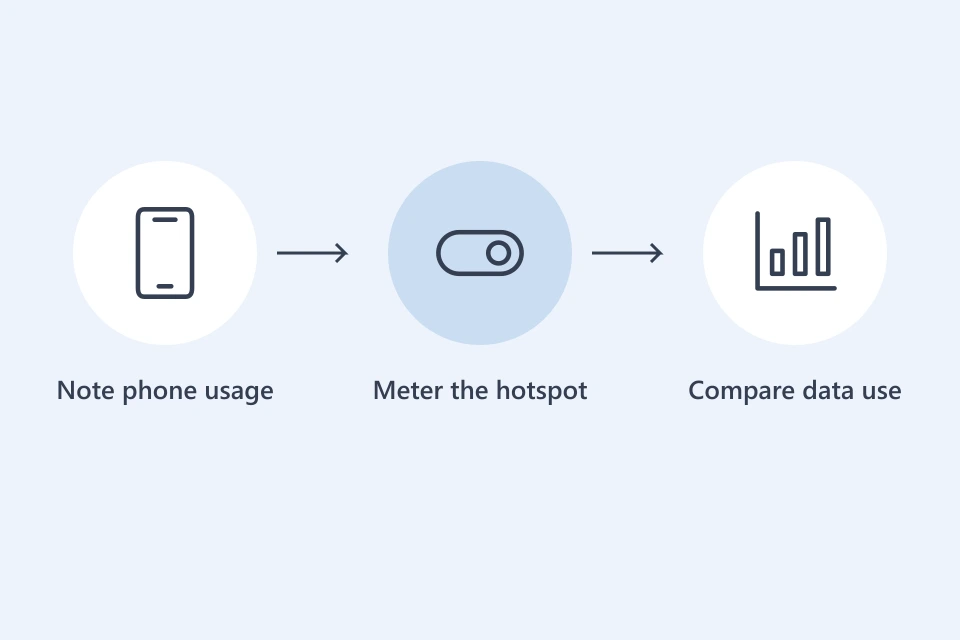
Measure hotspot use with a short test
- Record the phone’s mobile data or hotspot counter before connecting the laptop.
- Connect the laptop and enable Metered connection.
- Leave the laptop idle for a short, fixed period.
- Check Windows Data usage and the phone’s counter again.
- Repeat while performing one normal task, such as browsing or joining a call.
- Compare the change and identify the apps responsible for the largest increase.
The counters may not update instantly. Wait for the phone and Windows to refresh before comparing. Use the carrier’s data meter for billing. The phone’s own counter can help identify the hotspot use, but carrier accounting determines the allowance and charges.
Check the phone’s hotspot settings
Open the hotspot settings on your phone and review the connected-device list. Disconnect devices you do not recognize. Set a strong hotspot password and share it only with people who need access. Some phones let you set a data limit or turn off the hotspot after a period of inactivity. Use those controls if your device provides them.
If several devices connect to the hotspot, the phone’s total includes all of them. A tablet or another person’s laptop may use more data than your Windows computer. Check the connected device list before blaming Windows.
What should you keep enabled?
Do not disable every background service. Security tools, authentication apps, email and essential work software may need connectivity. Decide which transfers can wait and which ones protect your device or keep your work functioning. If the laptop belongs to an employer, ask IT before changing managed update or security settings.
Common problems
Windows still uses data after I enable Metered connection
Metered connection is a data-saving signal, not a complete block. Check the Data usage screen, cloud sync apps, browser activity and video calls.
The phone counter and Windows counter do not match
The devices may use different measurement periods or count network traffic differently. Compare changes during the same test and use the carrier’s meter for billing.
My laptop starts a large download
Pause nonessential downloads and check the app’s network settings. Plan large updates and sync jobs for an unmetered connection.
Several devices are connected to my hotspot
Review the phone’s connected-device list and disconnect devices that do not need access. Change the hotspot password if you suspect an unknown person has connected.
Common questions
Does Metered connection stop all Windows updates?
No. It may change how Windows handles some downloads, but it is not a permanent update blocker. Keep security updates current.
Should I turn on Data Saver on my phone too?
If your phone offers a data-saving mode, it may reduce background use on the phone itself. It does not replace Windows Metered connection for the laptop.
Can I use a hotspot for video meetings?
Yes, but video can use substantial data. Check your plan, reduce video quality where practical and monitor usage during the call.
Final hotspot checklist
- Connect to the correct phone hotspot.
- Turn on Metered connection for the active Windows network.
- Check Data usage for background transfers.
- Pause large nonessential sync jobs.
- Reduce video quality when the task allows it.
- Review connected devices on the phone.
- Compare counters and use the carrier meter for billing.
If your laptop has trouble connecting to the hotspot, read our guide to troubleshooting a laptop that will not connect to Wi-Fi. For a deeper network comparison, see how to tell whether Ethernet or Wi-Fi is the problem.
Reference: Microsoft Support: Metered connections in Windows.



