
If the Windows sign-in screen appears quickly but the desktop takes a long time to become usable, check the apps that launch when you sign in. Cloud sync tools, chat apps, game launchers and update utilities may compete for memory, disk and network resources. The aim is not to disable everything. Identify the apps that create a measurable delay and test one change at a time.

Measure the delay before changing settings
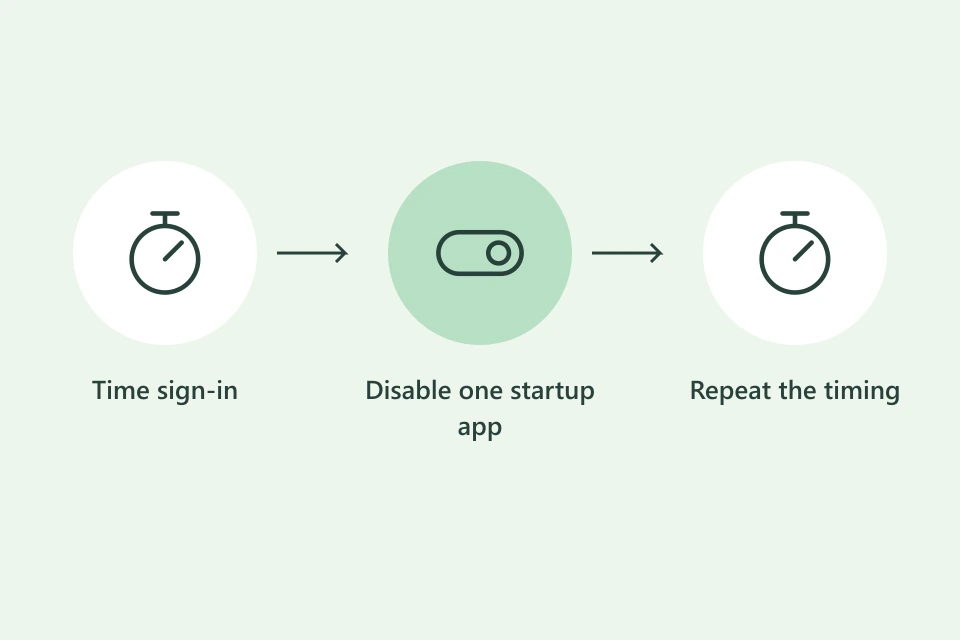
Use the same test after each restart. Sign in, wait until the desktop appears and time how long it takes before you can open a familiar small document or application. Record the result. A repeatable task gives you a better comparison than saying the computer feels faster.
Also note where the delay happens. If the laptop takes a long time before the sign-in screen appears, startup apps are not the first place to investigate. If the desktop appears but the taskbar, search or applications take a long time to respond, startup activity may be contributing.
Open Startup apps in Task Manager
- Press Ctrl + Shift + Esc to open Task Manager.
- Select Startup apps from the navigation pane. Older Windows versions may label the tab Startup.
- Review the list of apps that run when you sign in.
- Sort by Startup impact if the column is available.
- Record the names and current status of apps you are considering changing.
Startup impact is a guide to resource use during startup. It does not tell you whether an app is unnecessary. A high-impact security or backup tool may be essential. A game launcher or personal chat app may be safe to start manually if you do not need it immediately.
Decide which apps should remain enabled
Keep security software, device management tools, accessibility utilities and required company applications enabled unless the responsible administrator tells you otherwise. Some drivers and hardware utilities support touchpads, audio, hotkeys or docking stations. Disabling an unknown item may remove a feature you rely on.
Look first at optional apps you recognize. Examples include a game launcher, a music player, a shopping helper or a chat app that you can open when needed. Check the app’s own settings too. Some apps let you disable Start with Windows without changing Task Manager.
Run a reversible startup test
- Choose one nonessential app that you recognize.
- Record whether it is currently enabled.
- Select it in Startup apps and choose Disable.
- Restart the computer.
- Repeat the same sign-in-to-document timing test.
- Check whether the app still works when you open it manually.
- Re-enable it if the change causes a problem or makes no useful difference.
Change only one app at a time. If you disable several apps together, you will not know which change helped or caused a problem. Keep a note of each test and its result. This makes it easier to restore the original configuration.
Check the Startup folder and app settings
Some programs use the Startup folder or their own preferences to launch automatically. Press Windows key + R, enter shell:startup and inspect shortcuts in your personal Startup folder. There is also a common Startup folder that may contain shortcuts for all users. Do not delete shortcuts unless you understand which program they launch and have permission to change the device.
Inside each optional app, look for settings such as Launch at startup, Start with Windows or Open when I sign in. Use the app’s own control when it is available and appropriate. On a managed business laptop, follow the IT team’s process for software that starts automatically.
Check whether disk or memory pressure is the real issue
Startup apps may not be the only reason the desktop feels slow. Open Task Manager and check CPU, Memory and Disk usage after sign-in. If one process keeps the disk busy, note its name and investigate it before disabling random programs. If memory usage remains high, too many apps or browser tabs may be open.
Check available storage too. A nearly full Windows drive can make updates and temporary file operations harder. Our guide to freeing up Windows storage without losing your Downloads explains how to inspect storage safely. Do not delete system folders to speed up the computer.
Why some startup apps should not be disabled
Security, backup, encryption and company management tools may need to run as soon as you sign in. Disabling them can reduce protection or stop required services. If you do not recognize an entry, search for its publisher and file location or ask IT. Do not assume an unfamiliar name is malware, and do not assume it is safe because it has a familiar icon.
Common problems
The Startup impact column is missing
Maximize Task Manager or check the columns available in your Windows version. You can still test a recognized optional app by disabling one item at a time.
The desktop is slow before I sign in
Startup apps run after sign-in. Check firmware, hardware, Windows updates and device health instead, or ask a technician to investigate.
An app starts again after I disable it
The app may have its own startup setting, a scheduled task or a company policy. Check the app settings and ask IT if the device is managed.
Disabling an app made a feature stop working
Re-enable the app in Task Manager and restart. Check whether it supports a separate setting that disables only its startup window while keeping background services available.
Common questions
Does disabling a startup app uninstall it?
No. It stops the app from launching automatically at sign-in. You can still open it manually.
Should I disable every high-impact app?
No. Review the purpose of each app. Keep security, backup, accessibility and required business tools enabled.
Will more RAM fix slow startup?
It depends on the cause. Check Task Manager and repeat a controlled startup test before buying hardware.
Final startup checklist
- Measure the delay from sign-in to a repeatable task.
- Open Task Manager and review Startup apps.
- Keep security and required management tools enabled.
- Disable one optional app at a time.
- Restart and repeat the same test.
- Re-enable any app that causes a problem.
- Check disk, memory and storage if startup remains slow.
For another practical Windows adjustment, read our guide to making Windows text bigger without blurring the screen. If storage is low, see how to free up Windows storage safely.
Reference: Microsoft Support: Configure Startup applications in Windows.



