
If Windows text looks too small, do not lower your monitor’s resolution as the first fix. A lower resolution may make the interface larger, but it can also make text and images look soft. Windows provides separate controls for text size and display scale. Use the one that matches the problem, then test the result in the apps you use every day.

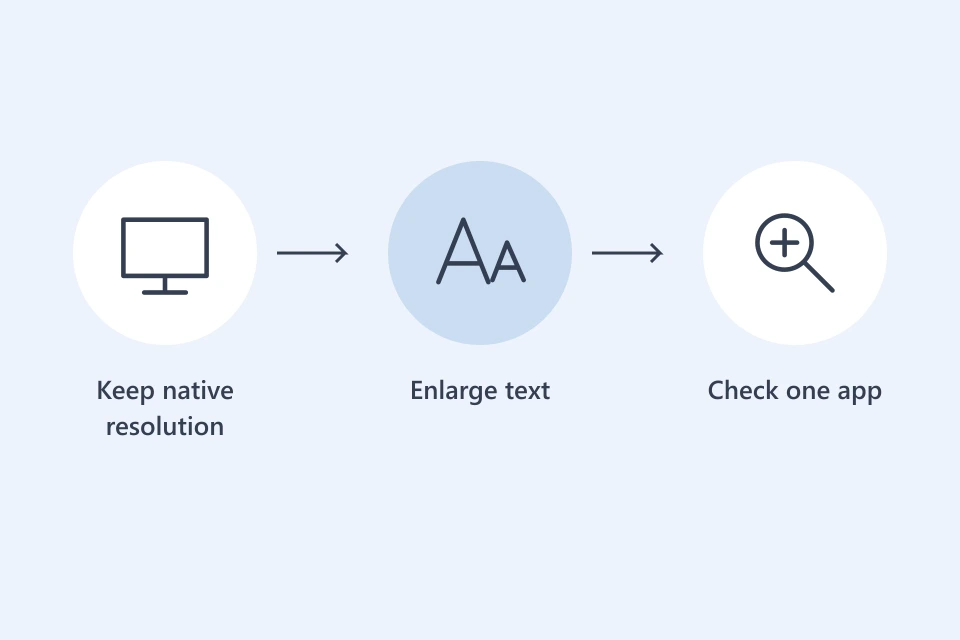
Keep the display at its recommended resolution
Open Settings, select System and then Display. If you use more than one monitor, select the correct display first. Check the Display resolution menu and keep the option marked Recommended unless you have a specific reason to change it. A monitor’s native resolution usually produces the sharpest image because Windows maps the desktop to the display’s physical pixels.
On a laptop connected to an external screen, select Identify to see which display you are adjusting. A scale or resolution change on the wrong monitor may make the laptop screen or presentation display harder to use.
Increase text size without changing every control
- Open Settings.
- Select Accessibility.
- Choose Text size.
- Move the slider to increase text size.
- Review the sample text and select Apply.
- Open a document, browser page and settings window to test the change.
This setting is useful when buttons and icons are already comfortable but labels and paragraphs are too small. Some older applications may not respond to the text-size setting in the same way as modern Windows apps. Test the programs you depend on before deciding whether the adjustment is enough.
Increase the overall display scale
If icons, menus, buttons and text all look too small, use the Scale control. Open Settings, System and Display. Select the correct monitor and choose a larger scale percentage under Scale. Windows may recommend a setting based on the display’s size and resolution.
Scale changes the size of the interface while keeping the display resolution. It is often a better option than lowering resolution. Some applications may need to close and reopen before they display the new scale correctly. Older programs may look blurry if they do not handle high-DPI scaling well.
Make one change at a time
Start with a small text-size or scale adjustment. Open the application you use most and check a real document, not only the Settings sample. Confirm that menus fit, buttons remain visible and dialog boxes do not hide their last row. If you change text size and scale at the same time, it becomes harder to identify which adjustment caused a layout problem.
Write down the original setting before testing another value. If a program becomes difficult to use, return to the previous value and test a different control. You do not need to change the monitor resolution to make a single application easier to read.
Use browser zoom for one website
If only one website has small text, change the browser zoom instead of the whole Windows interface. In many browsers, Ctrl and plus increases zoom, while Ctrl and 0 returns the page to its default zoom. The browser menu also provides zoom controls. This is useful for a website with small labels or forms while keeping other applications unchanged.
Browser zoom may affect the page layout. Check that important buttons and form fields remain visible. If you use a web application for work, test a common task after changing zoom so you do not miss a button below the fold.
Check each monitor separately
Windows stores scale settings for individual displays. A laptop screen and an external monitor may need different percentages because they have different sizes and pixel densities. Select each display in Settings and check its resolution and scale. If you move a window between monitors, its size may change as Windows adapts to each display.
Use the monitor’s recommended resolution and confirm that the cable or dock supports the display’s native resolution and refresh rate. If an external display looks blurry even at its recommended resolution, check the monitor’s input settings, cable and graphics driver.
Fix blurry applications after scaling
Some desktop applications do not adapt well to high-DPI settings. Close and reopen the app first. Check for updates from the software publisher. If the app still looks blurry, Windows may offer compatibility controls in the application’s Properties under Compatibility and high-DPI settings. Use those options only when you understand the effect, because a compatibility override may change how the app scales.
Do not change global resolution or install display utilities from unknown websites to fix one old application. Check the app publisher’s support guidance or ask your IT team if the device is managed.
Common problems
Text is larger but buttons are still small
Increase display scale rather than text size alone. This affects more of the interface, including menus and buttons.
Text looks blurry after I change resolution
Return to the monitor’s recommended resolution. Use text size or scale to make content larger.
Only one app looks blurry
Close and reopen it, check for updates and review its high-DPI compatibility settings. Other apps may already be scaling correctly.
The external monitor has a different size
Select that monitor in Display settings and choose a suitable scale for it. Keep the recommended resolution for each screen.
Common questions
Should I increase text size or display scale?
Use text size when letters are too small but controls are comfortable. Use display scale when the whole interface needs to be larger.
Will scaling reduce screen sharpness?
Windows keeps the selected resolution, but some older apps may not render perfectly at every scale. Test your important programs.
Can I make only one website larger?
Yes. Use your browser’s zoom controls rather than changing the Windows display settings.
Final readability checklist
- Keep the recommended display resolution.
- Select the correct monitor before changing settings.
- Increase text size for small letters.
- Increase display scale when the whole interface is too small.
- Use browser zoom for one website.
- Test real documents, menus and dialog boxes.
- Return to the previous setting if an app becomes difficult to use.
For more Windows productivity tips, read our guides to stopping Windows notifications during a presentation and finding the app slowing down Windows startup.
Reference: Microsoft Support: Change your screen resolution and layout in Windows.



