
If a screenshot seems to disappear after you take it, first check whether Windows copied it to the clipboard or saved it as a file. Different keyboard shortcuts behave differently. Windows key + Shift + S opens Snipping Tool’s capture controls, while Windows key + Print Screen usually saves a screenshot to the Pictures folder. Knowing which shortcut you used helps you find the image quickly.

Check the clipboard first
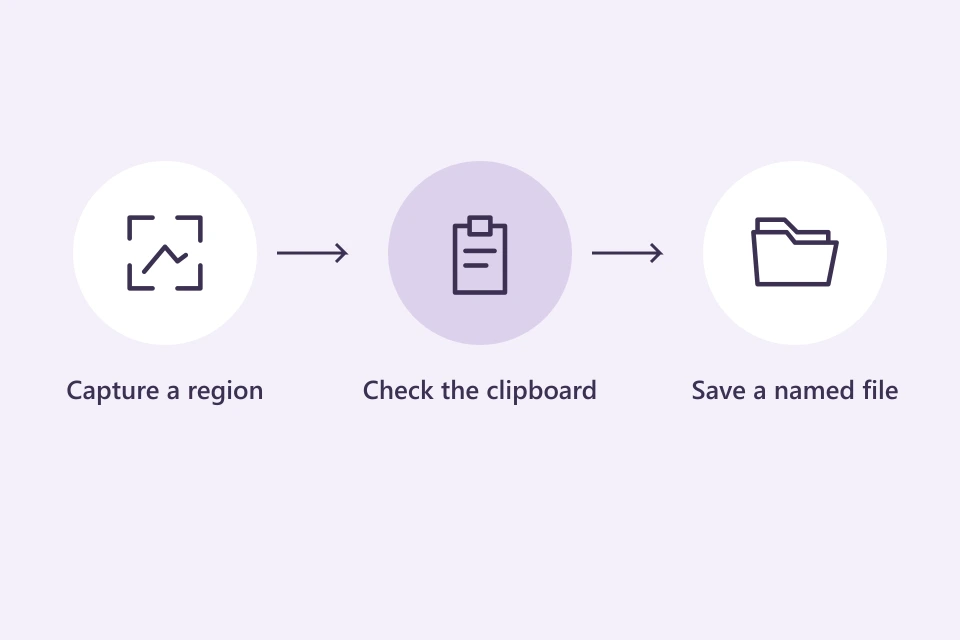
If you used a capture shortcut and did not save the image, it may still be on the clipboard. Open Paint and press Ctrl + V. If the screenshot appears, use File, Save as and choose a folder and filename. Do not copy another image or text before you recover it because a new clipboard item may replace the screenshot.
Know what the main screenshot shortcuts do
- Windows + Shift + S: Opens the Snipping Tool capture interface. Depending on your settings, the capture may go to the clipboard and appear in a notification so you can open and save it.
- Windows + Print Screen: On many Windows systems, captures the screen and saves the image automatically in Pictures, inside Screenshots.
- Print Screen: Behavior varies by Windows settings and keyboard. It may open Snipping Tool or copy a screenshot to the clipboard.
- Alt + Print Screen: Often captures the active window to the clipboard rather than saving a file automatically.
Laptop keyboards sometimes require the Fn key with Print Screen. Check the keyboard labels and your device manual if the shortcut does not behave as expected.
Open Snipping Tool and save the capture
After using Windows + Shift + S, look for a notification from Snipping Tool. Select it to open the captured image. Use Save as to choose a destination folder and a descriptive filename. If the notification disappeared, open Snipping Tool and check whether the capture is still available in the current session. If not, try the clipboard method immediately.
Current Windows versions may save original screenshots automatically, depending on Snipping Tool settings. Open Snipping Tool, go to its settings and check the automatic screenshot-saving option and the folder it uses. The setting may differ by Windows version. Do not assume that every capture is saved automatically.
Look in the Screenshots folder
Open File Explorer and check Pictures, then Screenshots. Sort the folder by Date modified so the newest image appears near the top. If OneDrive backs up your Pictures folder, the actual location may appear under OneDrive in File Explorer. Check the folder path before assuming the screenshot is missing.
You can also use File Explorer search. Search for common image types such as PNG or JPG and sort the results by date. A screenshot may have a generated filename, so the date and time can help you identify it. Check the Recycle Bin if you may have deleted it after capture.
Find a screenshot saved to OneDrive
Some Windows configurations save screenshots to OneDrive. Open OneDrive in File Explorer or in a browser and check Pictures or Screenshots. If the folder is synced, allow time for the upload to finish before checking another device. Do not delete the local file until you confirm that the online copy opens correctly.
Make the next screenshot easy to find
After saving a screenshot, use a name that explains its purpose. For example, use Printer-Error-2026-11-09.png instead of Screenshot 1. Save it in a project or support folder that you can find later. If you take several screenshots for one issue, use a consistent naming pattern such as 01-Error, 02-Settings and 03-Result.
Before attaching a screenshot to a support request, review the image. Crop out unrelated browser tabs, email addresses, account names, notification previews and private documents. Keep enough context to show the error message and the application involved. Do not expose passwords, recovery codes or customer information.
Common problems
Nothing appears when I press Ctrl + V in Paint
The screenshot may not be on the clipboard, or another item may have replaced it. Check the Screenshots folder and Snipping Tool’s saved location. Capture the image again if the original is still visible.
The screenshot notification disappeared
Open Snipping Tool and check its settings and saved screenshot folder. If the capture was only on the clipboard, use Paint immediately after taking it.
I cannot find the Pictures folder
Open File Explorer and select Pictures from the navigation pane. If OneDrive manages the folder, check its OneDrive location as well.
The screenshot is blank or incomplete
Repeat the capture and make sure the correct monitor or window is selected. Some protected video or application content may not appear in screenshots.
Common questions
Where does Windows save screenshots automatically?
On many Windows systems, Windows + Print Screen saves images in Pictures, then Screenshots. Snipping Tool may use a different folder depending on its settings.
Can I recover a screenshot after copying something else?
The previous clipboard item may have been replaced. Check whether Snipping Tool saved the image automatically or whether it exists in the Screenshots folder.
What file type should I use?
PNG is a good choice for screenshots with text and interface details. Use another format only when your workflow or upload limit requires it.
Final screenshot recovery checklist
- Identify which shortcut you used.
- Paste into Paint if the screenshot may still be on the clipboard.
- Check Snipping Tool’s notification and save settings.
- Look in Pictures, Screenshots and OneDrive.
- Sort files by Date modified.
- Save the image with a useful filename.
- Remove private information before sharing.
For another Windows feature that helps recover copied content, read our guide to using Windows Clipboard History. If you are preparing a screen demonstration, see how to stop Windows notifications during a presentation.
Reference: Microsoft Support: Use Snipping Tool to capture screenshots.
Keep screenshots organized for support work
If you collect screenshots while troubleshooting, store them in a folder named for the issue or device. Add the date and a short description to each filename. This makes it easier to compare the original error with the final result and helps another technician understand the sequence without asking you to capture everything again.



