
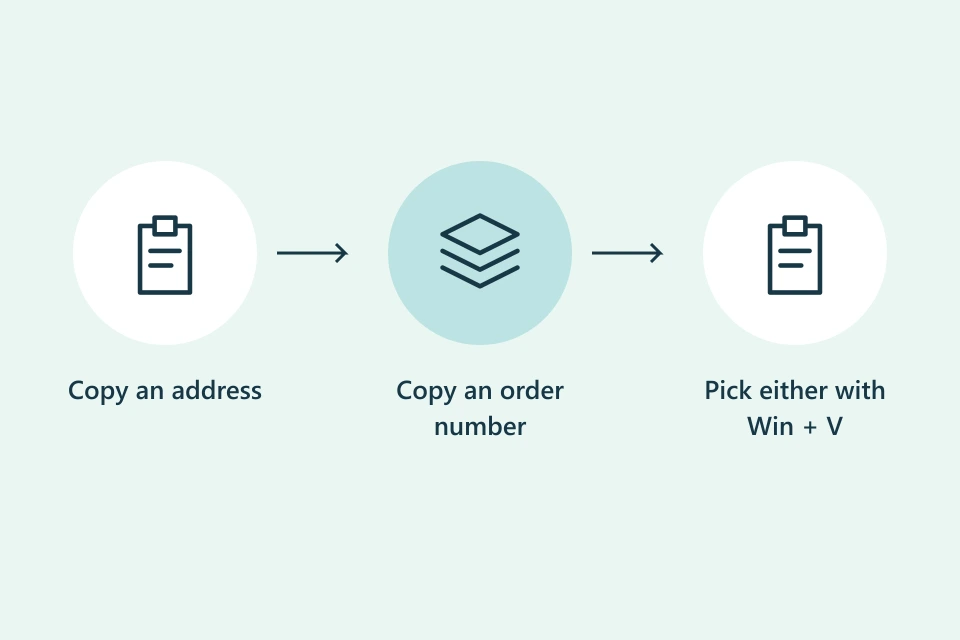
You copied an address, then copied an order number before pasting the address. Windows Clipboard History helps you recover an earlier copied item instead of replacing it with the most recent one. Press Windows key + V to open the clipboard panel. If history is enabled and the item is still stored, select the text or image you need.
Understand the difference between Paste and Clipboard History
Ctrl + V normally pastes the latest item copied to the clipboard. Windows key + V opens the history panel, where you can choose from earlier copied items. This is useful when you copy several pieces of information in sequence, such as a customer address, order number and tracking reference.
Turn on Clipboard History
- Press Windows key + V.
- If Windows asks you to enable Clipboard History, select Turn on.
- Copy two harmless test phrases from Notepad.
- Press Windows key + V again.
- Select the first phrase and paste it into a blank document.
Enabling history starts collecting clipboard items from that point. It does not recover text copied before the feature was enabled. If the missing address was copied while history was off, return to the original email, website or document and copy it again.
Choose an older clipboard item
Place the cursor in the document or application where you want to paste. Press Windows key + V and review the list. Select the item you need. Windows inserts it into the active field. If the item is a picture, confirm that the destination application supports pasting that image type.
Clipboard History can store text and images, but not every application handles every format in the same way. A copied table may paste as plain text in one app and preserve formatting in another. Check the result before sending or saving important information.
Pin items you reuse
You may pin items that you use repeatedly, such as a public office address or a standard non-sensitive message. Pinned items remain available beyond the normal history cleanup behavior, subject to Windows and account settings. Do not pin customer details, private addresses, passwords or authentication codes on a shared computer.
Windows has a limit on the number of recent clipboard items it keeps. Older unpinned items may disappear as new content is copied. A restart can clear unpinned history. Treat Clipboard History as a short-term convenience, not a permanent storage system.
Clear one item or the full history
Open Windows key + V and use the menu beside an item to delete that entry. If you need to clear the history, use the clear option in the panel or open Settings, System and Clipboard. Check whether pinned items remain and remove them separately if you need a complete cleanup.
On a shared or public computer, clear sensitive clipboard entries before you leave. Also close the document or application where you pasted the information. Clearing clipboard history does not remove text that you already pasted into another file, email or chat.
Use clipboard sync carefully
Some Windows configurations offer clipboard synchronization across devices. This may require you to sign in with an account and enable sync. It is convenient when you move between your own computers, but it may send copied information to another device connected to the same account.
Do not enable clipboard sync on a shared computer or for sensitive business information unless your organization’s policy permits it. Passwords, customer data and private messages should stay within approved systems. Check which devices use the account before enabling cross-device clipboard features.
Common reasons an item is missing
- History was off: Windows did not save earlier copied items before you enabled the feature.
- Too many items were copied: Older unpinned entries may have been removed from the list.
- The PC restarted: Unpinned history may have been cleared.
- The app uses protected content: Some applications restrict copying or clipboard access.
- Clipboard was cleared: A user or cleanup process may have removed the item.
- Different Windows account: Clipboard history is associated with the user session and may differ between accounts.
Protect sensitive information
Clipboard History can expose copied information to someone who uses your unlocked computer. Avoid copying passwords into ordinary documents or leaving sensitive entries in the history panel. Use a trusted password manager for credentials and follow your organization’s approved process for customer and financial data.
Before sharing a screenshot of the clipboard panel, remove private entries from the image. Our guide to finding a screenshot in Windows explains how to save and review a capture before sending it to support.
Common questions
Can Clipboard History recover something copied before I turned it on?
No. It starts collecting items after you enable it. Reopen the original source and copy the information again if it is still available.
Why does Windows key + V show nothing?
Clipboard History may be off or empty. Press the shortcut and enable it if Windows offers that option.
Does clipboard history save everything forever?
No. It has a limited history and unpinned items may be removed. A restart can also clear unpinned entries.
Can I sync clipboard items to another computer?
Some Windows configurations support sync across devices. Review the account and organization policy before enabling it.
Does clearing history delete text I already pasted?
No. It clears stored clipboard entries. It does not remove text already inserted into documents, messages or other applications.
Final Clipboard History checklist
- Enable history with Windows key + V.
- Test it with harmless text.
- Select the earlier item from the history panel.
- Pin only non-sensitive information you reuse.
- Clear private entries on shared computers.
- Review clipboard sync before enabling it.
- Use a password manager for credentials.
For more Windows tips, read our guide to finding a screenshot you just took in Windows and making Windows text bigger without blurring the screen.
Reference: Microsoft Support: Using the clipboard.
Use a separate place for important reusable text
If you need to keep a standard address, checklist or template for months, save it in an approved document or notes app instead of relying on clipboard history. Clipboard entries are temporary and may disappear after a restart or as you copy new content. A saved file gives you a more reliable reference.



