
Seeing Connected, no internet does not always mean the Wi-Fi signal is weak. Your phone or laptop may connect to the router successfully while the router itself cannot reach the internet. The fastest fix starts by locating which part of the connection has failed.
Run a two-device test first
- Keep your laptop connected to the affected Wi-Fi network.
- Connect a phone to the same Wi-Fi name, with mobile data temporarily turned off.
- Open a normal website on both devices.
- Note whether both fail, only one fails or some apps work while others do not.
| Test result | Likely area to investigate |
|---|---|
| Both devices show no internet | Router’s WAN link, modem, ISP, captive portal or network-wide settings |
| Phone works, laptop fails | Laptop adapter, DNS, VPN, proxy or network profile |
| Some websites work | DNS, service-specific problem or filtering |
| Ethernet works, Wi-Fi does not | Wireless network configuration, access point or client |
Check the router without resetting it
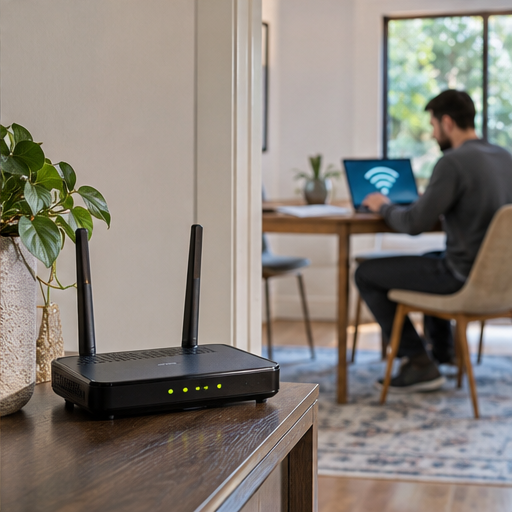
Look at the router’s internet or WAN status indicator, using the label in its manual. If your setup has a separate modem or optical terminal, check for warning lights there as well. A blinking Wi-Fi light tells you only that wireless activity exists; it does not prove the ISP connection is working.
Check your internet provider’s outage notice or account status using mobile data. Do not factory-reset the router unless the owner has approved it and you have the connection settings. Factory reset may erase the ISP or network configuration.
Check the affected Windows laptop
- Open Settings → Network & internet and confirm Wi-Fi is connected to the expected network.
- Disconnect and reconnect once. If the password has changed, ask the network owner for the current key.
- Temporarily disconnect an approved VPN for one controlled test, if your organization’s policy allows it.
- Use the Windows Network and Internet troubleshooter in Get Help.
- Try a known-safe browser and another website to rule out a single website outage.
For Windows-specific details, follow our first seven laptop Wi-Fi checks. If you can safely test a wired connection, see how to compare Ethernet and Wi-Fi.
Understand a captive portal
Hotel, airport and guest Wi-Fi may connect before granting internet access. Check whether the provider requires sign-in or acceptance of terms. Open the network’s official sign-in page and avoid entering passwords into unexpected lookalike pages. A workplace guest network may also block internal resources by design.
When DNS could be involved
If some services work while websites fail by name, a DNS problem is one possibility. Check whether a VPN, DNS filter or security tool is changing name resolution. Do not replace company DNS settings with public addresses without permission. On a home network, use the router’s or provider’s supported diagnostic instructions.
Common mistakes to avoid
- Repeating your Wi-Fi password when the router has already accepted the connection.
- Factory-resetting a router before checking whether the ISP is down.
- Changing DNS, IP addresses and VPN settings at the same time, making the result impossible to interpret.
- Assuming that a working mobile-data connection proves the Wi-Fi network works.
Frequently asked questions
Can Wi-Fi show connected when the internet is down?
Yes. Wi-Fi connects the device to the local wireless network; internet service is a separate connection.
Does resetting the router always fix no internet?
No. An ISP outage, unpaid service, missing authentication or faulty upstream line will not be resolved by repeatedly resetting Wi-Fi settings.
What if only one device has the problem?
Focus on that device’s network settings, adapter, VPN and troubleshooting tools before changing settings for everyone.
Official reference
Microsoft: Fix Wi-Fi connection issues in Windows.



