
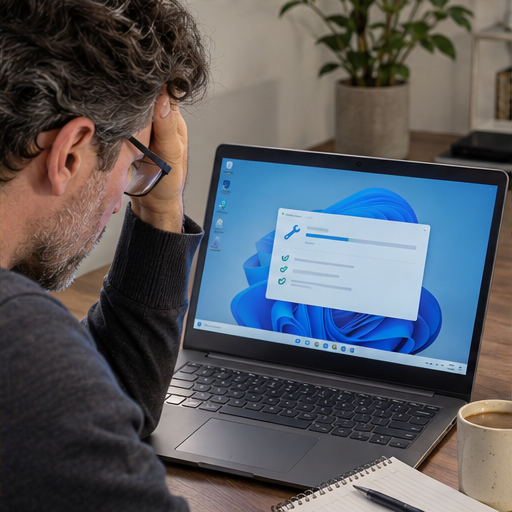
A Windows update that sits at 0%, 35% or 100% is frustrating, but the percentage alone does not prove the process has failed. Windows may be downloading a large file, checking packages, preparing installation or completing background work. Start with a few observations before stopping anything.
First, identify which stage is stuck
- Downloading: Windows is obtaining update files. Network interruptions, metered connections and service delays may affect progress.
- Installing inside Windows: The update has downloaded and is applying changes while you can still use the desktop.
- Restart screen: Windows is applying changes before it returns to the desktop. Do not force shutdown just because the percentage remains unchanged for several minutes.
Write down any update name and error code. Check whether the drive light shows activity and whether Windows still responds. On a laptop, connect the charger and leave enough time for a large update to process.
Check connection and disk space
- Open Settings → Network & internet and verify the connection actually works by loading a trusted website.
- Open Settings → System → Storage to check free space on the Windows drive.
- Close unnecessary downloads, large applications and video streams while the update runs.
- If you use a mobile hotspot, confirm your mobile-data allowance before retrying a large download.
Insufficient space may block updates. Remove temporary files through Windows Storage settings only after reviewing the selected categories. Avoid deleting documents or the Downloads folder automatically. Our guide to freeing Windows storage without losing downloads explains the difference.
Run the official Windows Update troubleshooter
- Save open work and restart Windows normally if the computer is responsive and an installation is not currently underway.
- In Windows 11, open Get Help and search for Windows Update troubleshooter. You may also find related options under Settings → System → Troubleshoot.
- Follow the diagnostics. Record what the troubleshooter changes or reports.
- Restart if prompted, then open Settings → Windows Update → Check for updates.
Microsoft recommends its automated troubleshooter as an early step. It can address common update problems without asking you to delete system folders.
What if the percentage still does not move?
Check the update history for a failure code under Windows Update. If Windows has reached the desktop, try a normal restart and check again. Do not keep forcing restarts during the full-screen installation stage. A device that displays an error or rolls back repeatedly needs investigation using the exact error code.
| What you see | Best next action |
|---|---|
| Download stuck but websites work | Check update history, storage and the troubleshooter |
| Slow download over phone hotspot | Check metered connection and mobile-data allowance |
| Installation waiting for restart | Save work and use Windows’ Restart now option |
| Error code after rollback | Record exact code and consult Microsoft’s code-specific instructions |
| PC cannot boot | Use approved recovery guidance or professional support |
Avoid these common mistakes
- Do not delete Windows Update system folders from an unverified online script.
- Do not turn off BitLocker or device security merely to make an update proceed.
- Do not repeatedly force power off during an active installation.
- On a company laptop, ask your IT team before altering update services or managed policies.
Frequently asked questions
Is Windows Update at 100% still working?
It might be. Downloading and applying the update are separate processes. Look for a restart prompt, ongoing activity or an error message before deciding it has frozen.
Should I reset Windows to fix updates?
No. Resetting is a major change and may remove applications or settings. Try official diagnostics and investigate the exact failure first.
Will clearing storage delete my documents?
Not when you select only safe temporary categories, but review every category before confirming. Make a backup of important files first.
Official reference and next steps
Microsoft: Troubleshoot problems updating Windows. If the update uses a hotspot, also read how to limit data use on a phone hotspot.



