
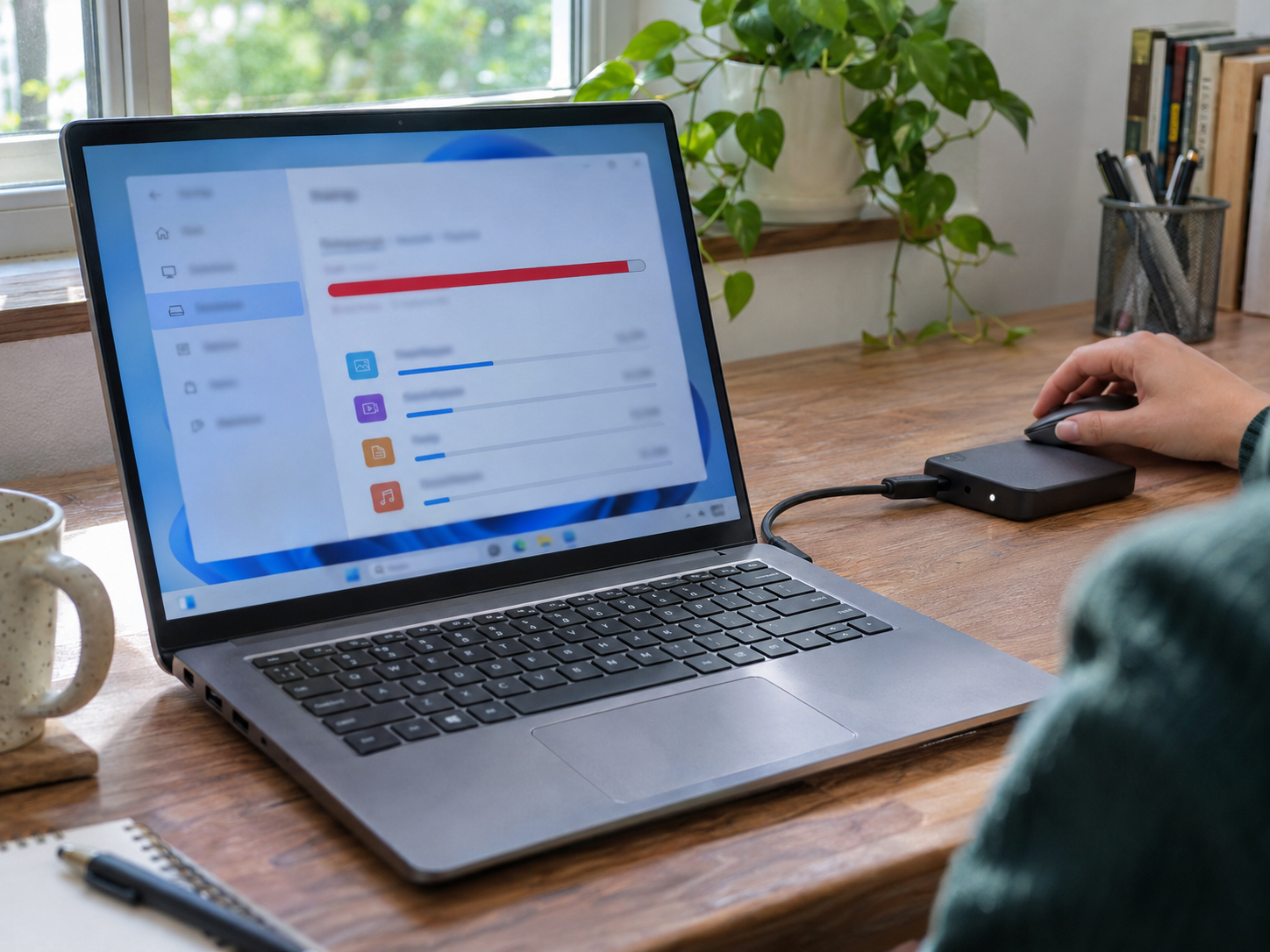
Check what uses space before deleting files from a full Windows drive. Windows can show the largest storage categories and suggest cleanup items, but you should review each item before removing it.
Which files are using space on C:?
Open Settings → System → Storage. Wait for Windows to calculate usage, then review categories such as Installed apps, Temporary files, and Documents. File Explorer’s This PC view also shows free space on the drive.
Can Cleanup recommendations remove files you recognize?
Open Settings → System → Storage → Cleanup recommendations. Review each category and the listed files before you choose Clean up. Check Downloads with care; it may contain files you still need. Do not select items solely because they show a large size.
Microsoft’s Windows drive-space guide explains Storage Sense and cleanup recommendations.
Can you remove apps you no longer use?
Open Settings → Apps → Installed apps, sort by size, and remove only apps you recognize and no longer need. Keep manufacturer drivers and tools you rely on. If you are unsure what an app does, check its publisher before uninstalling it.
Can you move personal files to another drive?
Copy large videos, photos, or archives to a separate drive or a cloud location you trust. Open a few copied files to confirm the transfer worked before deleting the originals. A move is not a backup if the second location is the only copy.
Should you use Storage Sense?
Storage Sense can clear selected temporary files on a schedule. Open Settings → System → Storage → Storage Sense and review its options before turning on automatic cleanup. Check what Windows will remove, especially how it handles files in Downloads and the Recycle Bin.
Which folders should you leave alone?
Do not manually delete folders inside Windows, Program Files, or AppData to make space. Use Windows settings or the app’s own uninstaller. For more detail on keeping downloads, read this Windows storage guide.
About the author: Emmanuel Kofi Ampiah writes practical guides about everyday devices. Learn about Emmanuel or view his portfolio.



