
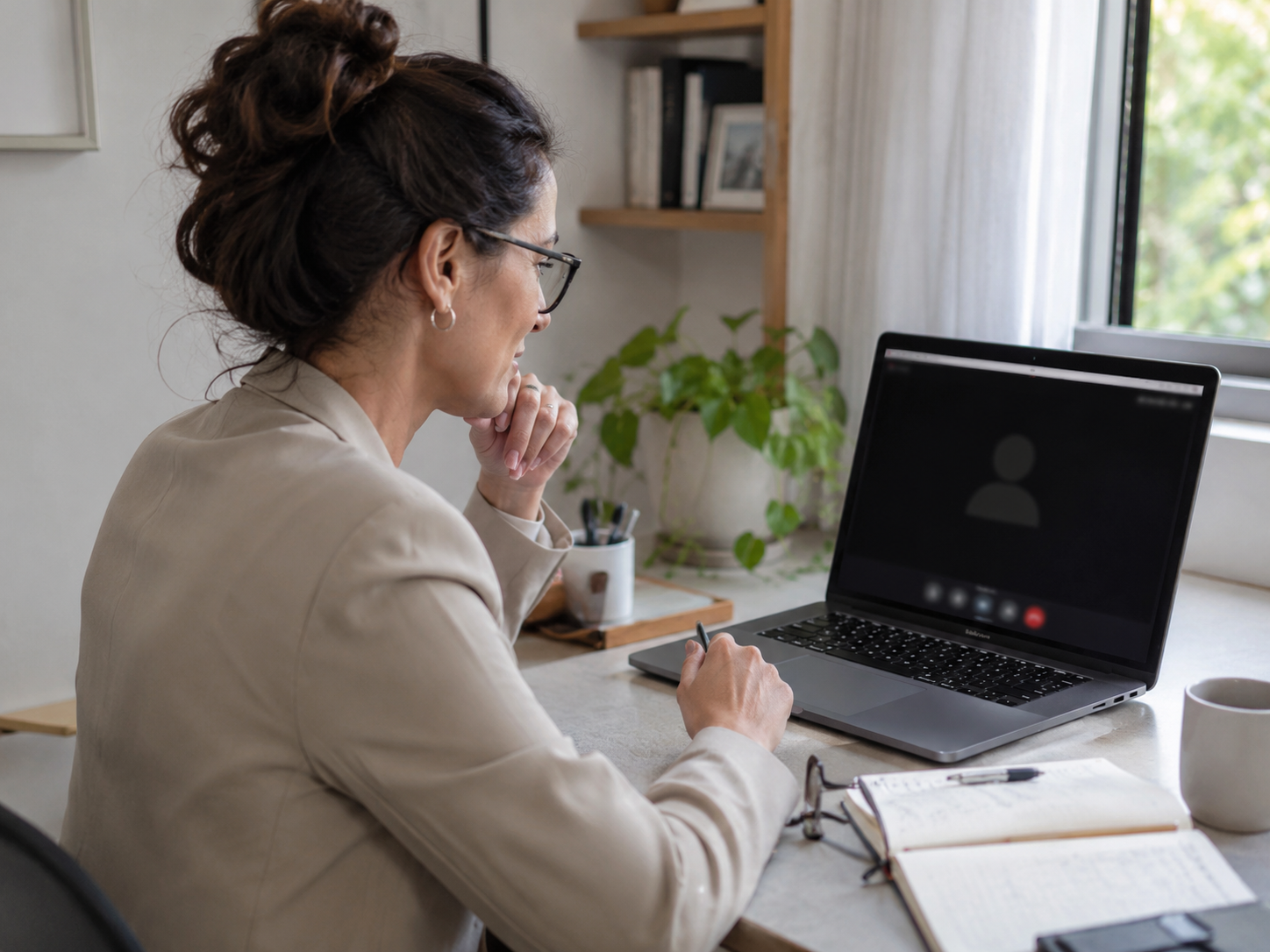
A webcam can fail because a privacy shutter is closed, Windows blocks camera access, or the meeting app selected another camera. Test the camera in Windows before reinstalling anything.
Is a privacy shutter or camera key switched off?
Check the small slider near the camera and the keyboard for a camera key. Some laptops use an Fn shortcut to disable the camera. Open the shutter and try the camera again.
Does the Windows Camera app show a picture?
Open Start, search for Camera, and check the preview. If the preview works there but not in your meeting app, focus on the app’s camera selection or permissions. Close the Camera app after the test so it releases the webcam.
Can Windows and the meeting app access the camera?
Open Settings → Privacy & security → Camera. Turn on camera access and app access. For a browser or desktop meeting app, check Let desktop apps access your camera. In the meeting app, select the correct camera in its video or device settings.
Microsoft’s Windows camera troubleshooting guide covers permissions, external webcams, and drivers.
Could another app be using the webcam?
Leave the meeting, then close apps that may use the camera, such as another meeting app or a browser tab. Reopen the meeting app and test its preview. If the browser asks for camera access, allow it for the correct site.
Is the camera connected firmly?
For an external webcam, unplug it and connect it to another USB port on the laptop. Avoid a hub for the first test. If you can, test the webcam on another computer. For a built-in camera, restart the laptop and check Windows Update for driver updates.
When should you ask for repair help?
If Windows does not detect the built-in camera after you check privacy settings and updates, consult the laptop maker’s support page. A managed work or school device may have camera access controlled by its IT administrator.
If the camera works but you cannot hear callers, see these Windows microphone checks.
About the author: Emmanuel Kofi Ampiah writes practical guides about everyday devices. Learn about Emmanuel or view his portfolio.



